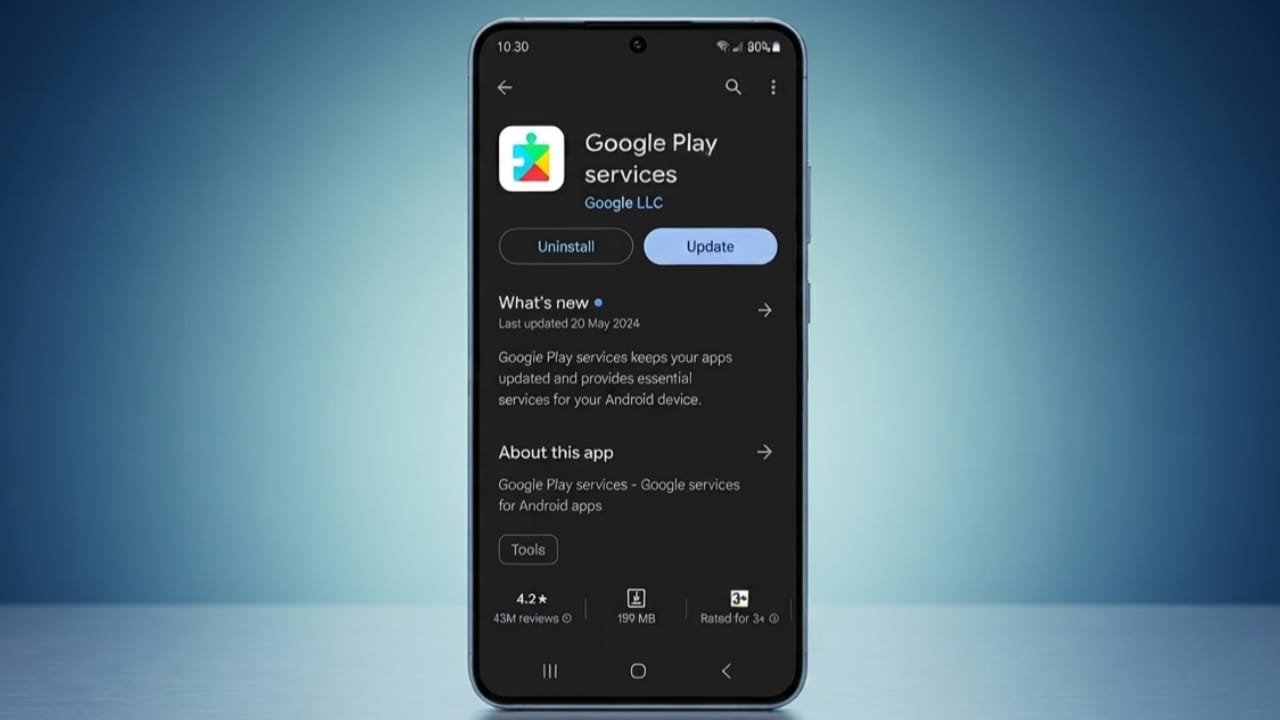
Google Play Services is an essential part of every Android device. It allows your apps to work properly with Google’s services, including Gmail, Google Maps, the Play Store, Google Sign-In, and many other features. It also helps improve security and keeps apps running smoothly in the background.
Advertisements
Most Android phones update Google Play Services automatically. However, if you notice app crashes, battery drain, or performance issues, updating it manually may solve the problem.
Also read: How to Zip and Unzip Files and Folders on Mac
Key Highlights
- Google Play Services usually updates automatically in the background.
- A manual update can fix bugs, app crashes, and performance issues.
- Always install a stable version that matches your Android device.
Method 1: Update Through the Google Play Store
The safest and easiest way to update Google Play Services is through the Google Play Store. Since it is a system app, you may not find it by searching directly. Instead, open its Play Store page from your phone’s settings.
Steps to Update
- Open Settings on your Android phone.
- Tap Apps or Apps & notifications.
- Select See all apps if needed.
- Search for Google Play Services and open it.
- Scroll down and tap App details.
- This will open its page in the Google Play Store.
- If an update is available, tap Update.
- Wait until the installation finishes.
If there is no Update button, your phone is already using the latest version available for your device.
Method 2: Update Using APKMirror
Sometimes a new update is not available through the Play Store right away. In that case, you can manually install a compatible version from APKMirror.
Before downloading, check your current version:
- Open Settings.
- Go to Apps.
- Select Google Play Services.
- Open App info and note the version number.
Then follow these steps:
- Open APKMirror in your mobile browser.
- Search for the latest stable version of Google Play Services.
- Avoid beta releases unless you specifically need them.
- Open the required version and choose See Available Downloads.
- Download the file that matches your phone’s processor architecture. Most recent Android devices use arm64-v8a.
- If a standard APK is available, install it directly. If the release is provided as a bundle, use the appropriate installer.
- Open the downloaded file and complete the installation.
- Restart your phone after the update.
If the installation fails, the file may not be compatible with your device. Download the correct version and try again.
Why You Should Keep Google Play Services Updated
Keeping Google Play Services up to date helps your Android phone perform better and remain secure. Older versions can sometimes cause apps to stop working correctly or create unexpected errors.
Regular updates can provide several benefits:
- Better compatibility with Android apps.
- Improved device stability.
- Bug fixes and smoother performance.
- Enhanced security through Google Play Protect.
- Important system security improvements delivered through Project Mainline.
Keep in mind that Google Play Services and the Google Play Store are different. The Play Store lets you download apps, while Google Play Services works behind the scenes to support Android features and help apps communicate with Google’s services.
Also read: How to Fix iTunes Connection Error 3259: A Simple Troubleshooting Guide
Final Thoughts
For most users, updating through the Google Play Store is the easiest and safest option. If the update is not yet available, installing a compatible version from APKMirror can be a useful alternative.
Keeping Google Play Services updated improves security, app compatibility, and overall Android performance, helping your device run more smoothly and reliably.

Abhi Rajput, founder of EarnAbhi.in, is a tech lover with 6+ years of experience in SEO, digital tools, and smartphone troubleshooting. He writes simple, clear, and useful guides to help people solve real tech problems.
Advertisements