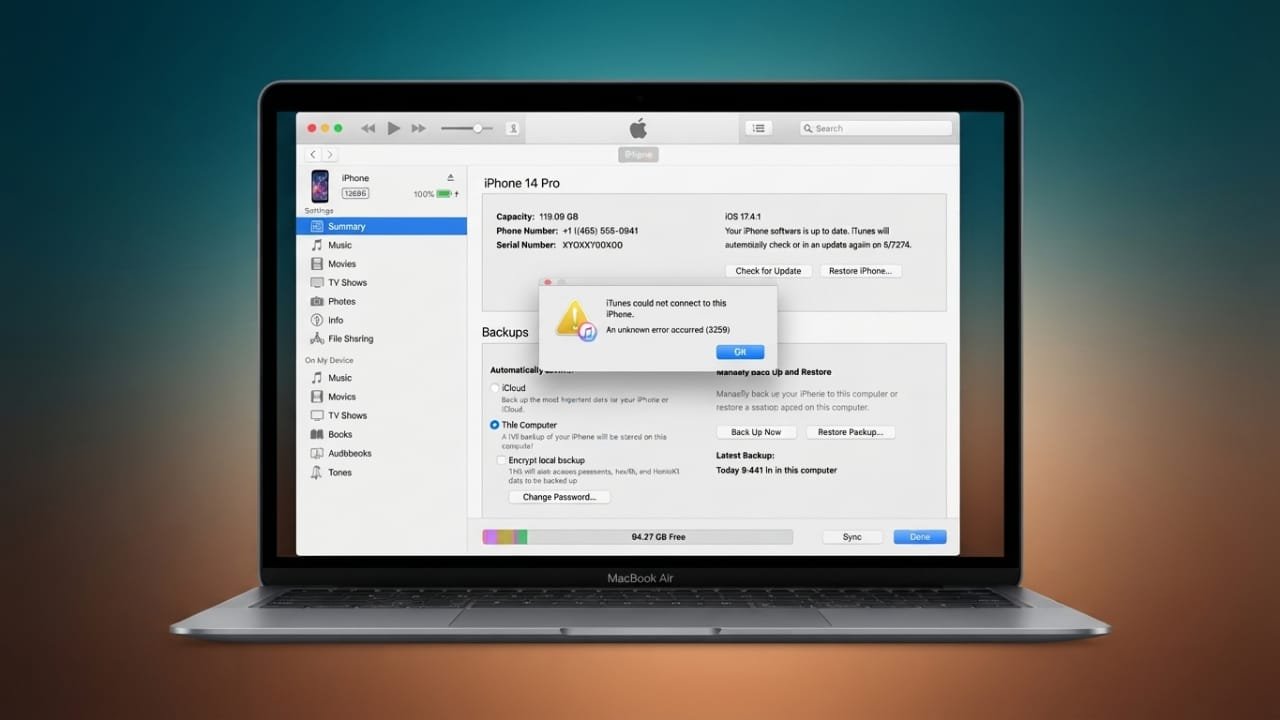
iTunes Error 3259 can appear when iTunes is unable to establish a proper connection with Apple’s servers. You may notice the error while syncing an iPhone, downloading content, or installing an update.
Advertisements
The problem can have several causes, including an unstable internet connection, outdated software, firewall restrictions, or incorrect computer settings. Fortunately, there are several troubleshooting steps you can try before looking for more advanced solutions.
Also read: How to Use Double Tap on Apple Watch: Step-by-Step Guide
Common Causes of iTunes Error 3259
There is no single reason behind Error 3259. The problem may be related to your computer, network, iTunes installation, or security settings.
Some common possibilities include:
- An unstable or interrupted internet connection
- An outdated version of iTunes
- Pending Windows or macOS updates
- Firewall or security software blocking iTunes
- Incorrect date and time settings
- Changes to the computer’s hosts file
- Damaged or incomplete iTunes files
- Software conflicts affecting the connection
Identifying the likely cause can make troubleshooting much easier.
Start With the Basic Fixes
Before changing advanced settings, try a few simple solutions.
1. Update iTunes
Using an outdated version of iTunes can sometimes lead to compatibility or connection problems.
On Windows, check for available updates through the method you normally use to install iTunes. If you installed it through the Microsoft Store, check for updates there.
Mac users should install available software updates through the system’s update settings, depending on their macOS version.
After updating, restart your computer and try using iTunes again.
2. Install Available System Updates
Your operating system also plays an important role in software compatibility.
Check Windows Update on a Windows PC or Software Update on a Mac. Install any pending updates and restart the computer if required.
Keeping the operating system updated can help prevent compatibility problems between iTunes and other system components.
3. Check Your Internet Connection
A weak or frequently interrupted connection can prevent iTunes from communicating correctly with Apple’s servers.
Try opening a few websites to confirm that your connection is working normally. If the connection seems unstable, restart your router and reconnect your computer.
If possible, you can also test iTunes using a different network. This can help determine whether the problem is related to your current internet connection.
4. Check Date and Time Settings
Incorrect date, time, or time-zone settings can sometimes cause problems when software connects to online services.
Open your computer’s date and time settings and make sure the correct time zone is selected. Enabling automatic time synchronization is usually the easiest option.
Once the settings are corrected, restart iTunes and check whether the error is still present.
Check Firewall and Security Software
Your firewall or security program may prevent iTunes from accessing the internet.
Check the firewall settings on your computer and make sure iTunes is allowed to communicate through the network. The exact steps depend on your operating system and security software.
If you use third-party antivirus software, check whether it has a network protection feature that could be interfering with iTunes.
Avoid leaving security software disabled permanently. If you temporarily turn off a security feature for troubleshooting, enable it again after the test.
Check the Hosts File Carefully
The hosts file on a computer can be used to control how certain internet addresses are resolved. If it has been manually modified, it may interfere with connections to Apple’s services.
This is an advanced troubleshooting step, so avoid changing the file unless you understand what you are doing.
If you suspect that the hosts file has been modified, check its contents against the standard configuration for your operating system. Creating a backup before making any changes is also a sensible precaution.
You can also run a trusted security scan if you believe unwanted software may have changed system settings.
Reinstall iTunes
If the basic troubleshooting steps do not work, the iTunes installation itself may be damaged.
In that situation, removing the existing installation and installing iTunes again can help replace missing or corrupted program files.
Before uninstalling software, make sure you understand where your existing iTunes data and backups are stored. If you have important backups, keep an additional copy before making major changes to the installation.
After reinstalling iTunes, restart the computer and test the connection again.
Try a Different Network
Sometimes the issue is not caused by iTunes at all. Your current network may have restrictions that prevent certain connections from working correctly.
If you have access to another trusted internet connection, test iTunes on that network. If the error disappears, your original network or router settings may need further investigation.
This is particularly useful when iTunes works normally on another computer or network.
When Advanced Repair Tools May Help
If normal troubleshooting does not solve the problem, some third-party software provides tools designed to diagnose or repair iPhone and iTunes-related issues.
Before using any repair application, research the software carefully and download it only from the developer’s official website. Check what the tool does, what data it may access, and whether it offers a backup or recovery option.
Avoid applications that promise guaranteed results, claim to fix every problem instantly, or ask you to install unknown software.
For serious or unusual problems, Apple’s official support resources may be a safer starting point than using an unfamiliar repair utility.
Contact Apple Support if the Problem Continues
If Error 3259 continues after trying the available troubleshooting steps, contacting Apple Support can help identify whether the issue is related to your computer, iPhone, Apple software, or account.
Keep a note of when the error appears and what you were doing at the time. Details such as the operating system, iTunes version, and exact error message can make troubleshooting easier.
Also read: How to Reorder Headings in Word Using the Navigation Pane
Final Thoughts
iTunes Error 3259 is generally related to a connection or software configuration problem. Start with the easiest solutions: check your internet connection, update your software, verify the date and time, and review firewall settings.
If those steps do not help, you can investigate the hosts file or reinstall iTunes. Advanced repair tools may be worth considering only after checking their reputation and understanding how they handle your data.
Most importantly, avoid risky system changes and always keep important backups before performing major repairs or reinstalling software.

Abhi Rajput, founder of EarnAbhi.in, is a tech lover with 6+ years of experience in SEO, digital tools, and smartphone troubleshooting. He writes simple, clear, and useful guides to help people solve real tech problems.
Advertisements