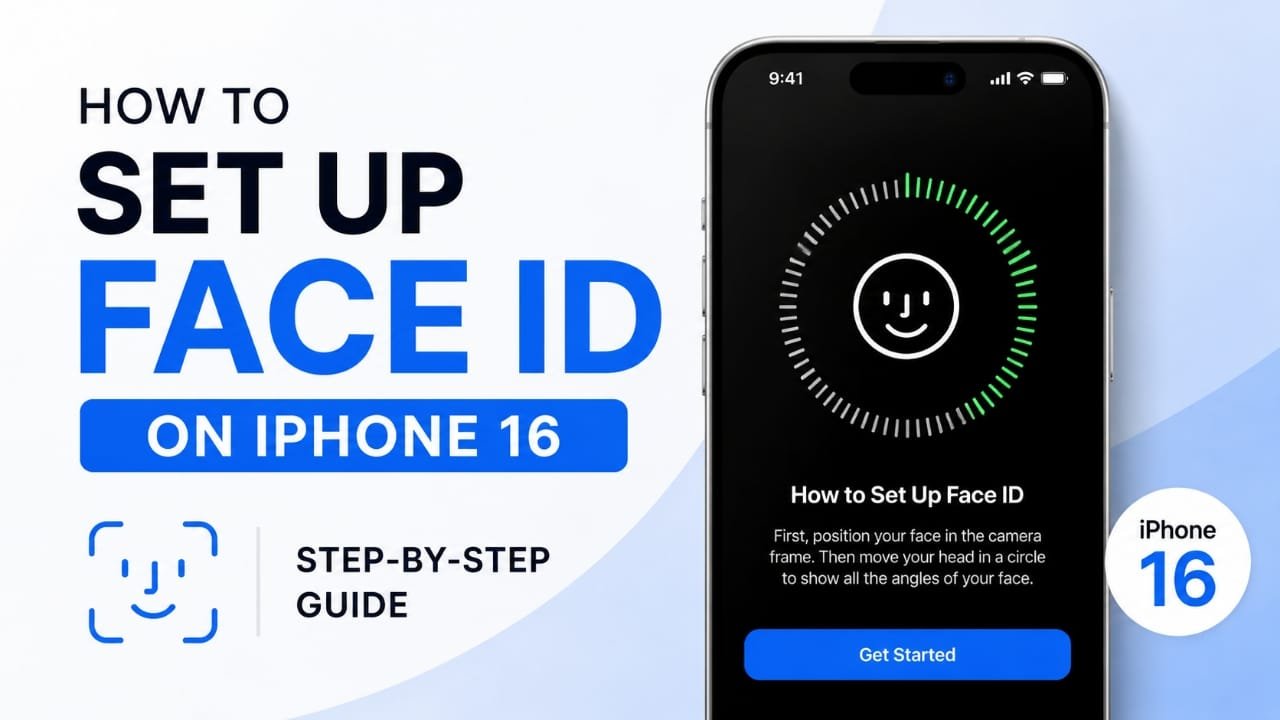
Face ID is one of the easiest ways to unlock your iPhone 16 while keeping your data secure. Instead of entering a passcode every time, you can unlock your phone, approve App Store purchases, use Apple Pay, and sign in to supported apps with a quick glance.
If you’ve recently purchased an iPhone 16, setting up Face ID only takes a few minutes. This guide explains every step in simple language, along with useful tips and solutions for common issues.
Advertisements
Also read: How to Transfer Photos from iPhone 16 to a Laptop
Quick Overview
- Open Settings.
- Tap Face ID & Passcode.
- Select Set Up Face ID.
- Scan your face by following the on-screen instructions.
- Complete the second scan.
- Choose where you want to use Face ID.
- Test it to make sure everything works properly.
How to Set Up Face ID on iPhone 16
Follow these simple steps to activate Face ID on your device.
Step 1: Open Face ID Settings
Unlock your iPhone and open the Settings app.
Scroll down and tap Face ID & Passcode.
Your iPhone will ask you to enter your passcode before you can access these security settings. This helps protect your personal information.
Step 2: Tap “Set Up Face ID”
Inside the Face ID settings, tap Set Up Face ID.
A new screen will appear with instructions and a circular frame where you’ll position your face.
If Face ID has already been configured before, you may first need to select Reset Face ID before creating a new scan.
Step 3: Position Your Face Correctly
Hold your iPhone at a comfortable distance in front of you.
Place your face inside the circle shown on the screen.
For the best results:
- Keep your full face visible.
- Remove anything blocking your face.
- Look directly at the display.
- Stay still while the scan begins.
Step 4: Complete the First Face Scan
When prompted, slowly move your head in a circular motion.
The progress indicator will fill as your iPhone captures different angles of your face.
Move naturally and avoid turning too quickly. If needed, the phone will ask you to repeat the movement.
Step 5: Finish the Second Scan
After the first scan is complete, tap Continue.
Repeat the same head movement so the iPhone can collect additional facial details.
Once both scans are finished, your device will confirm that Face ID has been successfully set up.
Step 6: Select Face ID Features
After setup, choose where you want to use Face ID.
Available options usually include:
- iPhone Unlock
- App Store & iTunes Purchases
- Wallet & Apple Pay
- Password AutoFill
- Supported third-party apps
Enable only the features you plan to use. You can always change these settings later.
Step 7: Test Face ID
Lock your iPhone.
Wake the screen by pressing the Side button or tapping the display.
Look directly at your phone. If Face ID recognizes you, the lock icon will open automatically.
You can also test it when downloading apps or making payments with Apple Pay.
Other Face ID Options
Set Up During Initial iPhone Setup
If your iPhone 16 is brand new, you’ll usually be asked to configure Face ID while setting up the device for the first time.
The process is the same and only takes a few moments.
Reset Face ID
If Face ID isn’t working as expected, you can create a fresh scan.
Go to:
Settings > Face ID & Passcode > Reset Face ID
Then follow the setup process again.
Add an Alternate Appearance
If your appearance changes often, you can improve recognition by adding another facial scan.
This feature is useful if you regularly wear:
- Glasses
- Hats
- Different hairstyles
- Certain accessories
Open Settings > Face ID & Passcode, then choose Set Up an Alternate Appearance.
Using Face ID with Glasses
Face ID works with many prescription glasses and some sunglasses.
If recognition isn’t consistent, complete the initial setup without heavily tinted lenses, then test again while wearing your glasses afterward.
If Face ID Isn’t Available
Sometimes the Face ID option may not appear because of:
- Screen Time restrictions
- Device management settings
- Temporary software problems
- Hardware issues
Restart your iPhone first and check whether any restrictions are enabled.
Frequently Asked Questions
Do I need a passcode before using Face ID?
Yes. A passcode is required because it serves as the backup security method for your iPhone.
Does Face ID work in low light?
Yes. Face ID uses advanced sensors that can recognize your face even in dark environments.
Can Face ID recognize me while wearing a mask?
Some versions of iOS support Face ID with a mask. Availability depends on your software version and device settings.
Helpful Tips
- Keep the front camera area clean.
- Hold the phone at a natural viewing distance.
- Test Face ID while wearing your everyday glasses if you use them regularly.
- Enable Face ID only for the features you actually use.
- Restart your iPhone if Face ID feels slow after setup.
- Always use a strong passcode for added security.
Troubleshooting Face ID Problems
Face ID Setup Won’t Finish
Check that:
- Your face is centered.
- Nothing blocks the front camera.
- You’re in a well-lit environment.
- You’re moving your head slowly during the scan.
Face ID Option Is Missing
Restart your iPhone.
If the option is still unavailable, review Screen Time restrictions or device management settings that may disable Face ID.
Face ID Doesn’t Always Recognize Me
Clean the front sensors and make sure your face is fully visible.
If needed, add an alternate appearance to improve recognition under different conditions.
“Face ID Is Not Available” Message
Update your iPhone to the latest version of iOS and restart the device.
If the warning continues after updating, the issue could be hardware-related, and contacting Apple Support may be necessary.
Face ID Unlocks Slowly
For the fastest recognition:
- Look directly at the display.
- Keep the phone within a comfortable viewing distance.
- Avoid covering the front camera or sensors.
Also read: How to Use Focus Mode in Microsoft Word
Final Thoughts
Setting up Face ID on the iPhone 16 is a quick process that makes everyday use more convenient. Once enabled, you can unlock your phone, confirm purchases, and sign in to supported apps with just a glance.
If Face ID doesn’t work perfectly at first, don’t worry. Resetting it and repeating the setup usually resolves most problems. With the right settings and a clear face scan, Face ID provides a fast, secure, and reliable way to access your iPhone.

Abhi Rajput, founder of EarnAbhi.in, is a tech lover with 6+ years of experience in SEO, digital tools, and smartphone troubleshooting. He writes simple, clear, and useful guides to help people solve real tech problems.