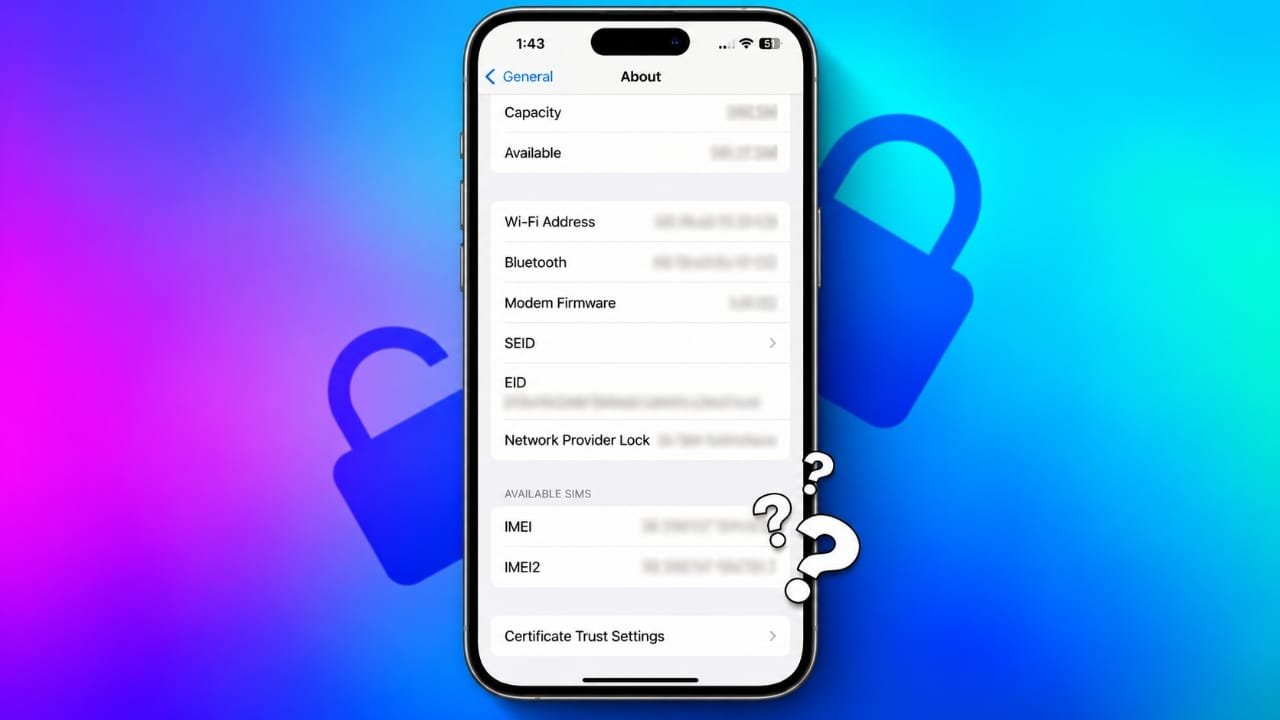
Not sure whether your iPhone is locked to a particular mobile network? Checking its carrier status before switching providers, setting up an eSIM, or traveling abroad can help you avoid connection problems.
An iPhone may work perfectly with your current SIM card even if it cannot connect to another carrier. This can become an issue when you change networks, purchase a second-hand device, or plan to use a local SIM card while traveling internationally.
Advertisements
Fortunately, you can check your iPhone’s carrier lock status in a few simple steps. Here are the easiest methods to find out whether your device is unlocked and what to do if it is still restricted.
Also read: ThemeMe App Review: Android Themes, Wallpapers, Widgets & Control Center Customization
What Is the Difference Between a Locked and an Unlocked iPhone?
A carrier lock is a restriction that limits which mobile networks an iPhone can use. Mobile carriers may apply this restriction to devices sold through certain plans or agreements.
An unlocked iPhone does not have this carrier restriction. However, it must still support the network technology and frequency bands used by your chosen carrier.
Here is a quick comparison:
| Feature | Locked iPhone | Unlocked iPhone |
|---|---|---|
| Carrier compatibility | Restricted by the original carrier | Can use compatible carriers |
| SIM cards | Limited to permitted networks | Supports compatible SIM cards |
| Switching networks | May require an official unlock | Generally easier to switch |
| International travel | May require roaming or an unlock | Can use supported local SIMs or eSIMs |
| Resale | May appeal to fewer buyers | Often easier to sell |
| Network restrictions | Carrier restrictions apply | No carrier lock |
Keep in mind that an unlocked iPhone is not guaranteed to work with every mobile network. Compatibility, regional restrictions, and carrier requirements can still affect connectivity.
1. Check Your iPhone’s Carrier Lock Status in Settings
The simplest way to check whether your iPhone is unlocked is through the Settings app. This option is available on iPhones running iOS 14 or later.
Follow these steps:
- Open the Settings app on your iPhone.
- Tap General.
- Select About.
- Scroll down until you find Carrier Lock or the related SIM restriction field.
- Read the status displayed next to it.
If the screen displays No SIM restrictions, your iPhone is not restricted by a carrier lock.
If the device shows a different status or a specific carrier restriction, contact the original carrier to confirm whether an unlock is required.
This method is usually the quickest because you do not need another SIM card or any additional software.
2. Test Your iPhone With a Different Carrier’s SIM Card
You can also test your iPhone using a SIM card from another mobile network. This is useful when you want to confirm that the device can connect to a different carrier.
Before trying this method, make sure the SIM card is active and compatible with your iPhone.
Follow these steps:
- Turn off your iPhone.
- Remove the existing SIM card from the SIM tray.
- Insert an active SIM card from another carrier.
- Reinsert the tray and turn on the device.
- Wait for the phone to connect to the mobile network.
If the iPhone connects successfully and can make calls or use mobile data, that is a good sign that it supports the other carrier.
However, if you see a message such as SIM Not Supported, the phone may have a carrier restriction.
A failed connection does not always mean the iPhone is locked. An inactive SIM, network compatibility issue, or incorrect carrier settings can cause similar problems. Check these possibilities before reaching a conclusion.
Also, some iPhone models sold in certain regions support eSIM only. In that case, you can test with a compatible eSIM instead of a physical SIM card.
3. Ask Your Mobile Carrier to Check the IMEI
If you are still unsure about the unlock status, contact the carrier that originally supplied your iPhone.
The carrier can check the device’s eligibility for unlocking and explain whether any restrictions remain. You may also need to contact the carrier if your iPhone says it is unlocked but refuses to activate with another network.
To find your iPhone’s IMEI number:
- Open Settings.
- Go to General.
- Tap About.
- Scroll down to find the IMEI field.
Share this number only through the carrier’s official support channels. Avoid posting it publicly.
Ask the carrier to confirm whether the device is unlocked and whether any activation or account-related restrictions could be preventing you from using another network.
If the carrier confirms that the device is unlocked but the problem continues, contact Apple Support for further troubleshooting.
4. Review the Original Purchase Details
Your iPhone’s purchase history may provide useful information about its original carrier status, especially if you bought it second-hand or received it as a gift.
Start by checking the original invoice, sales receipt, or order confirmation. These documents may indicate whether the device was purchased directly from Apple or through a mobile carrier.
An iPhone purchased directly from Apple is often sold unlocked, but this can depend on the country, sales arrangement, and specific purchase terms. Do not assume that the original seller’s identity alone proves the phone’s current status.
If you cannot find the receipt, contact the original seller or Apple Support to ask what purchase information they can verify. The Settings method remains the most straightforward way to check the current carrier lock status.
Why Should You Check Whether Your iPhone Is Unlocked?
Knowing your iPhone’s carrier status can save time and help you avoid unexpected problems when changing mobile networks.
Here are some practical benefits:
- Easier carrier switching: You can check whether the device is ready for use with another compatible network.
- More travel options: An unlocked iPhone may let you use a local SIM card or eSIM instead of relying entirely on international roaming.
- Simpler resale: Buyers may prefer an iPhone without carrier restrictions.
- Fewer activation surprises: Checking beforehand helps you identify potential restrictions before setting up a new SIM or eSIM.
An unlocked iPhone does not automatically receive better performance, additional software features, or stronger network coverage. Its main advantage is the flexibility to use compatible mobile carriers without a carrier lock.
What Should You Do If Your iPhone Is Locked?
If your iPhone is carrier-locked, contact the original mobile provider and request an official unlock.
The process generally involves the following steps:
- Identify the carrier that originally locked the device.
- Contact its customer support team and ask about the unlocking requirements.
- Complete any applicable eligibility conditions, such as outstanding payments or contractual obligations.
- Wait for the carrier to approve and process the request.
- Follow the carrier’s instructions to complete the unlock.
The requirements and processing time vary by carrier and country. Some providers may have additional conditions for second-hand devices.
After the carrier confirms that the unlock is complete, check the Carrier Lock field again in Settings. If you still experience problems, follow the carrier’s activation instructions or contact Apple Support.
Avoid services that promise guaranteed unlocking through unofficial software or questionable methods. They may not remove the carrier restriction and could expose your device or personal information to unnecessary risks.
Also read: How to Use Quick Share on Android: A Complete Beginner’s Guide
Final Thoughts
Checking whether your iPhone is unlocked is simple and can prevent unnecessary complications when changing networks or preparing the device for sale.
For most users, the best starting point is Settings > General > About > Carrier Lock. If the status says No SIM restrictions, the iPhone is not carrier-locked. If you need additional confirmation, test a compatible SIM or eSIM from another carrier or contact the original provider.
If your device is locked, an official carrier unlock is the recommended solution. Checking the status before switching networks, traveling, or buying a used iPhone helps you make a more informed decision.
Frequently Asked Questions
1. How can I check if my iPhone is unlocked without a SIM card?
Open Settings, select General, tap About, and look for Carrier Lock. If the status says No SIM restrictions, the iPhone is unlocked.
2. Can I unlock my iPhone without contacting the carrier?
If the iPhone is already unlocked, no additional action is needed. If it is carrier-locked, the original carrier generally handles the official unlocking process.
3. Does resetting an iPhone remove its carrier lock?
No. A factory reset does not normally remove a carrier lock because the restriction is managed through the carrier and Apple’s activation system.
4. Can an unlocked iPhone use any SIM card?
It can use compatible SIM cards or eSIMs from supported carriers, provided the device meets their network and activation requirements.
5. Is an iPhone purchased directly from Apple always unlocked?
Not necessarily. Many iPhones sold directly by Apple are unlocked, but purchase arrangements and regional policies can differ. Check the device’s current status in Settings to be sure.

Abhi Rajput, founder of EarnAbhi.in, is a tech lover with 6+ years of experience in SEO, digital tools, and smartphone troubleshooting. He writes simple, clear, and useful guides to help people solve real tech problems.