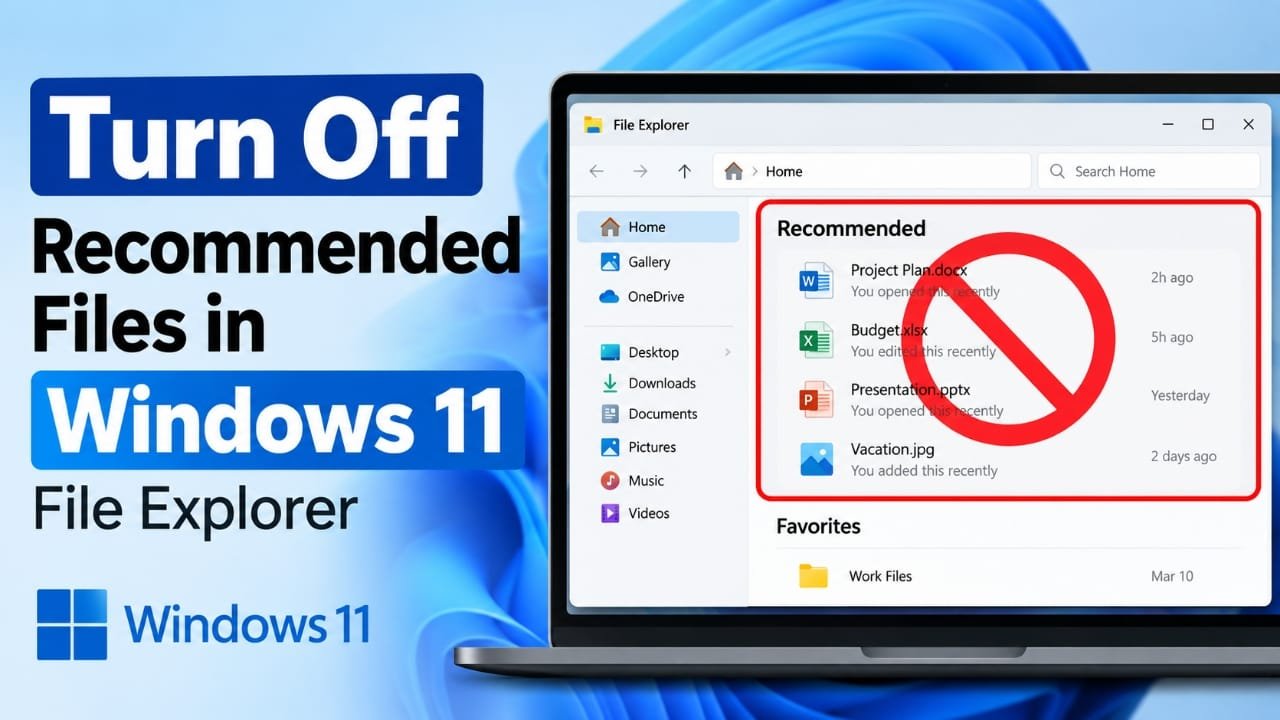
The Recommended section in Windows 11 File Explorer is designed to display recently opened and suggested files. While this feature can be useful for quick access, many users prefer a cleaner File Explorer without extra suggestions. If you value privacy, want to reduce clutter, or simply like a more organized workspace, you can easily turn this feature off.
This guide explains how to disable Recommended files, what to do if the option is missing, and a few additional tips to keep File Explorer neat.
Advertisements
Also read: How to Print from iPhone 16: Easy Guide for Wireless Printing
Quick Steps
- Open File Explorer.
- Click the three-dot (See more) menu.
- Select Options.
- Stay on the General tab.
- Uncheck Show recommended section.
- Click Apply, then OK.
How to Remove Recommended Files from File Explorer
Follow these simple steps to hide the Recommended section from the Home page.
Step 1: Open File Explorer
Launch File Explorer by clicking its icon on the taskbar, opening it from the Start menu, or pressing Windows + E on your keyboard.
Once File Explorer opens, you can continue to the settings menu.
Step 2: Open Folder Options
At the top of the File Explorer window, click the three-dot menu and choose Options.
This opens the Folder Options window, where you can customize how File Explorer works.
Step 3: Select the General Tab
If it is not already selected, click the General tab.
Here you will find settings related to File Explorer’s Home page, startup location, and display preferences.
Step 4: Disable the Recommended Section
Look for the option named Show recommended section.
Remove the checkmark beside it.
Windows will stop displaying the Recommended area on the Home page. If it does not disappear immediately, close and reopen File Explorer or refresh the window.
Step 5: Save the Changes
Click Apply, then select OK.
Return to the Home page in File Explorer. The Recommended section should no longer be visible.
What If the Option Is Missing?
Some versions of Windows 11 may not include this setting, or it may appear differently. If you cannot find it, try the following solutions.
Update Windows
Install the latest Windows updates and check the Folder Options again. Microsoft occasionally changes File Explorer features in newer updates.
Clear File Explorer History
If you only want to reduce suggestions, clear your File Explorer history from the General tab in Folder Options. This removes many recently displayed items.
Restart File Explorer
Sometimes File Explorer needs to reload before new settings take effect.
You can restart it from Task Manager or simply sign out of Windows and sign back in.
Work or School Computer
If you’re using a company or school device, some settings may be managed by your organization’s IT department. In that case, the option could be unavailable.
Remove Recent Activity Only
If privacy is your main concern, clear Recent files and Frequently used folders from File Explorer Options. This keeps your browsing history from appearing while leaving other features unchanged.
Frequently Asked Questions
Does disabling Recommended files delete anything?
No. It only changes what File Explorer displays. Your files remain safely stored on your computer or cloud storage.
Can I enable Recommended files again?
Yes. Return to Folder Options, check Show recommended section, and save the changes.
Does this affect other applications?
No. This setting only changes File Explorer. Applications such as Microsoft Office, Adobe software, or other programs may continue showing their own recent files.
Helpful Tips
- Combine this setting with clearing recent files for an even cleaner File Explorer.
- These changes only apply to the current Windows user account. Other users on the same PC must change the setting separately.
- Your folders and documents remain exactly where they are. Only the Home page layout changes.
- If you use OneDrive, recent cloud activity may still appear in OneDrive because it manages its own file history.
- If the Recommended section remains visible, restart File Explorer or reboot your computer.
Also read: How to Share a Wi-Fi Password With a QR Code in Windows 11
Final Thoughts
Removing the Recommended section from Windows 11 File Explorer is an easy way to simplify your workspace and reduce unnecessary distractions. The process usually takes only a minute and doesn’t affect your actual files or folders.
If your version of Windows includes the option, simply disable Show recommended section in Folder Options and save the changes. If the setting isn’t available, updating Windows, clearing File Explorer history, or restarting File Explorer can often help you achieve a similar result.

Abhi Rajput, founder of EarnAbhi.in, is a tech lover with 6+ years of experience in SEO, digital tools, and smartphone troubleshooting. He writes simple, clear, and useful guides to help people solve real tech problems.