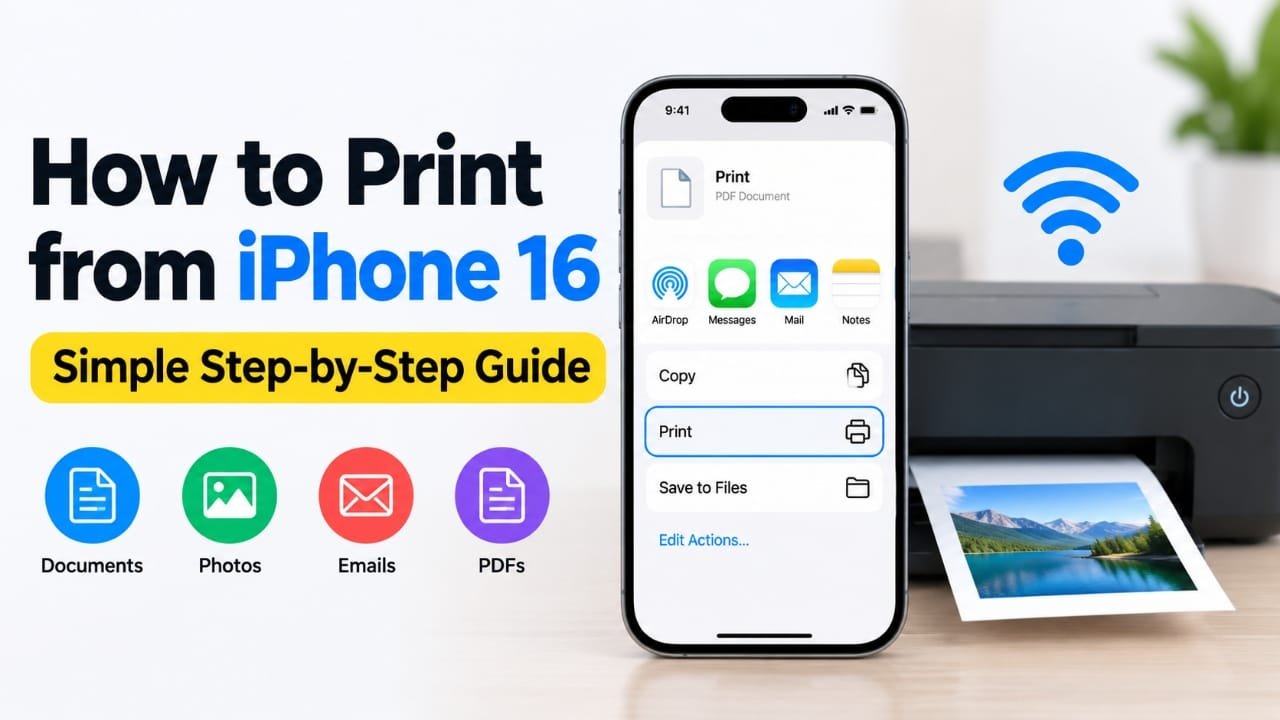
Printing directly from your iPhone 16 is easier than ever. Whether you want to print a photo, PDF, email, ticket, web page, or office document, you can usually do it in just a few taps. If your printer supports Apple’s AirPrint feature, you won’t need extra software or a computer.
In this guide, you’ll learn how to print from your iPhone 16, change print settings, and troubleshoot common issues if your printer isn’t detected.
Advertisements
Also read: Nocebo Launcher: A Fresh Way to Customize Your Android Home Screen
Quick Steps
If you’re in a hurry, follow these simple steps:
- Open the document, photo, or webpage you want to print.
- Tap the Share button or find the Print option.
- Select an AirPrint-compatible printer.
- Choose your print settings.
- Tap Print to begin.
How to Print from iPhone 16 Using AirPrint
AirPrint is Apple’s built-in wireless printing feature. It works with many modern printers and doesn’t require additional drivers or complicated setup.
Step 1: Connect Both Devices to the Same Wi-Fi Network
Before printing, confirm that both your iPhone 16 and the printer are connected to the same Wi-Fi network.
Open Settings > Wi-Fi on your iPhone and make sure Wi-Fi is enabled. Then check your printer’s network settings using its display, control panel, or companion app.
AirPrint can only find printers that are on the same wireless network.
Step 2: Open the File You Want to Print
Go to the app containing your content. This could be:
- Photos
- Safari
- Files
- Notes
- Pages
- Microsoft Word
- Any other app that supports printing
Wait until the file or webpage loads completely before continuing.
Step 3: Find the Print Option
Tap the Share icon, usually shown as a square with an upward arrow.
Scroll through the available options until you see Print.
Some apps place the Print option inside a menu such as More, Options, or the three-dot menu instead of the Share sheet.
Step 4: Choose Your Printer
Tap Select Printer.
A list of available AirPrint printers will appear. Choose the correct printer from the list.
If multiple printers are available, double-check the printer name before continuing.
Step 5: Review the Print Settings
Before printing, adjust the available options if needed.
Depending on your printer and the type of file, you may be able to change:
- Number of copies
- Page range
- Paper size
- Layout
- Color options
Review the print preview to make sure everything looks correct.
Step 6: Start Printing
Tap Print in the upper-right corner.
Your iPhone will send the print job to the selected printer.
If printing doesn’t begin immediately, check whether the printer has enough paper, ink, or toner and verify that it’s still connected to the Wi-Fi network.
Other Ways to Print from iPhone 16
If AirPrint isn’t working, you still have a few alternatives.
Use the Printer Manufacturer’s App
Many printer companies provide free apps for iPhone that allow wireless printing and printer management.
Popular brands offering official apps include:
- HP
- Canon
- Epson
- Brother
Install the appropriate app from the App Store and follow the on-screen instructions to connect your printer.
Print PDF Files from the Files App
If your document is saved as a PDF, open it in the Files app.
Tap Share, choose Print, select your printer, and send the document.
Many users find this method reliable for important documents.
Print Web Pages from Safari
To print a webpage, open it in Safari.
Tap the Share button, select Print, and review the preview before printing.
Checking the preview helps ensure the page is formatted correctly.
Try a Compatible Printing App
Older printers that don’t support AirPrint may still work with compatible third-party printing apps.
Although these apps can be useful, the setup process may vary depending on your printer model.
Print Through a Computer
Some printers connected to a Mac or Windows PC can also accept print jobs over a shared network.
This option depends on your printer model and computer settings, so it’s best used as an alternative when direct wireless printing isn’t available.
Frequently Asked Questions
Can I Print Wirelessly from iPhone 16?
Yes. iPhone 16 includes built-in AirPrint support for compatible wireless printers.
Can I Print Photos from My iPhone?
Yes. Open the image in the Photos app, tap Share, choose Print, select your printer, and adjust the available settings before printing.
Helpful Tips
- Connect both devices to the same Wi-Fi network before printing.
- Always review the print preview to avoid formatting problems.
- Keep your iPhone software and printer firmware updated.
- Use the printer manufacturer’s official app if AirPrint isn’t working properly.
- Print a test page if the printer hasn’t been used recently.
- Make sure the selected paper size matches the paper loaded in the printer.
Also read: How to Turn Off Head Gestures on AirPods
Final Thoughts
Printing from an iPhone 16 is simple when your printer supports AirPrint and both devices are connected to the same Wi-Fi network. Most print jobs only require opening the file, selecting Print, choosing your printer, and confirming the settings.
If your printer isn’t detected, using the manufacturer’s app or checking your network connection usually resolves the problem. Once everything is set up correctly, you can quickly print documents, photos, emails, PDFs, and webpages directly from your iPhone without needing a computer.

Abhi Rajput, founder of EarnAbhi.in, is a tech lover with 6+ years of experience in SEO, digital tools, and smartphone troubleshooting. He writes simple, clear, and useful guides to help people solve real tech problems.