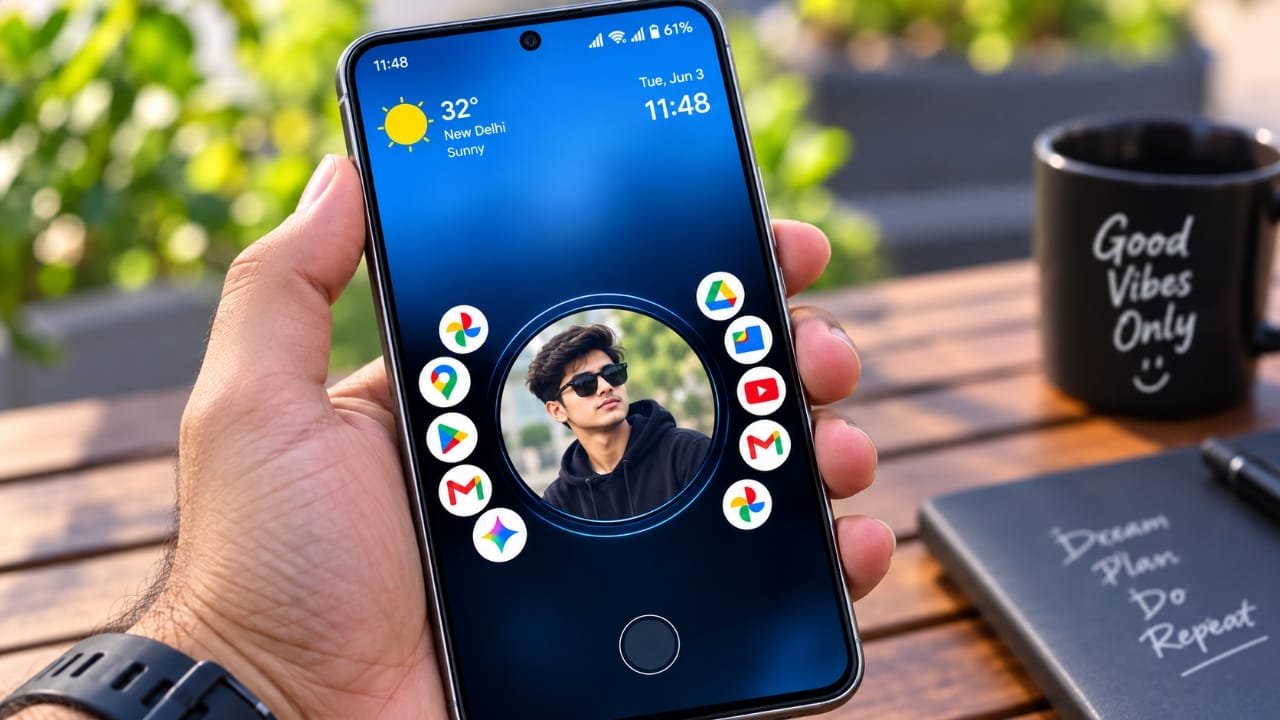
Most Android users unlock their phones dozens of times every day. Over time, the same home screen layout, app icons, and navigation style can start to feel ordinary. While Android offers some customization options, many people prefer using a launcher to create a more personal and visually appealing experience.
Nocebo Launcher is an Android launcher designed for users who want something different from the traditional grid-based home screen. It introduces a unique visual style with dynamic layouts while also providing several customization features. If you enjoy changing the look and feel of your phone, this launcher may be worth exploring.
Advertisements
Also read: Micro Gesture – Shake Your Phone: Instantly Open Apps and Quick Actions
What Is Nocebo Launcher?
Nocebo Launcher is a third-party Android launcher that replaces your phone’s default home screen interface. Instead of the standard arrangement of icons and app pages, it offers a different navigation style with a more dynamic appearance.
Unlike many launchers that keep icons in fixed rows and columns, Nocebo Launcher focuses on a more animated and flexible layout. This creates a fresh visual experience for users who enjoy experimenting with their device’s appearance.
Key Features of Nocebo Launcher
1. Dynamic Spinning Layout
One of the launcher’s most noticeable features is its spinning interface. Rather than displaying apps in a traditional static grid, the layout is designed to feel more interactive and visually engaging.
Users who enjoy unique smartphone designs may appreciate this different approach to home screen navigation.
2. Extensive Customization
Customization is one of the biggest reasons people install third-party launchers. Nocebo Launcher gives users multiple ways to personalize their home screen.
Depending on the available settings, you can adjust the overall appearance to match your preferred style, whether you like a clean, minimal setup or a more creative and modern look.
3. Flexible Home Screen Design
The launcher aims to make the home screen feel less static by using a more adaptable layout. Instead of keeping everything in the same position, it creates a design that feels more dynamic during everyday use.
For users who enjoy personalizing every part of their Android experience, this feature can make the interface feel more unique.
4. A Different Navigation Experience
Changing wallpapers and icon packs can refresh your phone’s appearance, but the overall navigation often stays the same. Nocebo Launcher goes beyond simple visual changes by offering a different way to interact with your home screen.
This can make everyday phone usage feel fresh, especially if you’ve been using the default Android interface for a long time.
Who Should Try Nocebo Launcher?
Nocebo Launcher is a good option for users who enjoy customizing their Android devices. It may be suitable if you:
- Like personalizing your smartphone.
- Want to try a launcher with a unique interface.
- Prefer something different from the standard icon grid.
- Enjoy experimenting with modern or minimalist designs.
- Want your phone to have a more distinctive appearance.
- Like exploring new navigation styles.
If you’re already satisfied with your phone’s default launcher, switching may not be necessary.
Benefits of Using a Custom Launcher
A custom launcher allows you to organize your device in a way that matches your daily habits. You can place frequently used apps where they’re easier to reach and customize the overall look of your home screen.
Many launchers also let you change layouts, gestures, icons, and other visual elements, giving you greater control over how your device feels to use.
When choosing any launcher, it’s important to balance design with performance, privacy, and usability.
Performance Considerations
Before making a third-party launcher your default, check whether it works well with your Android version and your phone’s hardware.
After installation, spend some time using the launcher and observe:
- Home screen responsiveness.
- App launching speed.
- Animation smoothness.
- Overall stability.
Older devices may experience different performance compared to newer smartphones, so testing the launcher yourself is always recommended.
Privacy and Permissions
As with any Android application, review the permissions requested during installation.
A launcher typically needs access to certain home screen functions, but if it requests permissions that don’t seem related to its purpose, review them carefully before granting access.
For better security, install apps from trusted sources and check developer information, recent updates, and user feedback before downloading.
Can It Replace Your Default Launcher?
Whether Nocebo Launcher becomes your primary launcher depends on your personal preferences.
If you enjoy trying new interface designs and want a home screen that looks different from the standard Android experience, you may find it enjoyable.
However, users who are accustomed to traditional grid layouts may need some time to become familiar with its navigation style. Testing it for a few days is the best way to decide if it fits your needs.
Things to Check Before Installing
Before using Nocebo Launcher, consider the following points:
- Make sure it supports your Android version.
- Review the available customization options.
- Test its speed and responsiveness.
- Monitor battery usage during regular use.
- Read the app’s privacy information and requested permissions.
- Check whether the developer provides regular updates.
Taking these steps can help ensure a smoother experience.
Also read: How to Use Head Gestures with AirPods: A Simple Step-by-Step Guide
What Makes Nocebo Launcher Stand Out?
Many Android launchers focus mainly on changing icons, themes, or wallpapers. Nocebo Launcher goes a step further by introducing a different visual approach to home screen navigation.
Its combination of dynamic layouts, customization features, and distinctive design gives users an alternative to the familiar Android interface. For people who enjoy experimenting with their device’s appearance, this offers something beyond standard personalization.
Official Play Store Link
Final Thoughts
Nocebo Launcher provides Android users with another way to customize their smartphones. Its dynamic layout, flexible design, and personalization features create a different home screen experience compared to traditional launchers.
While it may not be the ideal choice for everyone, users who enjoy exploring new interface styles may find it interesting. Before making it your default launcher, check compatibility with your device, review the required permissions, and spend some time testing its performance.
Choosing the right launcher ultimately depends on your personal preferences. If you’re looking for a fresh way to customize your Android home screen, Nocebo Launcher could be an option worth trying.

Abhi Rajput, founder of EarnAbhi.in, is a tech lover with 6+ years of experience in SEO, digital tools, and smartphone troubleshooting. He writes simple, clear, and useful guides to help people solve real tech problems.