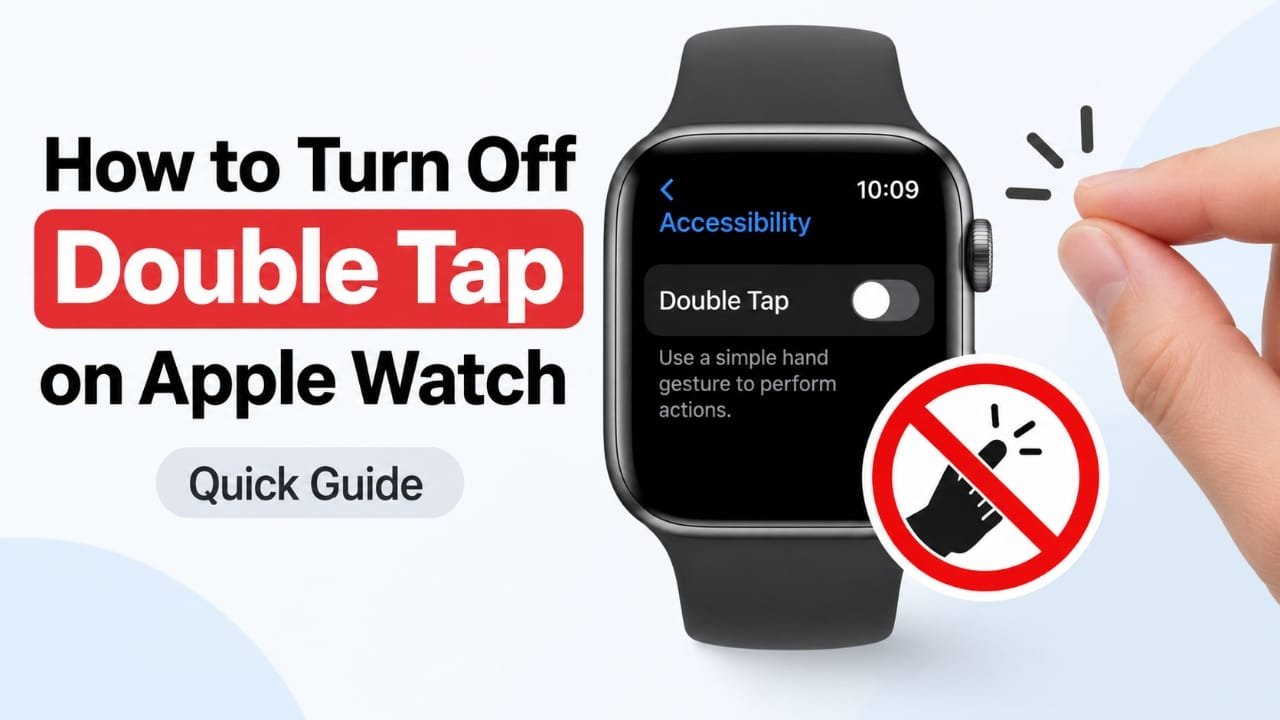
The Double Tap feature on Apple Watch lets you perform certain actions by tapping your thumb and index finger together. While many users find it helpful, others may prefer to disable it because it activates by mistake or they simply don’t use it.
The good news is that you can switch it off in just a few moments. You can make the change directly on your Apple Watch or by using the Watch app on your paired iPhone.
Advertisements
This guide explains the steps in a simple way and also covers what to do if you cannot find the option or if the feature continues working after you disable it.
Also read: How to Clear Cache on Android: A Beginner-Friendly Guide
Quick Overview
- Open Settings on your Apple Watch or the Watch app on your iPhone.
- Go to the section that contains accessibility or gesture controls.
- Find Double Tap.
- Turn the feature Off.
How to Disable Double Tap on Apple Watch
Follow these steps to stop your Apple Watch from responding to the Double Tap gesture.
Step 1: Open the Settings App
Press the Digital Crown to open the Home Screen.
Tap the Settings app. If you cannot find it immediately, scroll through the apps or use the search option if available.
Step 2: Go to Accessibility
Inside Settings, scroll until you see Accessibility, then tap it.
This menu includes features related to gestures, controls, and other interaction settings. Depending on your watchOS version, the location of the option may vary slightly.
Step 3: Find the Double Tap Option
Scroll through the available settings until you locate Double Tap.
If your Apple Watch supports this feature, opening it will display the available controls.
Step 4: Turn the Feature Off
Tap the switch next to Double Tap to disable it.
When the feature is turned off, your Apple Watch should no longer respond to the Double Tap gesture.
Step 5: Check That It Worked
Try performing the Double Tap gesture a few times.
If everything was disabled correctly, the watch should ignore the gesture. If it still responds, restart the watch and check the setting again.
Other Ways to Turn Off Double Tap
Depending on your device and software version, you may have a few different options.
Use the Watch App on iPhone
Many people find it easier to manage Apple Watch settings from their iPhone.
- Open the Watch app.
- Tap Accessibility.
- Select Double Tap.
- Turn the feature Off.
Check Your watchOS Version
The menu layout can change between software updates.
If you cannot locate the setting:
- Look under Accessibility, Gestures, or similar interaction settings.
- Make sure your Apple Watch is running the latest available version of watchOS.
Turn It Off Only When Needed
You don’t have to leave the feature disabled forever.
If you only use Double Tap during workouts or while controlling music, you can switch it off when it’s not needed and enable it again later.
Restart Your Apple Watch
If the setting doesn’t seem to apply immediately, restarting the watch may help.
- Press and hold the side button.
- Turn the watch off.
- Wait a few seconds.
- Turn it back on and test the gesture again.
Frequently Asked Questions
Does turning off Double Tap erase any data?
No. Disabling Double Tap only turns off the gesture feature. Your apps, messages, health information, and other settings remain unchanged.
Can I enable Double Tap again later?
Yes. You can return to the same menu at any time and switch the feature back on.
Why can’t I find the Double Tap setting?
Some Apple Watch models do not support this feature, and older versions of watchOS may not include it. Updating your software may help if your device is compatible.
Helpful Tips
- Disable Double Tap if it activates accidentally during daily use.
- Using the Watch app on your iPhone may make navigation easier.
- Test the gesture after changing the setting to make sure the change has been applied.
- If the menu looks different, check for software updates or use the search feature in Settings.
- Remember where the option is located if you regularly switch the feature on and off.
Also read: How to Enable and Use Live Captions in Windows 11
Final Thoughts
Disabling Double Tap on Apple Watch is a quick process that takes only a few taps. Whether you make the change directly on the watch or through the Watch app on your iPhone, the setting is easy to access once you know where to look.
If you cannot find the option, checking for a software update or restarting your Apple Watch often resolves the issue. After the feature is turned off, your watch should stop responding to the Double Tap gesture, giving you a more predictable experience.

Abhi Rajput, founder of EarnAbhi.in, is a tech lover with 6+ years of experience in SEO, digital tools, and smartphone troubleshooting. He writes simple, clear, and useful guides to help people solve real tech problems.