Android phones already offer many ways to control different features, but some everyday tasks can still require several taps. If you prefer using shortcuts and gestures to save a little time, Droid Lab is an Android utility app that may be worth exploring.
Advertisements
The app brings several controls together instead of concentrating on just one feature. You can set up gestures, touch-based shortcuts, quick-access panels, and other small tools according to how you use your phone.
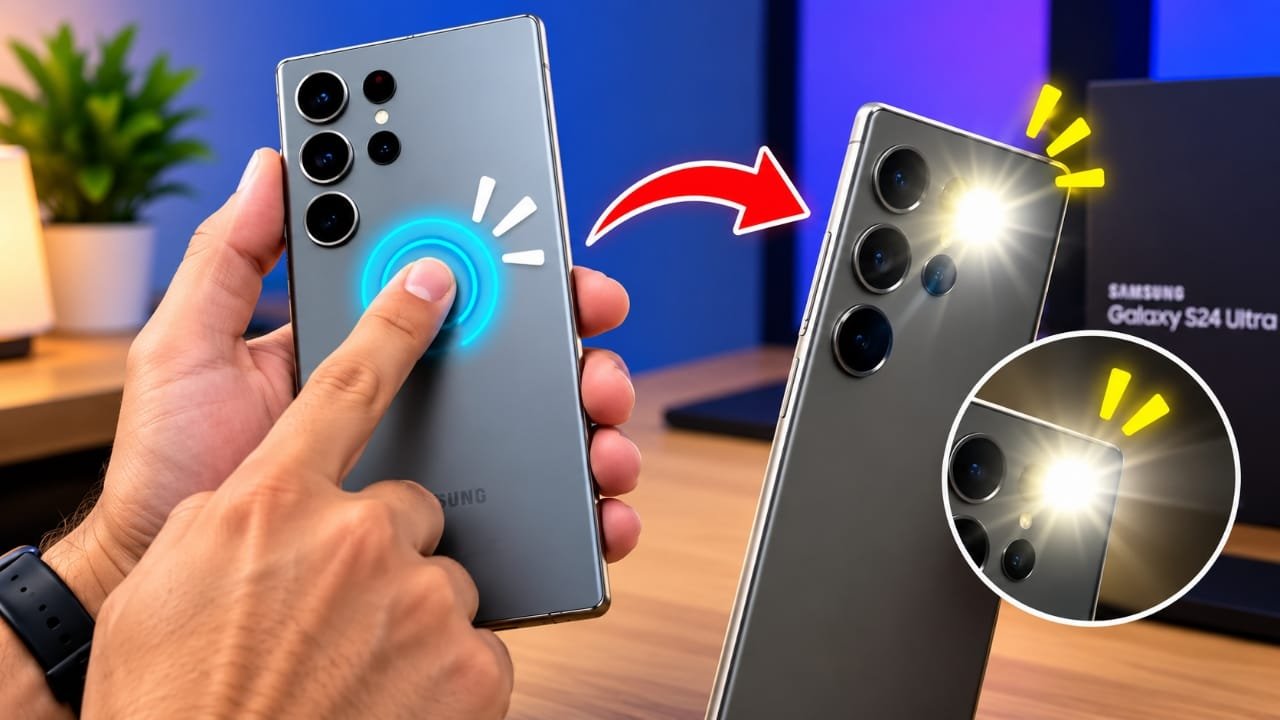
For example, a supported gesture can be linked to an action such as taking a screenshot, opening an application, changing the volume, turning on the flashlight, or performing another available Android action.
The biggest advantage is that you can decide which features you actually want to use. There is no need to change the entire way you operate your phone. You can simply set up a few shortcuts that make sense for you.
Also read: How to Use Dynamic Notch Notification Bar on Android
What Is Droid Lab?
Droid Lab is an Android utility and customization app that offers alternative ways to interact with a smartphone.
Its feature collection includes options such as back-tap gestures, motion controls, multi-finger gestures, shortcut panels, and other touch-related tools.
The app can be interesting for Android users who like trying different ways to access common functions. It can also be kept fairly simple. For example, you might use one gesture for screenshots and another for launching a frequently used app.
This means you can choose only the features that fit your daily routine.
Droid Lab Features
Droid Lab offers a range of controls, but not every feature will necessarily work in the same way on every phone. Android version, hardware, sensors, manufacturer software, permissions, and navigation settings can affect compatibility.
Here are some of the notable features.
Back Tap
Back Tap allows you to use taps on the rear of the phone as a shortcut trigger where supported.
You can connect the gesture to an available action and access it without manually searching through different menus.
The feature can be useful for simple tasks that you perform regularly.
Motion Gestures
Droid Lab also supports movement-based controls, including gestures such as Chop and Twist.
These gestures use specific phone movements to trigger selected actions. They may require some practice because performing the movement consistently can take time.
Once you become familiar with them, they can provide another way to control certain phone functions.
Flip to Shhh
Flip to Shhh is based on a simple movement: turning the phone face down.
Depending on the available settings and device support, the gesture can be used for a silent or Do Not Disturb-related action.
It is a straightforward idea that can be useful in situations where you want to quickly reduce interruptions.
Wave to Silence
There are times when you receive a call when you cannot or do not want to answer immediately.
The Wave to Silence feature provides a gesture-based option for silencing an incoming call on supported devices.
Instead of reaching for an on-screen control, you may be able to use the configured gesture.
Multi-Finger Gestures
For users who prefer touch controls, Droid Lab also provides multi-finger gesture options.
Depending on the device and configuration, you may find gestures using two, three, four, or five fingers.
These controls can give you another way to perform shortcuts without relying entirely on physical movements.
Side Deck
Side Deck works as a quick-access area for frequently used applications and actions.
You can keep selected shortcuts in this panel and access them without repeatedly returning to the home screen.
It can be especially convenient if you often switch between the same few apps or functions.
TouchPad Pointer
The TouchPad Pointer is another unusual feature included in the app.
It provides a pointer-style way of interacting with parts of the screen. This may be useful for people who sometimes find one-handed touch navigation inconvenient.
Whether you find it useful will largely depend on how you normally use your phone.
Edge and Notch Controls
Droid Lab also includes controls related to the edges or notch area of the display.
These options can provide additional ways to trigger shortcuts on compatible phones.
However, smartphone displays are designed differently, so these features may behave differently from one device to another.
Quick Actions
Along with gesture controls, Droid Lab can provide shortcuts for several common Android functions.
Depending on your device and the permissions available to the app, these can include actions such as:
- Taking screenshots
- Locking the screen
- Opening Quick Settings
- Changing volume
- Launching apps
- Controlling certain supported connectivity functions
- Performing other available system actions
Having several types of shortcuts in one application can be useful if you like customizing the way you interact with your phone.
Tasker Integration
Users who already rely on Tasker may find additional possibilities through Droid Lab’s automation-related features.
Tasker can be used to create more advanced workflows, and supported Droid Lab triggers can potentially become part of those routines.
This is mainly aimed at people who are already familiar with Android automation. If you’re new to this type of setup, it makes more sense to start with the basic Droid Lab gestures before experimenting with advanced automation.
Other Small Tools
Droid Lab isn’t limited to gestures.
The app also includes smaller utilities related to things such as floating notes, search, and text selection.
You may not need these tools every day, but they can be useful when a particular situation calls for them.
How to Set Up Droid Lab on Android
The setup process can vary depending on your phone and Android version. Some features may also require additional permissions or system access.
Here’s a simple way to get started.
1. Open Droid Lab
Install the app from a trusted source when it is available for your device, then open it.
Before changing several settings, spend a little time looking through the available options. This makes it easier to understand what each feature is designed to do.
2. Start With One Gesture
It’s better to begin with a single shortcut instead of enabling several features at once.
Back Tap can be a simple starting point if it is supported on your phone.
Choose the gesture and check the actions available for it.
3. Pick an Action
After selecting a gesture, choose what you want it to do.
Depending on your phone and the available options, you may be able to assign actions such as:
- Taking a screenshot
- Opening an app
- Turning on the flashlight
- Adjusting volume
- Triggering another supported shortcut
The list of available actions can differ between devices.
4. Check Permissions
Some features may require Android permissions or additional system access.
Whenever a permission request appears, read the description carefully. Only provide access that is relevant to the feature you intend to use.
If a particular feature doesn’t work, checking its required permissions is a good place to start.
5. Test the Gesture
Try the configured gesture several times.
If it isn’t responding correctly, look for sensitivity or related settings inside the app. The phone’s hardware, Android version, manufacturer software, and navigation configuration can all affect gesture detection.
6. Add More Controls
Once your first shortcut works properly, you can try other options such as Chop, Twist, Wave to Silence, or Flip to Shhh.
You can also experiment with Side Deck if you regularly use the same applications or shortcuts.
7. Explore Advanced Options
After becoming comfortable with the basic controls, you can look at multi-finger gestures and other advanced features.
If you already use Tasker, you can also explore the available integration options and see whether they fit your existing automation routines.
Tips for Using Droid Lab
Having many customization options doesn’t mean you need to enable all of them.
In fact, setting up too many gestures can make your phone harder to remember and control. A smaller setup is often easier to use.
For example, you could keep things simple with:
- One gesture for screenshots
- One shortcut for opening a frequently used app
- One quick action for the flashlight
- A Side Deck containing your most-used shortcuts
This gives you useful controls without making the setup unnecessarily complicated.
It’s also important to remember that Android devices aren’t identical. Sensors, screen designs, Android versions, manufacturer interfaces, permissions, and navigation settings can all influence how a particular feature behaves.
A gesture that works well on one phone may not work exactly the same way on another.
Is Droid Lab Worth Trying?
Droid Lab is aimed at Android users who enjoy customizing their phones and experimenting with alternative controls.
Instead of offering only one shortcut method, the app combines several options, including back taps, motion gestures, multi-finger controls, Side Deck, TouchPad Pointer, and other utilities.
Not every user will need these features. If you’re already comfortable with the standard controls on your phone, some of the options may not provide much benefit.
However, if you regularly look for faster ways to perform simple tasks or enjoy customizing Android, the collection of tools gives you plenty of options to explore.
Official Play Store App Link
Also read: Make Your Android Navigation Bar Look Better With This Customization App
Final Thoughts
Droid Lab is an Android utility that gives users more ways to interact with their phones.
Its main appeal comes from the ability to choose individual gestures and shortcuts instead of completely changing the normal Android experience. You can start with one feature, see how it works on your device, and gradually add other controls if they are useful.
There is no reason to configure everything at once. A small number of well-chosen shortcuts can be easier to remember and more practical for everyday use.
Overall, Droid Lab is worth exploring if you enjoy Android customization, gestures, shortcuts, or automation. Just remember that feature availability and performance can depend on your particular phone, Android version, permissions, sensors, and other device-specific settings.

Abhi Rajput, founder of EarnAbhi.in, is a tech lover with 6+ years of experience in SEO, digital tools, and smartphone troubleshooting. He writes simple, clear, and useful guides to help people solve real tech problems.
Advertisements