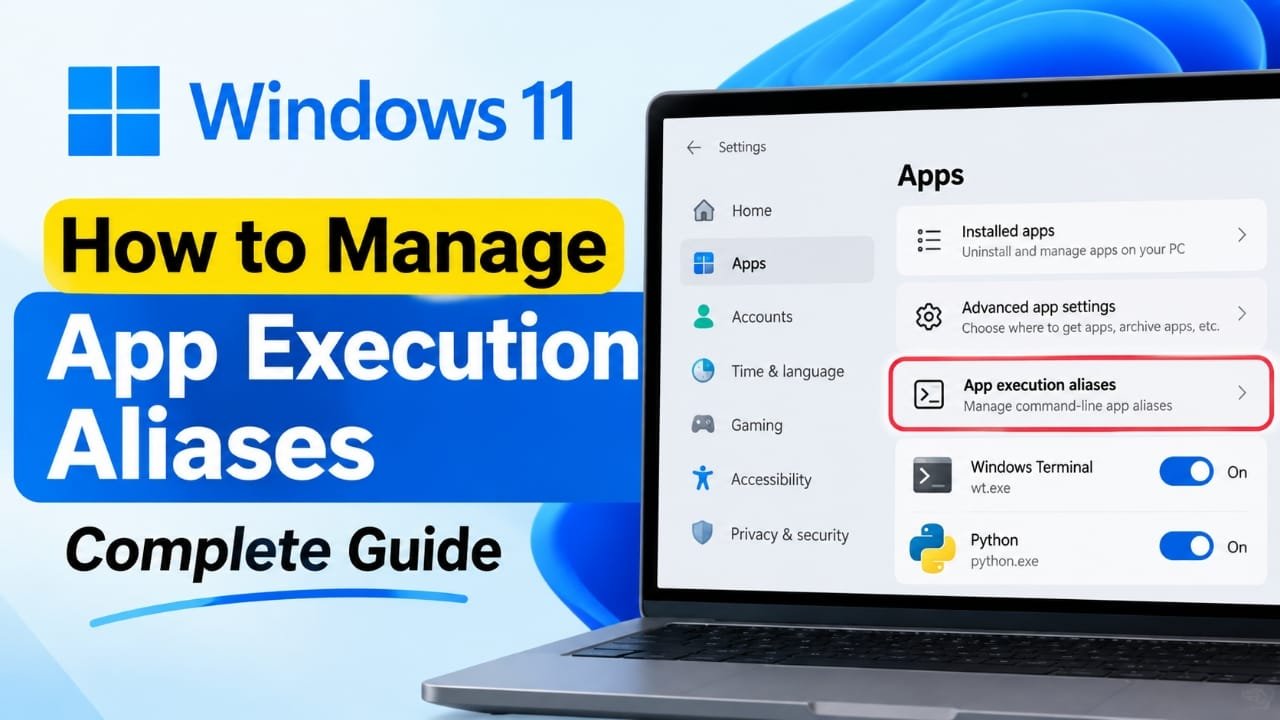
Windows 11 includes a feature called App execution aliases that controls certain short commands used to open apps from Command Prompt, PowerShell, or other command-line tools.
Advertisements
For example, instead of entering the complete location of Windows Terminal, you can simply type wt to launch it. These shortcuts are useful, but they can sometimes cause problems when another program uses the same command or when Windows redirects a command to the Microsoft Store.
In this guide, we will explain what App execution aliases are, where to find them, and how to fix common problems involving commands such as python and wt.
Also read: How to Enable Dynamic Refresh Rate in Windows 11
How to Open App Execution Aliases in Windows 11
You can manage these settings directly from Windows Settings.
- Press Windows + I to open Settings.
- Select Apps from the left side.
- Click Advanced app settings.
- Select App execution aliases.
- Find the app or command you want to change.
- Use the switch beside it to turn the alias on or off.
There is also a quicker method. Open the Start menu and search for Manage app execution aliases. Select the matching Settings option from the results.
What Is an App Execution Alias?
An app execution alias is basically a short command connected to an installed Windows app.
When an alias is enabled, Windows can recognize that command and direct it to the corresponding application. This means you do not always have to type the application’s complete file path.
For example, Windows Terminal can use the wt.exe alias. When the required WindowsApps location is available through your PATH, typing wt in a terminal can open Windows Terminal.
The App execution aliases page is therefore not a list of suspicious applications. It is simply a Windows control panel for managing command names provided by installed app packages.
Some aliases may appear automatically after installing Windows or an app from the Microsoft Store.
When Should You Disable an Alias?
In most cases, you can leave aliases enabled. You may want to turn one off if you are dealing with a specific command problem.
For example, disabling an alias can help when:
- A command opens the Microsoft Store instead of the program you installed.
- Two programs appear to use the same command.
- Another desktop application should handle the command instead.
- A software installation guide tells you to disable a particular Windows alias.
- You are troubleshooting a command that is being routed through WindowsApps.
Turning off an alias normally does not uninstall the application. It only stops that particular alias from being used.
You can still launch the application from the Start menu or another shortcut. If necessary, you can return to the same Settings page and enable the alias again.
How to Stop Python From Opening the Microsoft Store
One common example involves Python.
Windows provides App Installer aliases for python.exe and python3.exe. These can help users find Python through the Microsoft Store when Python is not installed.
However, if you installed Python separately, such as from another trusted source, typing python may sometimes open the Microsoft Store instead of your existing installation.
To check the aliases:
- Open Settings.
- Go to Apps > Advanced app settings > App execution aliases.
- Find the App Installer entries for
python.exeandpython3.exe. - Turn those entries Off.
- Close your existing Command Prompt, PowerShell, or Terminal windows.
- Open a new terminal window.
- Run:
python --version
If Windows now says that python is not recognized, the Store alias is no longer handling the command. The next thing to check is whether your actual Python installation has been added to PATH.
Simply disabling the alias does not install Python or automatically fix PATH settings.
How to Fix the wt Command
Windows Terminal normally provides the wt.exe command.
If typing wt in a terminal does not open Windows Terminal, first check whether its alias is enabled.
Go to:
Settings > Apps > Advanced app settings > App execution aliases
Find the Windows Terminal entry and make sure its switch is turned On.
After changing the setting:
- Close the current terminal window.
- Open a new Command Prompt, PowerShell, or Terminal window.
- Type:
wt
If it still does not work, check whether this folder is included in your user PATH:
%LOCALAPPDATA%\Microsoft\WindowsApps
This location can be important for Windows app aliases.
You should not try to modify or delete files inside the protected C:\Program Files\WindowsApps folder simply to fix an alias problem.
How to Check Which Program Handles a Command
The App execution aliases page shows aliases provided by packaged applications, but it does not necessarily show every executable that could respond to a particular command.
You can use built-in commands to see what Windows finds.
Using Command Prompt
Open Command Prompt and enter:
where commandname
Replace commandname with the command you want to investigate.
For example:
where python
or:
where wt
Using PowerShell
In PowerShell, you can use:
Get-Command commandname -All
For example:
Get-Command python -All
These commands can reveal multiple matching programs. This is useful when you suspect that another installation is taking priority.
Why Doesn’t an Alias Change Take Effect?
Changing an alias does not always produce an immediate result in an already-open terminal.
Here are some common reasons.
The terminal window was already open
After changing an alias or PATH setting, close your existing Command Prompt, PowerShell, or Terminal windows.
Then open a completely new window and test the command again.
The actual program is not installed
Disabling a Store alias does not install the application that you actually want to use.
For example, if disabling the Python alias changes the result from opening the Microsoft Store to showing that python is not recognized, you still need to install Python or correct its PATH configuration.
WindowsApps is missing from PATH
Some app aliases depend on the WindowsApps location being available through the user’s PATH.
If that location is missing, an enabled alias may still fail when you enter the command.
Another program is being found first
There may be several programs with the same executable name.
Instead of repeatedly switching aliases on and off, use where in Command Prompt or Get-Command -All in PowerShell to see what Windows can find.
The app registration has a problem
If the alias is enabled, PATH appears correct, and the application is installed but the command still does not work, the app itself may need attention.
Depending on the application, you can try the Repair or Reset options under:
Settings > Apps > Installed apps
Reinstalling the application may also recreate its package registration.
Are App Execution Aliases Safe?
App execution aliases are a normal Windows feature. Seeing an alias in the Settings app does not by itself indicate malware or unauthorized access.
The alias is simply a command name associated with an application package.
However, this does not mean every application installed on a computer should automatically be trusted. It is still important to install software from reputable sources and keep Windows Security enabled.
You should also avoid deleting or modifying protected WindowsApps files just to remove an alias. Use the Windows Settings options whenever possible.
App Execution Aliases vs. PATH
PATH and App execution aliases are related, but they are not exactly the same thing.
PATH is a list of folders that Windows searches when you enter a command without providing its full location.
An App execution alias provides a command entry point for certain packaged applications.
For example, a command may be available through the WindowsApps location while another program with the same executable name exists in a different PATH folder.
This can create confusing results. That is why checking both the alias setting and the command search results can be useful when troubleshooting.
Useful Tips for Managing Aliases
Keep these points in mind when changing App execution aliases:
- Only change the alias related to the problem you are trying to solve.
- Remember the original switch setting before changing it.
- Open a new terminal after changing an alias or PATH setting.
- Use
whereorGet-Command -Allto investigate command conflicts. - Do not delete files from the WindowsApps folder to remove an alias.
- If an application keeps creating a conflicting alias, check its installation settings or documentation.
Frequently Asked Questions
What happens when I turn off an App execution alias?
Windows stops using that particular alias to launch the associated packaged application. The application itself normally remains installed and can still be opened through the Start menu or another shortcut.
Should I disable aliases that I don’t recognize?
Not necessarily.
An unfamiliar alias is not automatically a security problem. Disabling aliases without a reason can also interfere with commands used by applications or development tools.
It is better to change an alias when you are troubleshooting a specific issue or when reliable documentation recommends doing so.
Quick Steps
If you only need the basic process:
- Press Windows + I.
- Open Apps.
- Select Advanced app settings.
- Open App execution aliases.
- Find the command causing the problem.
- Turn the relevant alias on or off.
- Close the existing terminal.
- Open a new terminal and test the command.
- If the problem continues, use
whereorGet-Command -Allto find other matching programs.
Also read: Realme 16 Pro Harry Potter Edition Launched in India: Price, Design and Specifications
Conclusion
App execution aliases provide a convenient way to launch certain Windows applications with short commands. They are useful, but they can occasionally cause confusion when another program uses the same command or when Windows redirects a command to the Microsoft Store.
The simplest approach is to identify the command that is causing the problem, check its available matches, change only the relevant alias, and then test it again in a new terminal window.
You usually do not need to disable every alias. A targeted change is enough for most troubleshooting situations.

Abhi Rajput, founder of EarnAbhi.in, is a tech lover with 6+ years of experience in SEO, digital tools, and smartphone troubleshooting. He writes simple, clear, and useful guides to help people solve real tech problems.
Advertisements