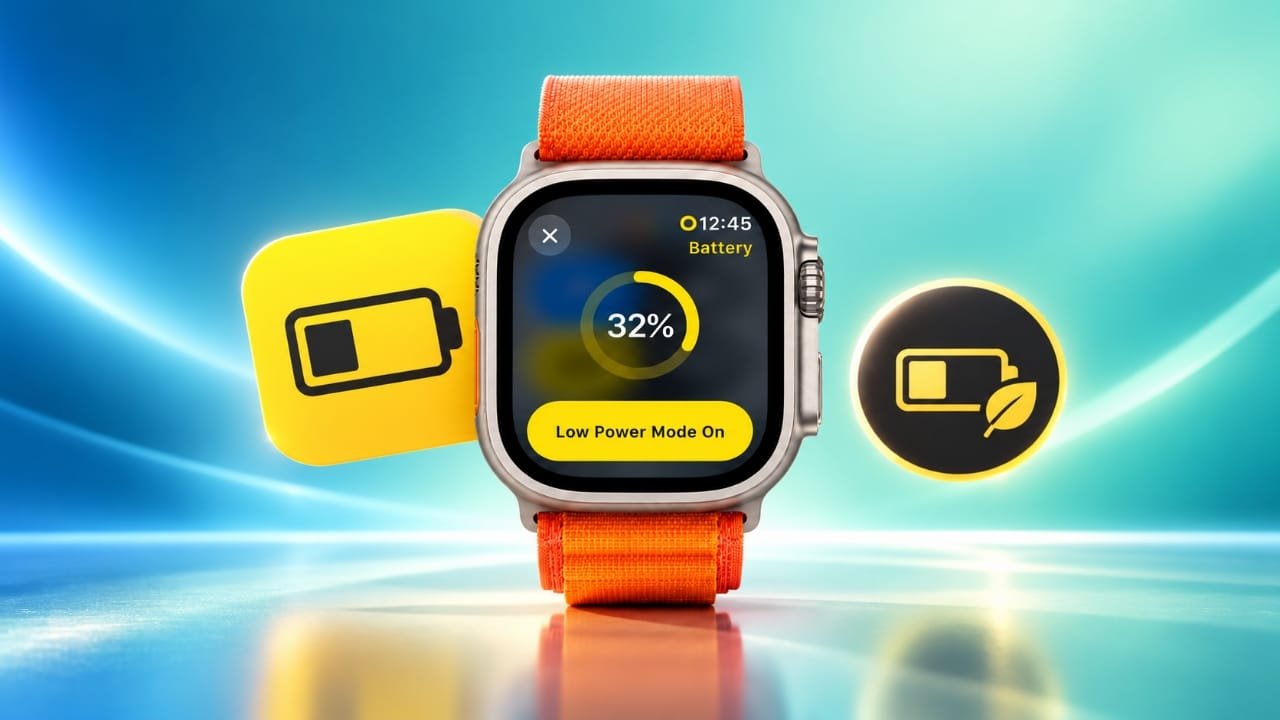
The Apple Watch offers many useful features, including fitness tracking, notifications, heart rate monitoring, and GPS navigation. However, using these features throughout the day can drain the battery faster than expected. This can become a problem when traveling, hiking, exercising outdoors, or spending several hours away from a charger.
Low Power Mode helps solve this problem by reducing power consumption. It limits certain background activities and features while allowing you to continue using your Apple Watch for essential tasks.
Advertisements
In this guide, you will learn what Low Power Mode does, which Apple Watch models support it, how to enable or disable it, and how to use it during workouts.
Also read: Apple HomeView Launched in India with a 7-Inch Display, Siri AI, and Smart Home Features
What Is Low Power Mode on Apple Watch?
Low Power Mode is a built-in feature designed to help your Apple Watch run longer on a single charge. It saves battery by reducing background activity and limiting selected functions that consume power.
The exact battery savings depend on your watch model, battery condition, settings, and usage habits. You may notice a greater improvement when you use GPS, cellular connectivity, or other power-intensive features regularly.
This feature is especially helpful when you are away from home for an extended period and cannot charge your watch. You can still access many everyday functions without keeping every feature active.
However, Low Power Mode involves some trade-offs. Certain health measurements, notifications, and background updates may be reduced or temporarily unavailable.
What Changes When You Enable Low Power Mode?
Low Power Mode does not turn your Apple Watch into a basic watch. Instead, it adjusts selected features to reduce battery consumption. Some functions are disabled, while others operate less frequently.
Here is what you should know before turning it on.
Features That May Be Disabled
Depending on your Apple Watch model and software version, Low Power Mode can disable or limit the following features:
- Background heart rate measurements: Heart rate readings taken in the background, including during sleep, may be unavailable.
- Blood oxygen measurements: Background blood oxygen readings may be disabled on supported models.
- Heart health notifications: Notifications for an irregular rhythm, unusually high or low heart rate, and certain other heart-related alerts may be unavailable.
- Hypertension notifications: The collection of background data used for these notifications may be disabled on supported models.
- Always-On Display: The screen no longer remains continuously visible on compatible watches.
- Double Tap and wrist flick gestures: Supported gesture features may be disabled.
- Automatic workout reminders: Your watch may stop reminding you to begin a workout.
- Time in Daylight tracking: This feature may be unavailable while Low Power Mode is active.
The exact changes can vary by model and watchOS version. If you regularly depend on health measurements or alerts, review these limitations before keeping Low Power Mode enabled for long periods.
What Happens When Your iPhone Is Not Nearby?
Your Apple Watch may also adjust its wireless connections when the paired iPhone is out of range.
Wi-Fi and cellular connections can be turned off temporarily and activated when needed. As a result, incoming calls and notifications may not arrive immediately.
Instead, your watch may retrieve missed calls and notifications at intervals rather than receiving them in real time. This can affect how quickly you notice important messages.
If you need immediate access to calls or notifications while away from your iPhone, consider this limitation before enabling the feature.
Features That Continue to Work Differently
Some functions remain available but may respond more slowly or update less frequently.
- Phone calls: Calls may take longer to connect.
- Background App Refresh: Apps update their content less often.
- Watch face complications: Information displayed on the watch face may refresh less frequently.
- Live Activities: Updates may appear less often.
- Siri: Voice requests may take longer to process.
- Animations and scrolling: Some visual effects may feel less smooth.
These changes help reduce power usage without completely restricting access to your watch.
Which Apple Watch Models Support Low Power Mode?
Low Power Mode is available on several generations of Apple Watch. You do not necessarily need the newest model to use it.
Compatible models include:
- Apple Watch Series 4 and later
- Apple Watch SE (1st generation and later)
- All Apple Watch Ultra models
Your watch must run watchOS 9 or a later compatible version to use Low Power Mode.
Keep in mind that feature support and operating system compatibility are different things. An older Apple Watch may support Low Power Mode without being eligible for the newest watchOS release.
How to Turn On Low Power Mode on Apple Watch
You can enable Low Power Mode directly from your Apple Watch. The quickest method is through Control Center.
Method 1: Use Control Center
Follow these steps:
- Press the side button to open Control Center.
- Tap the battery percentage.
- Select Low Power Mode.
- Read the information displayed on the screen, then scroll down if necessary.
- Tap Turn On.
If your watch offers a Turn On For option, you can select a duration, such as one, two, or three days.
When you turn on Low Power Mode without choosing a specific duration, it generally switches off automatically after the battery reaches 80% while charging. If you select a duration, the mode can remain active according to that selection.
When Low Power Mode is enabled, a yellow indicator appears on your watch. The battery percentage control and certain charging displays may also use yellow to show that the power-saving feature is active.
Method 2: Use the Settings App
You can also enable Low Power Mode through the Settings app.
- Press the Digital Crown to open the app list.
- Open Settings.
- Tap Battery.
- Select Low Power Mode.
- Tap Turn On, or choose a duration if the option is available.
This method is convenient if you are already checking your battery settings or want to manage power consumption without opening Control Center.
What If Your Battery Is Almost Empty?
Your Apple Watch may display a prompt asking you to enable Low Power Mode when the battery level reaches 10%.
You can turn it on to conserve the remaining charge or dismiss the message if you prefer to continue using the watch normally.
Enabling the feature before the battery becomes critically low can be useful when you know you will not have access to a charger for several hours.
How to Automatically Enable Low Power Mode During Workouts
Fitness activities can use a considerable amount of battery, particularly when you track outdoor walks, runs, or hikes with GPS.
You can configure your Apple Watch to use Low Power Mode during workouts, helping reduce energy consumption during longer exercise sessions.
Here is how to set it up:
- Open Settings on your Apple Watch.
- Scroll down and select Workout.
- Find Low Power Mode.
- Turn on the option.
You may also find a setting called Fewer GPS and Heart Rate Readings. Enabling it can further reduce power consumption during supported outdoor workouts.
Your watch can continue recording workout information, but some readings may be collected less frequently. This can affect the level of detail available in your activity data.
If you rely on particular fitness measurements, check your workout settings before using these battery-saving options.
The available settings can vary depending on your Apple Watch model and watchOS version.
How to Turn Off Low Power Mode on Apple Watch
When you no longer need to conserve battery, you can return your Apple Watch to its usual operating mode.
Follow these steps:
- Press the side button to open Control Center.
- Tap the battery percentage.
- Select Low Power Mode to disable it.
You can also open Settings > Battery > Low Power Mode and switch the feature off there.
Once Low Power Mode is disabled, your watch returns to its normal feature behavior, based on your model and individual settings. Features that were limited by the power-saving mode can resume their usual operation.
Tips to Get More Battery Life From Your Apple Watch
Low Power Mode is not the only way to reduce battery consumption. A few simple adjustments may also help.
- Reduce screen brightness: A lower brightness setting can help limit display power usage.
- Limit unnecessary notifications: Turn off alerts from apps that you do not need to hear from throughout the day.
- Review background activity: Check which apps refresh content in the background and disable unnecessary activity where possible.
- Use workout settings wisely: GPS and frequent sensor readings can consume additional power during long exercise sessions.
- Keep your software updated: Install compatible watchOS updates to receive available improvements and fixes.
- Check battery health: If your watch consistently runs out of power unusually quickly, review its battery health and consider whether the battery needs service.
Battery performance varies between devices, so a combination of settings may work better than relying on a single adjustment.
Also read: Notification Bar Customization: A Simple Guide to Personalizing Your Android Phone
Final Thoughts
Low Power Mode is a practical way to extend Apple Watch battery life when charging is not convenient. It can be particularly useful during travel, outdoor adventures, long workouts, or busy days away from home.
The feature reduces power consumption by limiting selected background measurements, display functions, wireless activity, and app updates. Although these changes can affect some notifications and measurements, many everyday watch functions remain available.
You can activate Low Power Mode through Control Center or Settings and turn it off whenever you need normal operation again. You can also configure workout-related power-saving options on supported models.
For everyday use, the best approach is to enable Low Power Mode when battery life is your priority and return to normal mode when you need all supported features to operate as usual.

Abhi Rajput, founder of EarnAbhi.in, is a tech lover with 6+ years of experience in SEO, digital tools, and smartphone troubleshooting. He writes simple, clear, and useful guides to help people solve real tech problems.