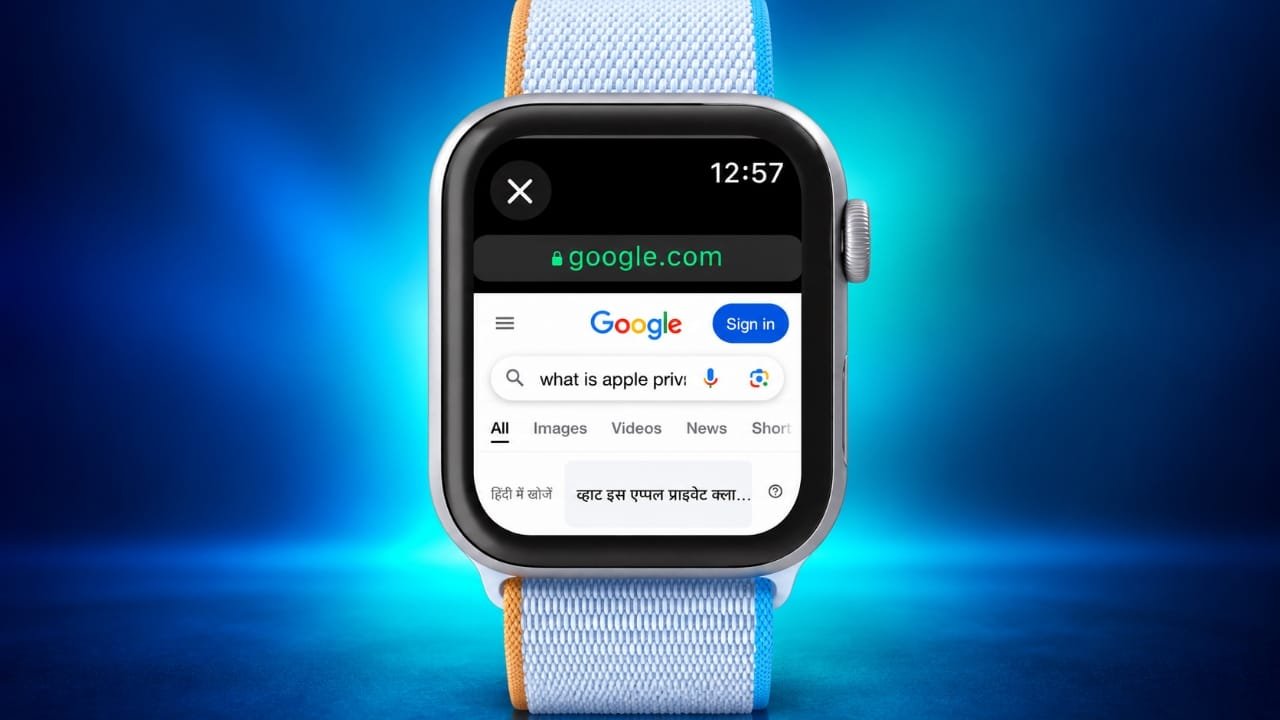
The Apple Watch is designed mainly for quick tasks, such as checking notifications, answering calls, and tracking fitness activities. However, it can also open certain websites, even though Apple does not provide a dedicated Safari app for watchOS.
You can access web pages through links in Messages or Mail, use Siri to search for information, or try a compatible third-party browser app. These options can be useful when your iPhone is not nearby, especially if you have a cellular Apple Watch.
Advertisements
In this guide, you will learn how to open websites, search Google, and understand the limitations of browsing on an Apple Watch.
Also read: Garena Free Fire India: Download Availability, Features and Responsible Gaming
3 Ways to Browse the Web on an Apple Watch
There are several ways to access websites from your wrist. Here are three practical methods to try.
1. Open a Website Using Messages or Mail
One of the easiest ways to visit a website on your Apple Watch is through a link received in a message or email. You do not need to install a separate browser for this method.
Follow these steps:
- Ask someone to send you a website link through Messages or email. You can also send a link to yourself.
- Open the Messages or Mail app on your Apple Watch.
- Find the conversation or email containing the link.
- Tap the link to open the webpage.
If the website is compatible with the watch’s limited browsing features, its content will appear on the screen.
This method works best when you already have the link you want to visit. You cannot use it like a full desktop browser with multiple tabs and a complete address bar. To visit another website, you may need to open another link from a message or email.
2. Use Siri to Find Websites
Siri offers another convenient way to access web content without typing on the small Apple Watch screen. You can ask it to search for a topic or open a particular website.
Here is how to use it:
- Activate Siri by raising your wrist and speaking, if the feature is enabled, or by pressing and holding the Digital Crown.
- Say something like “Search the web for the latest Apple Watch features” or “Open Apple’s website.”
- Wait for Siri to display relevant results.
- Tap a result to open the corresponding webpage.
The available results may vary depending on your watchOS version, settings, and the request you make.
Siri is particularly useful when you want quick information without entering a search query manually. However, some websites may not display properly on the watch.
3. Try a Third-Party Browser App
Although Apple does not offer a dedicated Safari app for Apple Watch, some third-party developers provide apps that make limited web browsing possible.
One example is Parrity, a third-party browser designed to help users access web content on compatible Apple Watch models.
Before installing any browser app, check its current App Store listing to confirm that it supports your watchOS version and Apple Watch model. Features and availability can change over time.
Keep in mind that third-party browsers may have limitations compared with Safari on an iPhone. Some websites might not work correctly, and certain features may be unavailable.
How to Search Google on an Apple Watch
You can use Siri to find information online, including results from Google. This is generally more convenient than trying to type a search query on your watch.
Follow these steps:
- Activate Siri on your Apple Watch.
- Ask a question or say the topic you want to search for. For example, “What is Apple Private Cloud Compute?”
- Review the information and links Siri displays.
- If a Google search option appears, select it to view additional results.
- Tap a suitable result to open its webpage.
The exact options shown on your screen may differ depending on your watchOS version and Siri’s search interface. A Google search button is not guaranteed to appear for every query.
You can also open Google directly if you have a working link to its search page in Messages or Mail.
Limitations of Browsing on an Apple Watch
Browsing websites on a watch is possible in certain situations, but the experience is more limited than using an iPhone, iPad, or Mac.
Here are a few important things to know.
Some websites may not load properly. Websites with complicated layouts, interactive features, or large amounts of content may be difficult to use on the watch.
The screen is small. Reading long articles, filling out forms, and navigating detailed pages can be uncomfortable.
Browsing controls are limited. You should not expect the same collection of tabs, address-bar controls, extensions, and other features available in a full desktop browser.
The experience depends on your connection. Internet access may require a paired iPhone connection, Wi-Fi, or cellular connectivity, depending on your Apple Watch model and network setup.
Battery usage can vary. Activities that use the display, network connection, and processor consume power. The effect depends on how you use your watch.
For these reasons, the Apple Watch is better suited to opening a short link or checking a small amount of information than browsing the internet for an extended period.
Why Doesn’t Apple Include a Dedicated Safari App?
Apple has not introduced a dedicated Safari app for the Apple Watch. Although the exact reasons behind this product decision have not been publicly established, several practical considerations help explain why full web browsing is less suited to the device.
Small Display
The Apple Watch has a much smaller screen than an iPhone or iPad. Websites designed for larger displays can be difficult to navigate, especially when they contain detailed menus, forms, or lengthy articles.
Battery Efficiency
The watch needs to balance its display, connectivity, notifications, health features, and other everyday tasks. Extended web browsing could increase power consumption, so a full browser would need to work within those limitations.
Designed for Quick Tasks
The Apple Watch is primarily intended for convenient, short interactions. It complements the iPhone rather than replacing it for every activity.
Limited Browsing Is Already Available
Opening links and accessing certain web results can be enough for occasional use. People who need a more complete browsing experience can use an iPhone or another device with a larger screen.
These are reasonable explanations based on the device’s design and capabilities, rather than a confirmed statement of Apple’s internal decision-making.
Can You Browse the Internet Without an iPhone Nearby?
Yes, in some circumstances. A cellular Apple Watch can connect to supported mobile networks without keeping the iPhone nearby, provided that the watch has an active cellular plan and suitable coverage.
A GPS-only model may also access the internet through an available Wi-Fi connection or a compatible connection to its paired iPhone.
However, independent internet access does not mean every website or browser feature will work. Your connection, watchOS version, app compatibility, and the website itself all affect the experience.
Also read: How to Check Activation Lock Before Buying a Used Apple Device
Final Thoughts
Browsing the web on an Apple Watch is possible, even without a dedicated Safari app. You can open links through Messages or Mail, ask Siri to find websites, or explore compatible third-party browser apps.
For most users, Siri is a convenient starting point because it lets you search for information without typing. Opening links is another useful option when you need to check a particular webpage quickly.
Although the small screen and limited browsing controls make the experience less convenient than using an iPhone, these features can still be helpful when you need information on the go.
Have you tried opening websites on your Apple Watch? Share your experience and let other readers know which method works best for you.

Abhi Rajput, founder of EarnAbhi.in, is a tech lover with 6+ years of experience in SEO, digital tools, and smartphone troubleshooting. He writes simple, clear, and useful guides to help people solve real tech problems.