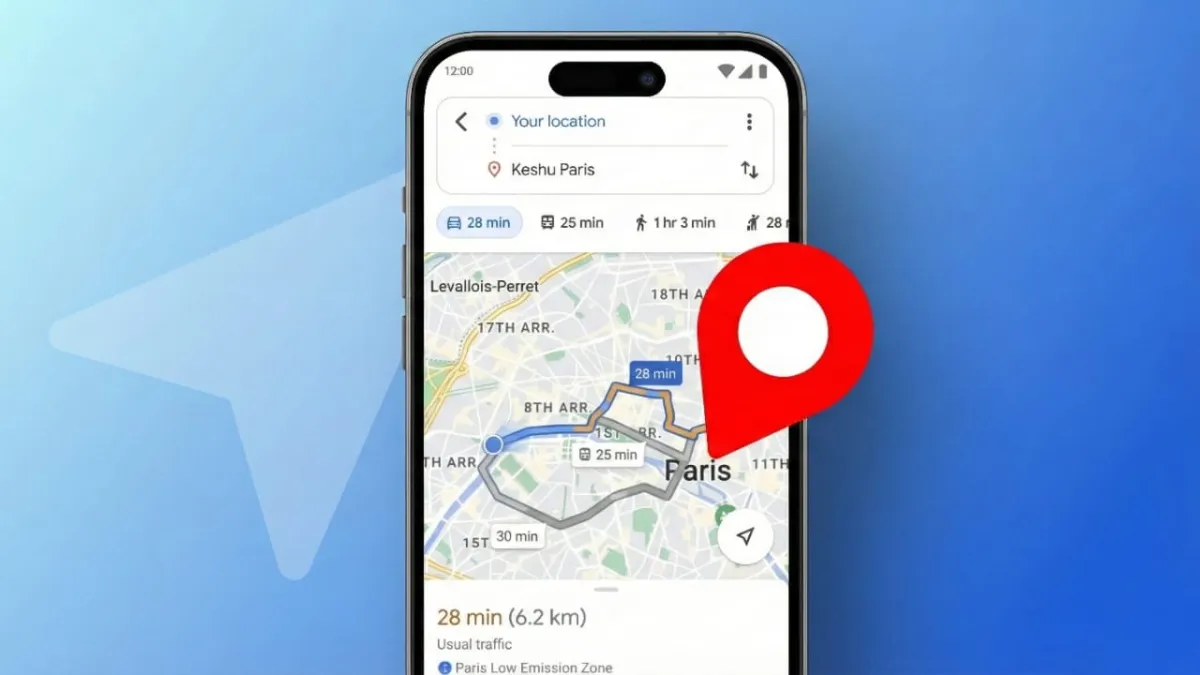
Traveling without a stable internet connection can be stressful, especially in unfamiliar places. Google Maps’ offline navigation feature solves this problem by letting you use maps even when mobile data is unavailable or weak. With a little preparation, you can navigate confidently while saving data and avoiding network issues.
Advertisements
This guide explains everything in clear, simple steps so anyone can follow along.
Also read: How to Make and Use Transparent Live Wallpapers on Android and iPhone
Why Use Google Maps Offline?
Offline maps are useful when you’re traveling through areas with poor network coverage or when you want to limit mobile data usage. Once downloaded, these maps stay on your phone and can be accessed anytime, even without an internet connection.
They work smoothly on both Android and iPhone devices and are ideal for road trips, remote locations, and international travel.
Key Points to Know
- Offline maps allow navigation without internet access
- They help reduce mobile data consumption
- Downloading maps is quick and easy
- Live traffic updates are not available offline
- Maps need occasional updates to stay accurate
How to Download Maps for Offline Use
Google Maps makes the download process simple. Just follow these steps:
- Open the Google Maps app on your phone
- Tap your profile photo at the top right
- Select Offline maps from the menu
- Choose Select your own map
- Adjust the highlighted area to cover your travel location
- Check the file size before saving
- Tap Download
Faster Method
You can also search for a city or location directly. After searching:
- Tap the three dots on the location panel
- Select Download offline map
- Adjust the area if needed and confirm
Smaller areas take up less storage, so only download what you need.
Keeping Offline Maps Updated
Offline maps do not update automatically unless you allow it. You can turn on auto-updates so maps refresh every two weeks when connected to Wi-Fi. This ensures roads, routes, and place details remain accurate.
Remember, offline mode does not show live traffic conditions. Travel time estimates are basic and assume clear roads, so it’s best to plan ahead in busy areas.
Using Offline Navigation While Traveling
Once maps are saved, navigation becomes easy. You can search for places within the downloaded area and get turn-by-turn directions without internet access.
Offline maps include:
- Roads and streets
- Parks and landmarks
- Major points of interest
Even if the preview looks limited, the full map data is stored in the background.
For best results, always download maps over a strong Wi-Fi connection since files can be large.
Your downloaded maps are linked to your Google account, so they stay available if you sign in on another device.
Managing Saved Offline Maps
To view or manage your saved maps:
- Open Google Maps
- Tap your profile photo
- Go to Offline maps
Here, you’ll see all downloaded maps. You can open, update, or delete them as needed.
Offline maps are stored for up to one year. If a map becomes outdated or you no longer need it, you can remove it manually to free up space. Old maps are also deleted automatically after one year.
Also read: How to Update the Phone Number Connected to Your Google and Gmail Account
Final Thoughts
Google Maps offline navigation is a reliable tool for stress-free travel. It helps you stay on track without depending on mobile data or internet signals. With a few minutes of preparation, you can download maps, keep them updated, and travel with confidence.
Whether you’re on a long road trip or exploring a new place, offline maps make navigation simple, affordable, and dependable.

Abhi Rajput, founder of EarnAbhi.in, is a tech lover with 6+ years of experience in SEO, digital tools, and smartphone troubleshooting. He writes simple, clear, and useful guides to help people solve real tech problems.
Advertisements