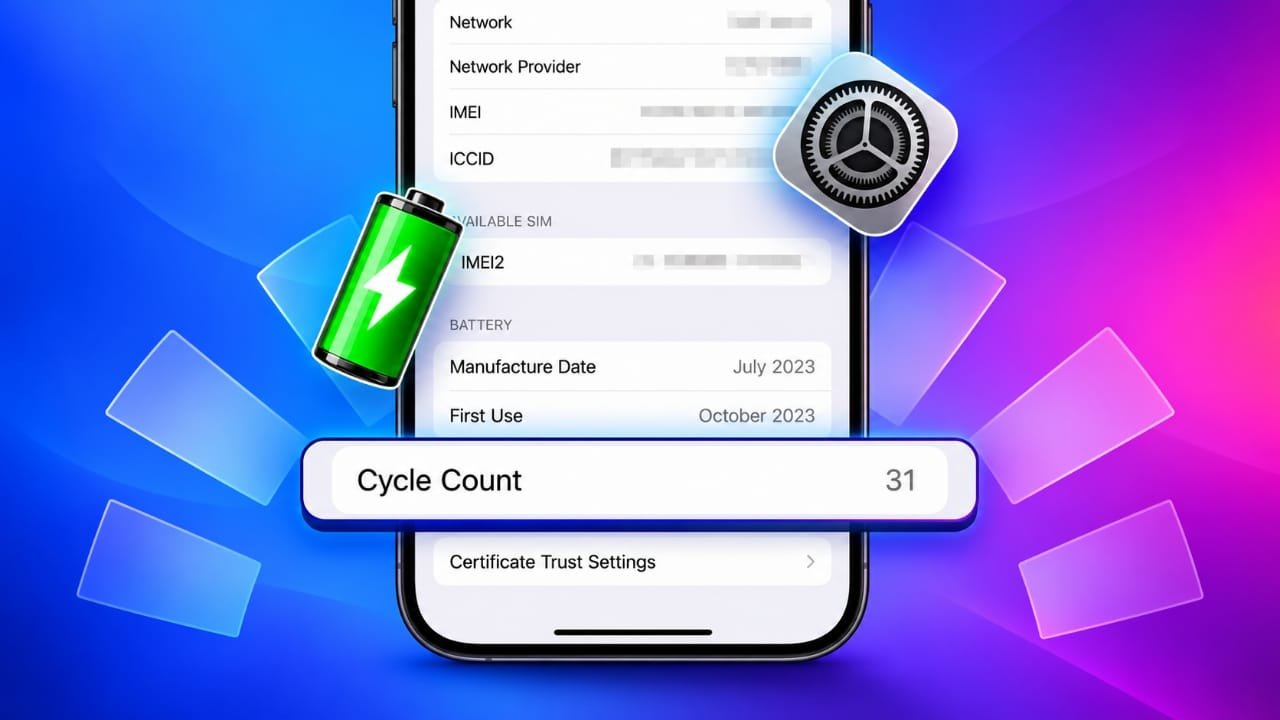
If your iPhone battery does not seem to last as long as it used to, checking the battery cycle count can give you a better idea of how much the battery has been used.
A battery cycle count records the equivalent of using 100% of the battery’s capacity. It does not necessarily mean you have charged your iPhone from 0% to 100% in one go.
Advertisements
In this guide, you will learn what battery cycles mean, where to find the cycle count on supported iPhone models, and what you can do if your iPhone does not show the information directly.
Also read: 9 Ways to Fix Screen Recording Not Working on iPhone and iPad
What Is an iPhone Battery Cycle Count?
A battery cycle represents a total amount of battery usage equal to 100% of the battery’s capacity.
For example, suppose you use 50% of your iPhone’s battery on one day and charge it again. Later, you use another 50%. Together, that usage equals approximately one complete battery cycle.
The cycle count increases gradually as you use your phone. Charging your iPhone several times during the day does not automatically add one full cycle each time.
As a battery goes through more cycles, its capacity can gradually decrease. Therefore, the cycle count can be useful when you are trying to understand the general age and usage history of an iPhone battery.
Why Is the Battery Cycle Count Useful?
Battery cycle count is only one part of battery health, but it can still provide useful information.
Checking it can help you:
- Understand how much the battery has been used
- Compare battery condition when buying a used iPhone
- Decide whether a battery may need attention
- Monitor changes in battery performance over time
- Better understand why battery life may have decreased
Apple says batteries in iPhone 14 models and earlier are designed to retain up to 80% of their original capacity at 500 complete charge cycles under ideal conditions. For iPhone 15 models and later, Apple states that the battery is designed to retain up to 80% of its original capacity at 1,000 complete cycles under ideal conditions.
These figures are design targets, not a guarantee that every battery will behave exactly the same way.
How to Check Battery Cycle Count on iPhone 15 and Later
Apple provides a built-in way to view cycle count on supported newer iPhone models.
If your iPhone and iOS version support the feature, follow these steps:
- Open Settings.
- Tap Battery.
- Select Battery Health & Charging or the available battery health option.
- Look for Cycle Count.
The number displayed there represents the approximate number of completed battery cycles recorded by the iPhone.
If you cannot find the option, make sure your iPhone is running a supported version of iOS. The exact menu names can also change with software updates.
How to Check the Cycle Count on Older iPhones
Older iPhone models may record battery cycle information without displaying the number directly in the regular Battery settings.
One option is to look through the device’s analytics information.
Method 1: Check Analytics Data
To try this method:
- Open Settings.
- Go to Privacy & Security.
- Tap Analytics & Improvements.
- Select Analytics Data.
- Open a recent analytics file.
- Use the share option to copy the available information.
- Paste the data into the Notes app.
- Use the Find feature and search for a battery cycle-related entry such as CycleCount.
Depending on your iOS version, the format and information included in analytics files can be different. The required entry may not be available on every device.
Method 2: Use a Trusted Shortcut
Some shortcuts can process iPhone analytics information and make battery statistics easier to understand.
If you decide to use a shortcut, only use one from a source you trust. Before adding it, check what information or permissions it requests.
Avoid installing shortcuts simply because a website claims they can improve battery performance or unlock hidden iPhone features.
Can Third-Party Apps Show the Cycle Count?
Third-party tools can sometimes provide additional battery information, particularly when an iPhone is connected to a computer.
For example, desktop utilities such as coconutBattery on Mac or iMazing on Windows and Mac may provide battery information when a compatible iPhone is connected.
However, iOS places restrictions on the information apps can access. As a result, an app may not be able to display every battery statistic directly on the iPhone.
When using any third-party software:
- Download it from the developer’s official source or a trusted app store.
- Check what permissions it requests.
- Avoid unnecessary data sharing.
- Do not install unknown profiles or software just to see battery information.
For privacy and simplicity, Apple’s built-in battery settings should generally be your first choice when the required information is available there.
When Should You Consider Replacing an iPhone Battery?
Cycle count alone does not determine whether a battery needs replacement.
You should also look at the overall battery condition and how your iPhone behaves.
Some signs that the battery may need attention include:
Reduced Battery Life
If your iPhone now needs to be charged much more frequently than before during similar usage, the battery may have lost some of its original capacity.
Battery Health Warning
Check Settings > Battery > Battery Health. If your iPhone shows a service-related message or the maximum capacity has become significantly reduced, consider getting the battery checked.
Unexpected Shutdowns
An aging battery may sometimes struggle to provide enough power during demanding tasks. Unexpected shutdowns can have other causes as well, so they should not automatically be blamed on battery age.
Performance Problems
If your iPhone has become noticeably slower, battery condition can sometimes be a factor. However, software updates, available storage, app problems, and other issues can also affect performance.
Does an 80% Battery Health Level Mean You Must Replace It?
Not necessarily.
An iPhone can continue working with battery capacity below 80%. The percentage is useful as an indicator of battery aging, but it is not an automatic instruction to replace the battery.
Your decision should depend on how well the phone performs in everyday use and whether iOS is showing a battery service recommendation.
If battery life has become inconvenient or the phone is experiencing battery-related problems, an Apple-authorized service provider can check the device and explain the available options.
Tips for Maintaining iPhone Battery Health
You cannot stop a lithium-ion battery from aging, but good charging habits and temperature control can help reduce unnecessary battery stress.
Avoid Extreme Temperatures
Very high temperatures can negatively affect battery life. Try to keep your iPhone away from excessive heat and direct sunlight.
Use Optimized Battery Charging
If available on your iPhone, Optimized Battery Charging can help reduce the amount of time the device spends fully charged.
You can check the option under your iPhone’s battery settings.
Use Quality Chargers and Cables
Use Apple or properly certified, reputable charging accessories. Poor-quality accessories may create safety or charging problems.
Keep Your iPhone Updated
iOS updates can include battery management improvements and bug fixes. Keeping your iPhone updated can therefore be useful for overall device maintenance.
Battery Cycle Count vs. Battery Health
These two numbers are related, but they are not the same thing.
Cycle Count tells you how many equivalent full battery cycles have been completed.
Maximum Capacity estimates how much charge the battery can hold compared with when it was new.
For example, two iPhones can have similar cycle counts but different maximum-capacity percentages because battery aging is affected by several factors, including temperature, usage patterns, and charging behavior.
That is why you should consider both numbers rather than judging the battery from cycle count alone.
Also read: Alpha Hybrid Launcher 4D: Give Your Mobile Home Screen a Fresh Look
Final Thoughts
Checking your iPhone’s battery cycle count is a useful way to understand how much the battery has been used. On newer supported iPhone models, the information can be found directly in the Battery settings.
For older models, you may need to check analytics information or use a trusted computer-based tool.
Remember that cycle count is only one measure of battery condition. Maximum capacity, charging behavior, unexpected shutdowns, and your everyday battery life also matter.
If you are using a newer iPhone or a recently updated version of iOS, the exact settings can change over time. When in doubt, check Apple’s current support information for your specific model and software version.

Abhi Rajput, founder of EarnAbhi.in, is a tech lover with 6+ years of experience in SEO, digital tools, and smartphone troubleshooting. He writes simple, clear, and useful guides to help people solve real tech problems.
Advertisements