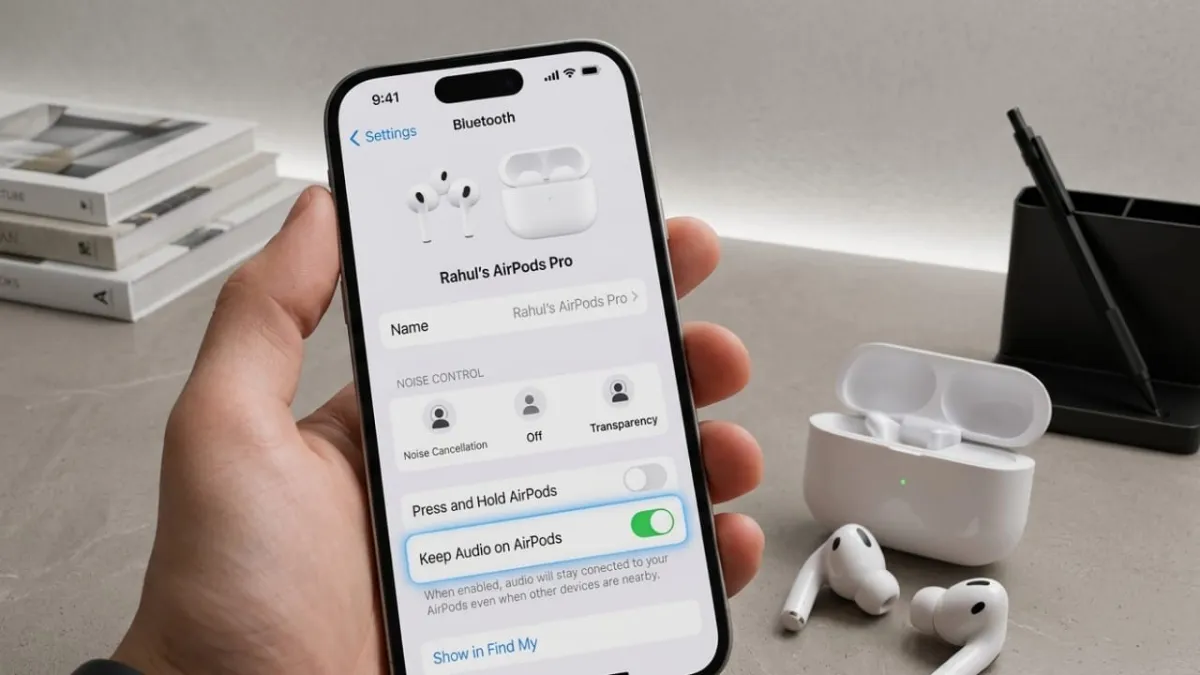
If your iPhone keeps moving audio from your AirPods to your car speakers automatically, you’re not alone. It can be frustrating—especially when music or calls suddenly play out loud without warning.
The good news is, there’s a simple setting that lets you keep your audio on your AirPods, even when your car connects.
Advertisements
Also read: How to Disable Autocorrect on iPhone, iPad, and Mac (Simple Guide)
Why This Problem Happens
By default, your iPhone gives priority to newly connected devices. So when your car connects through Bluetooth or CarPlay, your phone assumes you want to use the car’s speakers.
Because of this, your music, calls, or any audio instantly shift from your AirPods to your car.
This behavior doesn’t just happen with cars. It can also occur with:
- Bluetooth speakers
- Smart TVs
- Home audio systems
The Simple Fix You Need
Apple has added a setting called “Keep Audio with Headphones.” When you turn this on, your iPhone continues using your AirPods, even if another device connects.
This works for:
- Music
- Calls
- Podcasts
- FaceTime
- Any other audio
How to Turn On “Keep Audio with Headphones”
Follow these steps:
- Open Settings
- Go to General
- Tap AirPlay & Continuity
- Turn on Keep Audio with Headphones
That’s it. Once enabled, your audio will stay where you want it.
What Changes After Enabling It
After turning this setting on, your iPhone behaves more predictably. Here’s what improves:
- Your AirPods stay active even when your car connects
- Calls remain private and don’t switch to loud speakers
- Audio doesn’t jump to nearby devices automatically
- You stay in control of where your sound plays
It’s especially helpful in situations like:
- When someone else starts your car
- When a nearby speaker turns on
- When multiple Bluetooth devices are around
How to Manually Switch Audio to Your Car
There may be times when you actually want to use your car’s speakers—for navigation or hands-free calls.
You can switch manually anytime:
- Open Control Center
- Tap the audio output (AirPlay) icon
- Select your car or CarPlay
You can also put your AirPods back in their case, and your iPhone will usually switch to the next available device automatically.
What This Setting Does NOT Do
It’s important to understand what this feature doesn’t change:
- Your iPhone will still connect to your car normally
- Bluetooth and CarPlay will continue working as usual
- It won’t stop AirPods from switching between Apple devices like iPad or Mac
- You can still change audio output anytime
Also read: How to Change Bluetooth Name on iPhone, iPad, and Mac
Should You Enable This Setting?
If you often use AirPods around your car or other Bluetooth devices, this setting can make a big difference. It prevents unexpected audio changes and gives you full control.
Instead of your iPhone deciding where your audio goes, you decide.
Safety Note: Avoid using AirPods while driving, as it may reduce awareness and may not be allowed in some areas.

Abhi Rajput, founder of EarnAbhi.in, is a tech lover with 6+ years of experience in SEO, digital tools, and smartphone troubleshooting. He writes simple, clear, and useful guides to help people solve real tech problems.