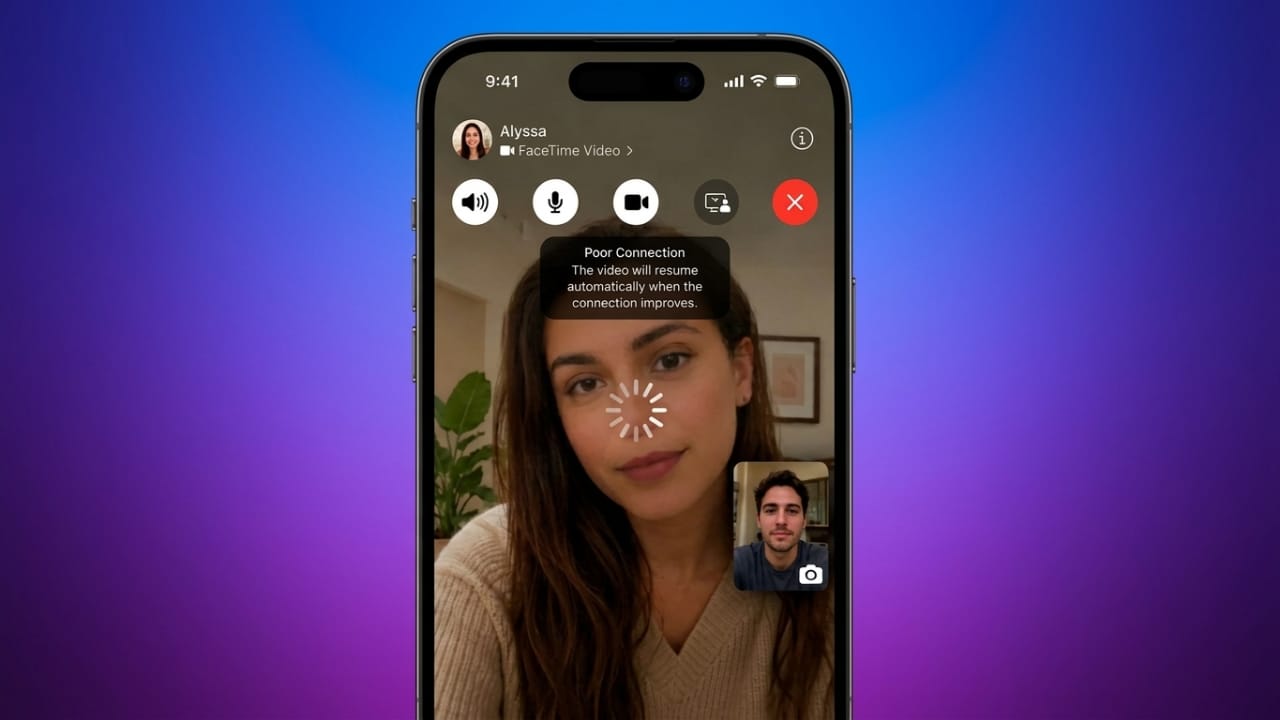
FaceTime is a convenient way to stay connected with friends, family, and coworkers. However, call quality can suffer if the app starts lagging. You might notice choppy video, delayed audio, frozen screens, or calls that suddenly disconnect.
The good news is that most FaceTime problems can be fixed with a few simple checks. This guide explains the common reasons behind FaceTime lag and the best ways to improve your call quality.
Advertisements
Also read: Convert PNG to PDF on Windows, Mac, and Mobile (Online & Offline)
Quick Summary
- Make sure your internet connection is stable.
- Restart your device to clear temporary issues.
- Keep iOS or macOS updated.
- Close apps running in the background.
- Free up storage space for better performance.
Why Does FaceTime Lag?
FaceTime depends on a fast and reliable internet connection. If your network is weak or unstable, video and audio quality can drop.
Other factors can also affect performance, including:
- Too many devices using the same Wi-Fi network.
- Outdated iOS or macOS software.
- Low available storage.
- Multiple apps running in the background.
- Low Power Mode reducing device performance.
- Temporary software glitches.
- Occasional Apple server issues.
Sometimes FaceTime may show a poor connection warning, freeze during a call, or disconnect unexpectedly. Before changing device settings, it’s a good idea to check whether Apple’s services are working normally.
Improve Your Internet Connection
A strong internet connection is one of the most important requirements for smooth FaceTime calls.
Try these tips:
- Move closer to your Wi-Fi router.
- Reduce the number of devices connected to your network.
- Pause large downloads or video streaming while you’re on a call.
- Restart your Wi-Fi router and wait about a minute before reconnecting.
- Run an internet speed test if your connection feels slow.
- If available, switch to another trusted Wi-Fi network.
- In some situations, a strong mobile data connection may perform better than weak Wi-Fi.
If Wi-Fi continues to cause problems, turn it off and reconnect. You can also forget the network and join it again to refresh the connection.
Restart FaceTime
Temporary software issues can sometimes affect FaceTime.
Close the app completely using the app switcher, wait a few seconds, and open it again. This simple step often resolves minor glitches.
If the issue continues, restarting your device may help clear temporary system problems.
Keep Your Device Updated
Software updates often include bug fixes and performance improvements.
Check for the latest version of iOS or macOS and install updates whenever they become available. Keeping your device up to date helps FaceTime run more smoothly.
Free Up Storage Space
Low storage can slow down your device and affect app performance.
Delete files, photos, or apps you no longer need. Keeping some free storage available allows your device to operate more efficiently.
Close Background Apps
Running many apps at the same time uses memory and processing power.
Before starting a FaceTime call, close apps that you are not using. This gives FaceTime more system resources and may improve call quality.
Turn Off Low Power Mode
Low Power Mode helps extend battery life but may reduce overall device performance.
If you’re expecting an important FaceTime call, consider turning it off temporarily for better performance.
Prevent Your Device from Overheating
Devices that become too hot may automatically reduce performance to protect internal components.
Use FaceTime in a cool environment and avoid leaving your phone or computer in direct sunlight during long calls.
Helpful Tips for Better FaceTime Calls
- Use a stable Wi-Fi or mobile data connection.
- Restart your device regularly.
- Install software updates promptly.
- Keep enough free storage available.
- Close unnecessary apps before calling.
- Avoid using Low Power Mode during long conversations.
- Keep your device cool while using FaceTime.
Also read: How to Silence Unknown Calls on WhatsApp (Complete Guide)
Final Thoughts
Most FaceTime lag and connection problems can be solved without advanced troubleshooting. A reliable internet connection, updated software, enough free storage, and regular device maintenance all help improve call quality.
By following these simple steps, you can reduce video freezing, audio delays, blurry video, and unexpected call interruptions, making your FaceTime conversations smoother and more enjoyable.

Abhi Rajput, founder of EarnAbhi.in, is a tech lover with 6+ years of experience in SEO, digital tools, and smartphone troubleshooting. He writes simple, clear, and useful guides to help people solve real tech problems.