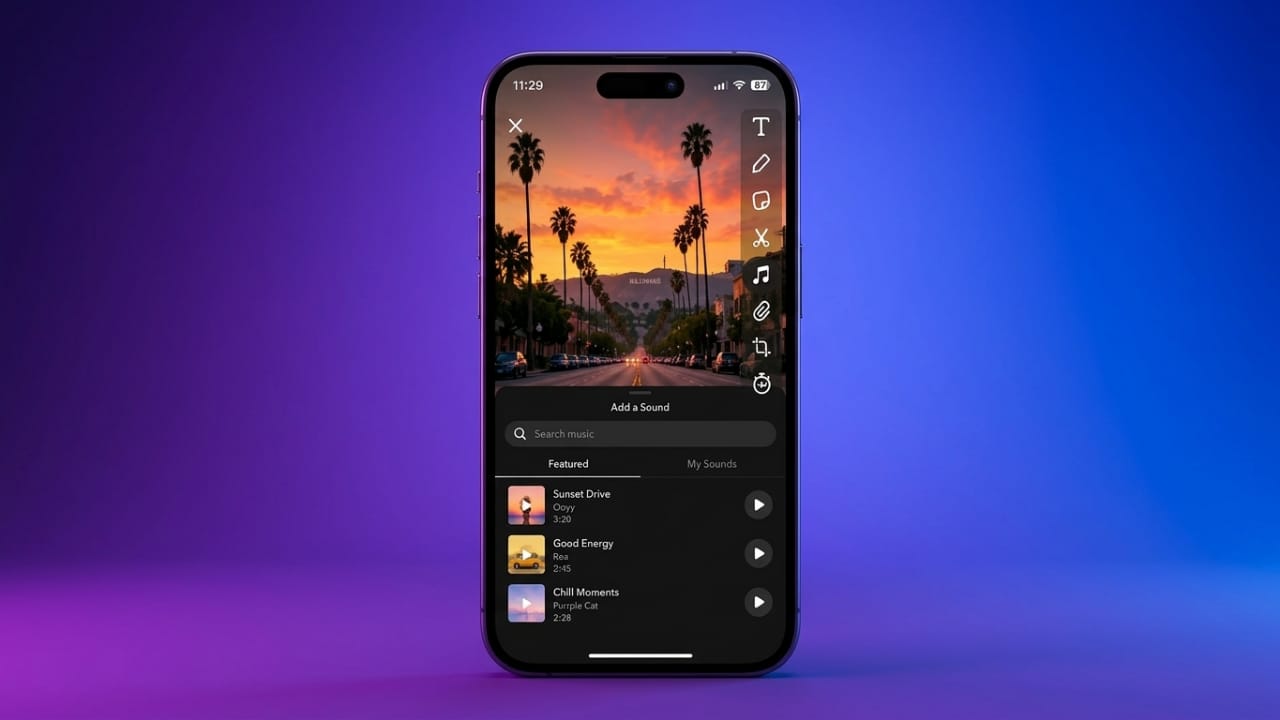
Music can make your Snapchat Stories more entertaining and expressive. Whether you’re sharing a fun moment with friends or posting a creative video, the right song helps set the mood and makes your content more engaging.
Snapchat offers built-in music features along with options to create custom sounds. If you want more editing control, you can also use third-party video editors before uploading your Snap. This guide explains all the available methods in an easy-to-follow way.
Advertisements
Also read: How to Fix FaceTime Lag, Audio Delays, and Video Issues
Key Highlights
- Add songs directly from Snapchat’s built-in music library.
- Create and save your own custom sound recordings.
- Reuse music from other Snaps and Spotlight videos.
- Edit videos with external tools for additional creative options.
Add Music with Snapchat’s Built-In Music Library
Snapchat includes a licensed music library that lets you add songs to both photos and videos without any complicated steps.
Select a Song
- Open Snapchat.
- Capture a photo or record a video.
- Tap the Music icon on the right side of the screen.
- Browse categories such as For You, Trending, Favorites, Recents, or My Sounds.
- You can also search for a song or artist using the search bar.
- Tap a track to preview it, then choose the one you want to use.
Adjust the Music
After selecting a song, you can choose the exact part you want to play.
- Drag the slider to select your preferred section.
- Save songs to your Favorites by tapping the heart icon.
- Tap Done to apply the music.
- Add text, stickers, filters, or other effects before sharing your Snap.
Create Your Own Custom Sound
If you want something more personal, Snapchat allows you to record your own audio and use it in future Snaps.
Record a Custom Sound
- Open the Sounds section.
- Select Create Sound or go to My Sounds.
- Tap the microphone button to start recording.
- Record your audio for up to 60 seconds.
- Stop the recording when finished.
- Give your sound a name.
- Trim any unwanted parts if needed.
- Choose whether your sound is private or available for others.
- Save it to My Sounds for future use.
Use Music from Other Snaps or Spotlight
If you hear a sound you like in someone else’s content, Snapchat lets you use it in your own posts when that option is available.
From a Snap
- Open the Snap.
- Tap the sound label shown on the screen.
- Choose to create a new Snap using the same audio.
From Spotlight
- Open the Spotlight video.
- Tap the sound name below the video.
- Select Use Sound to create your own content with that audio.
Edit Videos Before Uploading
If you need additional editing features, you can prepare your video in a video editor before uploading it to Snapchat.
Some editing apps let you:
- Trim and combine video clips.
- Add background music.
- Include text, transitions, and visual effects.
- Adjust audio timing to match your video.
After editing, save the video and upload it to Snapchat as usual.
Also read: Convert PNG to PDF on Windows, Mac, and Mobile (Online & Offline)
Final Thoughts
Adding music is one of the easiest ways to make Snapchat Stories more engaging. You can use the built-in music library, create your own custom sounds, or reuse available audio from other content. If you want extra creative control, editing your videos before uploading is another useful option.
Experiment with different music styles and editing features to create Snapchat Stories that match your personal style while keeping your content fun, original, and easy to enjoy.

Abhi Rajput, founder of EarnAbhi.in, is a tech lover with 6+ years of experience in SEO, digital tools, and smartphone troubleshooting. He writes simple, clear, and useful guides to help people solve real tech problems.