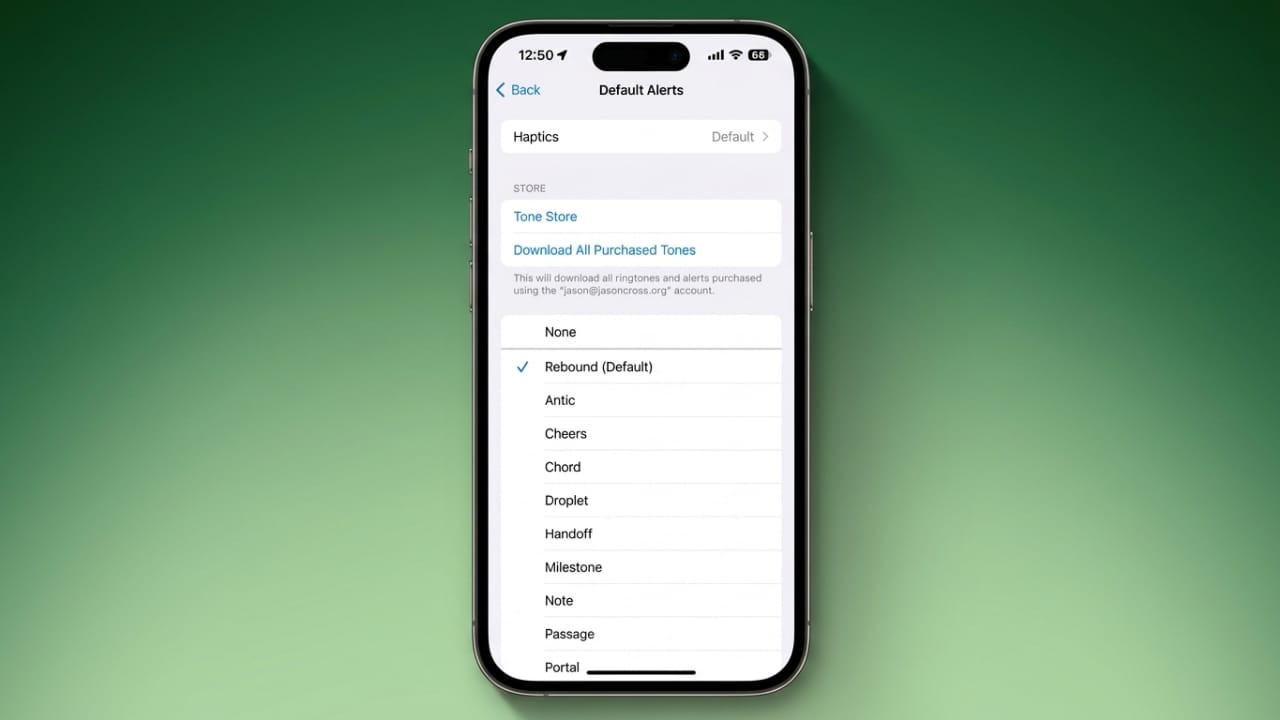
Apple introduced a useful feature in iOS 17.2 that allows iPhone users to change the default notification sound for most alerts. Before this update, only a few notification types could be customized, while many apps and system alerts continued using the same default sound.
With the latest update, you have much more control over how your iPhone sounds. If you miss the classic Tri-Tone alert or simply want a louder notification, you can easily switch to a different sound in just a few steps.
Advertisements
Also read: How to Fix Yahoo Mail Login Problems (Complete Guide)
Why This Feature Is Helpful
Many users felt that the previous default notification sound was too soft and easy to miss. Because of this, Apple added the option to choose a different default alert sound.
Changing the notification tone can help you:
- Hear notifications more clearly.
- Personalize your iPhone.
- Reduce the chances of missing important alerts.
- Use a notification sound that matches your preference.
Steps to Change the Default Notification Sound
Follow these steps to update your default notification sound:
- Open the Settings app on your iPhone.
- Tap Sounds & Haptics.
- Select Default Alerts.
- Browse the available notification sounds.
- Tap a sound to hear a preview.
- Choose the one you like, and your selection will be saved automatically.
If you prefer the classic Apple notification sound, open the Classic section and select Tri-Tone. You can also choose Bell, another available alert tone, or select None if you don’t want an audible notification sound.
Customize Notification Vibrations
Besides changing the sound, iPhone also lets you personalize vibration feedback through Haptics.
To change vibration settings:
- Open Settings > Sounds & Haptics > Default Alerts.
- Tap Haptics.
- Select one of the built-in vibration styles.
Some common options include:
- Accent for a short vibration.
- SOS for a Morse code vibration pattern.
- Synchronized to match the selected notification sound.
- None to disable vibration.
Create Your Own Vibration Pattern
You can even design a custom vibration pattern.
- Open Haptics.
- Tap Create New Vibration.
- Tap and hold the screen to create your preferred vibration rhythm.
- Tap Save when finished.
- Give your vibration a name.
Your custom vibration will then be available whenever you want to use it.
Other Notification Sounds Can Still Be Customized
Changing the default alert sound does not replace every notification on your iPhone. Several system alerts continue to have their own separate sound settings, including:
- Phone calls
- Text messages
- Email notifications
- Calendar alerts
- Reminders
- Voicemail
This allows you to assign different sounds to different types of notifications for better organization.
Can You Use More Notification Sounds?
Yes. Apple also provides access to additional tones through the built-in Tone Store. If you have previously purchased notification sounds or ringtones, you can restore them by selecting Download All Purchased Tones in the sound settings.
Many apps, including messaging and productivity apps, also allow you to choose their notification sounds from within the app’s own settings.
Benefits of Using Custom Notification Sounds
Using different notification sounds makes it easier to recognize alerts without looking at your screen. It also helps you quickly identify whether a message, reminder, or another notification needs your attention.
Choosing a louder or more familiar sound can make everyday use of your iPhone more convenient, especially if you receive important notifications throughout the day.
Also read: WhatsApp Username Feature Finally Arrives on Android and iPhone Stable Version
Final Thoughts
The ability to change the default notification sound gives iPhone users more flexibility than before. Whether you want to restore the classic Tri-Tone alert or try a newer sound, the process is simple and only takes a minute. Pairing custom sounds with personalized vibration patterns can also make notifications easier to notice and improve your overall iPhone experience.

Abhi Rajput, founder of EarnAbhi.in, is a tech lover with 6+ years of experience in SEO, digital tools, and smartphone troubleshooting. He writes simple, clear, and useful guides to help people solve real tech problems.