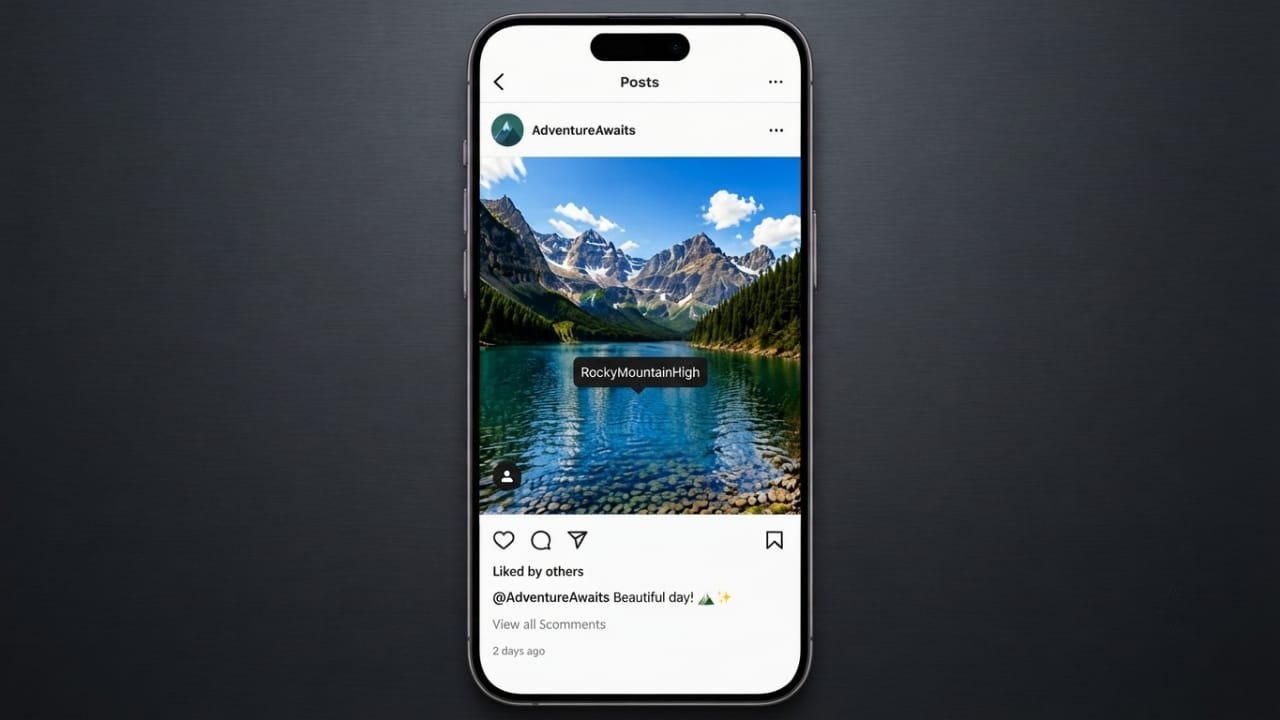
Tagging people in your Instagram posts is an easy way to give credit, connect with friends, and increase engagement. Whether you’re sharing photos with family, collaborating with a brand, or crediting a photographer, using tags correctly helps the right people find your content.
Advertisements
This guide explains how to tag someone before posting, how to add tags later, and a few best practices to make your posts look professional.
Also read: How to Turn Off Google Health Coach in the Google Health App
Why Tag People on Instagram?
Tagging has several benefits, including:
- Giving proper credit to photographers, creators, or collaborators.
- Letting friends know they appear in your post.
- Helping brands or businesses discover content related to them.
- Increasing the chances of likes, comments, and interactions.
When you tag someone, Instagram usually sends them a notification so they can view your post.
How to Tag Someone Before You Share a Post
The easiest time to add tags is before publishing your post. Instagram includes a built-in tagging option during the posting process.
Follow these steps:
- Open the Instagram app.
- Tap the + button to create a new post.
- Select Post.
- Choose one or more photos.
- Tap Next.
- Apply filters or edit your images if you want.
- Tap Next again.
- Select Tag People.
- Tap the person in the photo where you want the tag to appear.
- Search for their Instagram username.
- Select the correct account.
- Repeat the process if you want to tag more people.
- Tap Done, then Share.
After your post is published, tagged users will usually receive a notification. Depending on their privacy settings, your post may also appear in their tagged photos section.
If you’re posting a carousel with multiple images, remember that tags are added separately to each photo. You’ll need to tag people again on every image where they appear.
How to Tag Someone After Publishing a Post
If you forgot to tag someone, there’s no need to upload the post again. Instagram allows you to edit existing posts and add or remove tags at any time.
Steps to edit tags:
- Open Instagram and go to your profile.
- Select the post you want to edit.
- Tap the three-dot menu.
- Choose Edit.
- Tap Tag People.
- Tap the area of the photo where you want the tag.
- Search for the correct username.
- Select the account.
- Add any additional tags if needed.
- Tap Done to save your changes.
You can also remove incorrect tags or move existing ones. Once the changes are saved, the updated tags become active immediately.
Tag People in Captions and Comments
Instagram also lets you mention accounts in captions and comments.
Simply type the @ symbol followed by the person’s username. Instagram will display matching accounts as you type. Select the correct account from the list, and the mention will be added automatically.
The same method works in the comments section. Open the comments, type @username, choose the correct account, and publish your comment.
Best Practices for Instagram Tagging
To keep your posts useful and professional, follow these simple tips:
- Tag only people who are actually connected to the post.
- Give proper credit to photographers, creators, collaborators, and businesses.
- Avoid tagging random or unrelated accounts.
- Don’t overload your posts with unnecessary tags.
- Double-check usernames before publishing to avoid mistakes.
Using relevant tags helps your audience understand the context of your post and creates a better experience for everyone.
Also read: How to Add a Link to Your Instagram Story: A Simple Step-by-Step Guide
Final Thoughts
Tagging people on Instagram is a simple feature that makes your posts more interactive and informative. Whether you add tags before publishing or edit them later, using them correctly helps recognize the right people and improves engagement.
By tagging thoughtfully and only when it’s relevant, you can keep your Instagram posts organized, professional, and more enjoyable for your audience.

Abhi Rajput, founder of EarnAbhi.in, is a tech lover with 6+ years of experience in SEO, digital tools, and smartphone troubleshooting. He writes simple, clear, and useful guides to help people solve real tech problems.
Advertisements