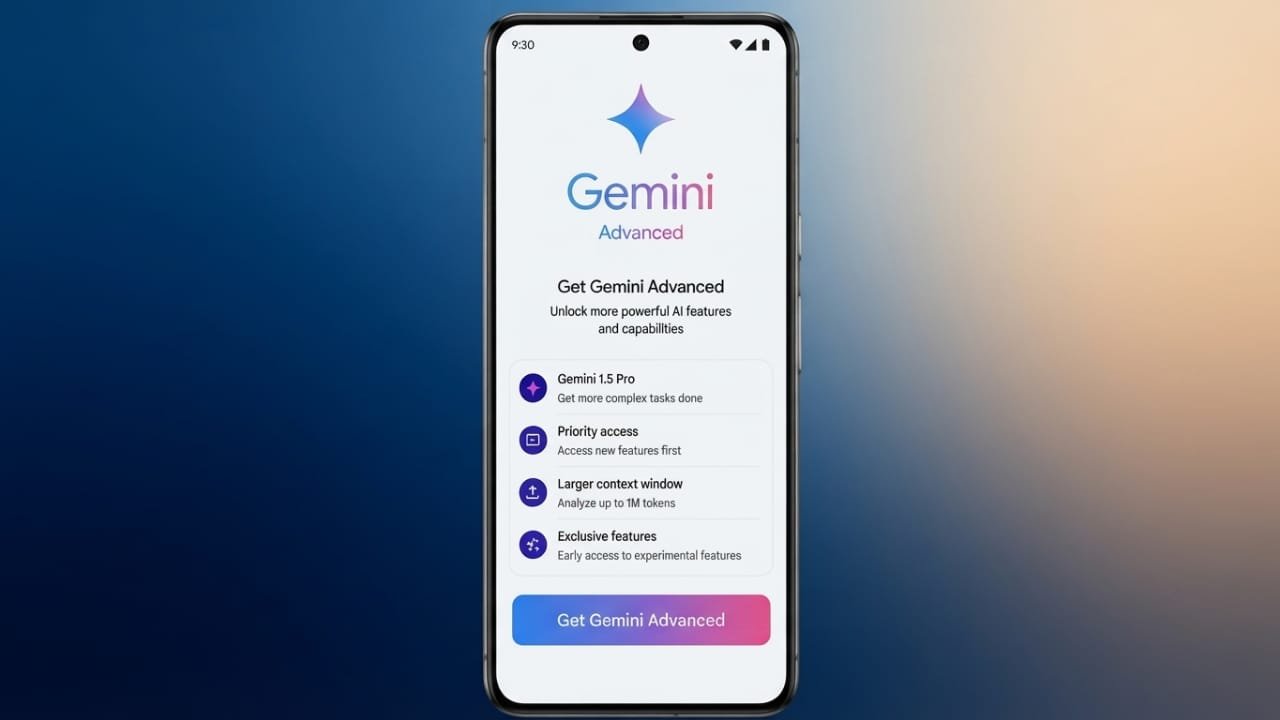
If you want access to Google’s most advanced AI features, Gemini Advanced is a great option. It offers a more capable AI model along with several Google One Premium benefits, making it useful for students, professionals, creators, and everyday users.
Advertisements
This guide explains how to subscribe, what you get with the plan, and how to manage your subscription.
Also read: How to Tag Someone in an Instagram Post: A Simple Step-by-Step Guide
What Is Gemini Advanced?
Gemini Advanced is Google’s premium AI service. It provides access to more powerful AI models that can handle complex questions, detailed writing, coding, research, and creative tasks more effectively than the free version.
Google originally introduced its AI chatbot as Bard, but it has now become part of the Gemini platform, which continues to receive regular improvements and new AI models.
Main Highlights
- Access Google’s premium AI models.
- Includes the Google One AI Premium plan.
- Comes with 2 TB of Google Drive storage.
- Subscription can be changed or canceled whenever you choose.
How to Subscribe to Gemini Advanced
Getting started only takes a few minutes.
- Sign in to your Google account.
- Visit the Gemini subscription page.
- Select the Google One AI Premium plan.
- Review the plan details and available features.
- Click Upgrade, Start Trial, or the available subscription button.
- Accept the payment terms if required.
- Enter your payment information and confirm your subscription.
Google may occasionally offer free trial promotions for eligible users. The availability and length of these offers depend on Google’s current promotions.
What Is Included?
A Gemini Advanced subscription provides several useful benefits, including:
- Access to premium Gemini AI features.
- More capable AI models for advanced tasks.
- 2 TB of Google Drive cloud storage.
- Additional Google One member benefits.
- Extended Google Meet features.
- Selected Google Play rewards where available.
The exact benefits may vary by region and Google’s latest offerings.
Getting Started After Subscribing
Once your subscription becomes active, you’ll notice a few changes in the Gemini interface.
Google may automatically enable Dark Theme, but you can switch back to Light Theme from the settings whenever you like.
During your first use, you may also see information about how Gemini conversations are handled. Activity settings can be reviewed and changed later if you prefer different privacy options.
Switching Between Gemini Models
You can change the AI model whenever supported by your subscription.
On Desktop
- Open the model selector.
- Choose Gemini Advanced for premium features.
- Switch back to the standard model whenever needed.
On Mobile
- Open your profile menu.
- Go to Settings.
- Adjust the available AI response options based on your preferences.
Tips for Better Results
The quality of your prompt has a big impact on the response.
For the best experience:
- Write clear and specific instructions.
- Include enough background information.
- Mention the style or tone you want.
- Explain the purpose of your request.
- Break large tasks into smaller parts when possible.
Clear prompts usually produce more accurate and helpful answers.
Creating Images with Gemini
Gemini also supports AI image generation.
Simply describe the image you want as clearly as possible. You can experiment with different styles, subjects, and levels of detail to improve the results.
Image generation features may differ depending on your account, region, and the version of Gemini you are using.
Managing Activity and Privacy
You have control over your Gemini activity history.
You can:
- View previous conversations.
- Delete individual chats.
- Adjust how long activity is stored.
- Turn activity tracking off if that option is available.
Reviewing these settings regularly can help you manage your privacy preferences.
Changing or Canceling Your Subscription
If you no longer need Gemini Advanced, you can modify your Google One membership.
On Desktop
- Open Settings.
- Select Manage Subscription.
- Choose another Google One plan or cancel your membership.
On Mobile
- Open the Google One app.
- Go to Membership Plans.
- Select a different plan or cancel your subscription.
After cancellation or downgrading, premium Gemini features will no longer be available. If your storage allowance changes, make sure your stored files remain within your new storage limit.
Also read: How to Turn Off Google Health Coach in the Google Health App
Final Thoughts
Gemini Advanced combines Google’s most capable AI features with valuable Google One benefits such as additional cloud storage and premium services. The subscription process is straightforward, and you remain in control of your settings, privacy options, and membership at all times.
Before subscribing, compare the available plans and choose the one that best fits your needs and budget.

Abhi Rajput, founder of EarnAbhi.in, is a tech lover with 6+ years of experience in SEO, digital tools, and smartphone troubleshooting. He writes simple, clear, and useful guides to help people solve real tech problems.
Advertisements