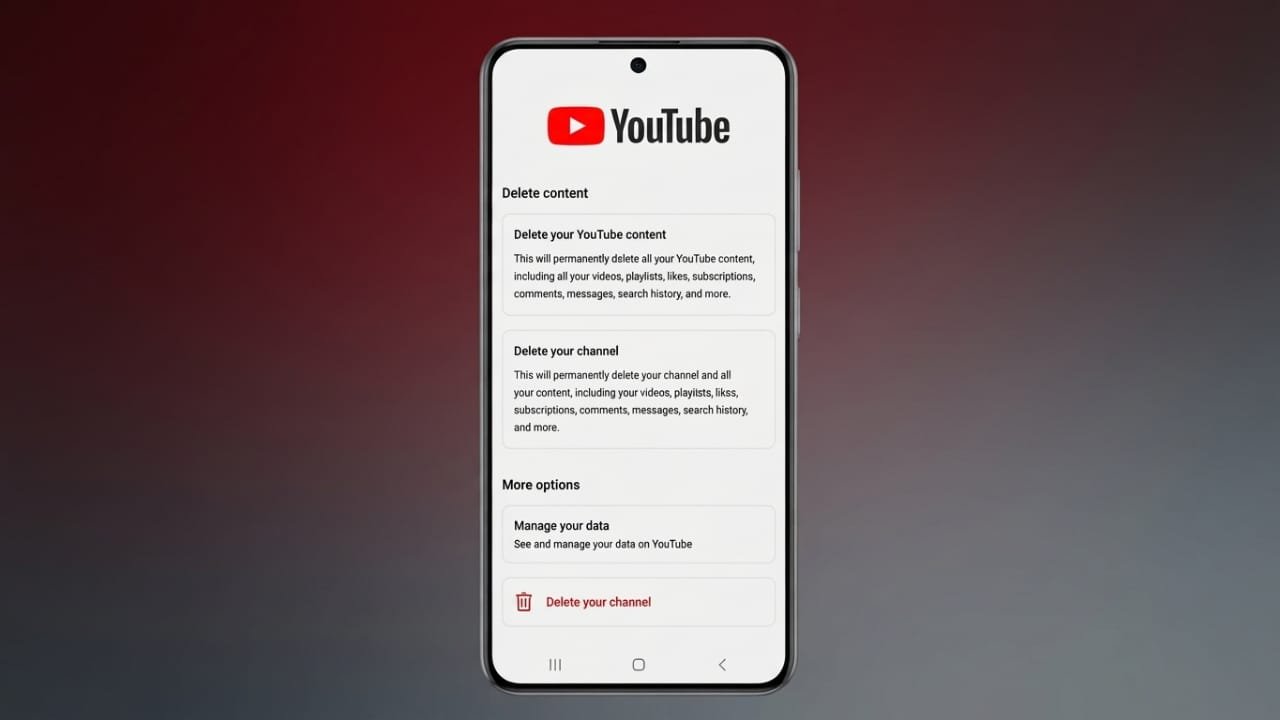
If you no longer want to use YouTube, you have two different options. You can delete only your YouTube channel, or you can remove your entire Google account. These options are not the same, so it is important to understand what each one does before making a decision.
Advertisements
Before deleting anything, make sure you save any important files or data that you may need later.
Also read: How to Sign Up for Gemini Advanced: A Simple Step-by-Step Guide
Important Things to Know
- Back up your important Google data before deleting your account or channel.
- Deleting a YouTube channel removes only your YouTube content.
- Deleting a Google account removes access to YouTube and all other Google services.
- Download important files first to avoid losing valuable information.
Difference Between Deleting a YouTube Channel and a Google Account
Many users think deleting a YouTube account and deleting a Google account are the same. In reality, they are very different.
Delete Only Your YouTube Channel
If you delete your YouTube channel, only your videos, comments, playlists, and other YouTube-related content are removed. Your Google account stays active, so you can still use services like Gmail, Google Drive, Google Photos, and Google Calendar.
This is the better choice if you simply want to stop using YouTube but still need your Google account.
Delete Your Google Account
Removing your Google account permanently deletes your access to YouTube along with other Google services connected to that account.
This may affect:
- Gmail emails
- Google Drive files
- Google Calendar events
- Google Play purchases
- Chrome bookmarks and saved browsing data
- Android contacts linked to the account
- Device backup data
Because this action affects many services, think carefully before continuing. Google may allow account recovery for a limited period, but recovery is not guaranteed after that time.
Back Up Your Data Before Deleting Anything
Creating a backup is one of the most important steps before deleting your account or channel.
To download your data:
- Open your Google Account settings.
- Go to Data & Privacy.
- Find the download and deletion section.
- Select Download your data.
- Choose the Google services you want to include.
- Select how you want to receive your export, such as by email or supported cloud storage.
- Choose your preferred file format and archive size.
- Wait for Google to prepare your download.
If you use your Gmail address to sign in to other websites, update those accounts with a different email address before deleting your Google account.
How to Delete Your Google Account on a Computer
Follow these steps if you want to remove your entire Google account:
- Sign in to your Google Account.
- Open Data & Privacy settings.
- Scroll to More options.
- Select Delete your Google Account.
- Verify your identity by signing in again.
- Read the information carefully.
- Confirm that you understand the consequences.
- Click Delete Account to finish the process.
How to Delete Only Your YouTube Channel on a Computer
If you want to remove only your YouTube content, follow these steps:
- Sign in to YouTube Studio.
- Open Settings.
- Select Channel.
- Go to Advanced Settings.
- Choose Remove YouTube Content.
- Sign in again if requested.
- Select the option to permanently delete your content.
- Read the instructions and confirm your choice.
- Complete the final confirmation.
After the process is complete, your YouTube channel and its content will be removed. If you are unsure, you may prefer hiding your channel instead of deleting it permanently.
Delete Your YouTube Content on Android
- Open the YouTube app.
- Tap your profile picture.
- Select Manage your Google Account.
- Open Data & Privacy.
- Choose Delete a Google service.
- Sign in again if asked.
- Download your data if needed.
- Tap the YouTube delete option.
- Confirm that you want to remove your YouTube content.
Delete Your YouTube Content on iPhone
- Launch the YouTube app.
- Tap your profile icon.
- Select Manage your Google Account.
- Open Data & Privacy.
- Choose Delete a Google service.
- Enter your password for verification.
- Select the YouTube delete option.
- Confirm the deletion.
Your YouTube content will then be removed from the selected account.
Also read: How to Tag Someone in an Instagram Post: A Simple Step-by-Step Guide
Final Thoughts
Before deleting your YouTube channel or Google account, take a few minutes to download any important files and review what will be affected. If your goal is simply to stop using YouTube, deleting only the YouTube channel is usually the safer option. Delete your Google account only when you are certain that you no longer need the services connected to it.

Abhi Rajput, founder of EarnAbhi.in, is a tech lover with 6+ years of experience in SEO, digital tools, and smartphone troubleshooting. He writes simple, clear, and useful guides to help people solve real tech problems.
Advertisements