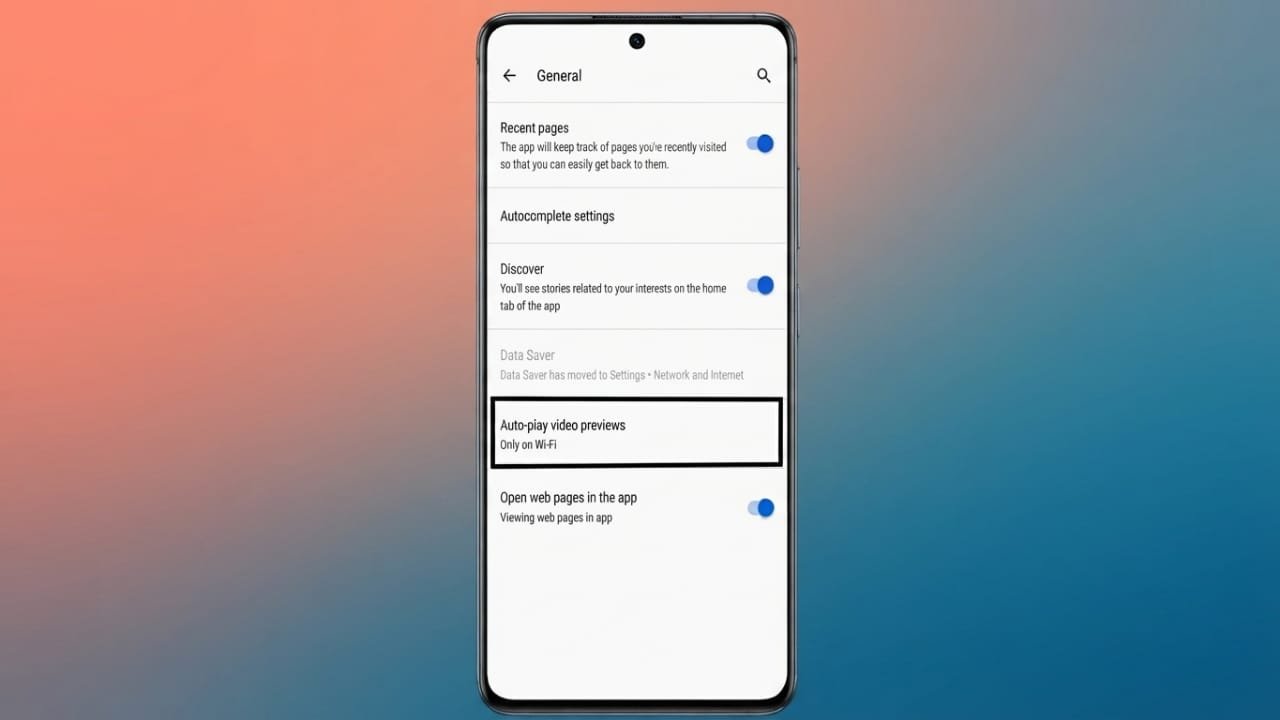
Google Discover helps you stay updated with news, articles, and videos based on your interests. While browsing the feed, you may notice that some video previews start playing automatically as you scroll. Although these previews do not play the full video, they can still use mobile data and become distracting for some users.
Advertisements
The good news is that you can easily control or disable this feature through the Google app settings.
Also read: How to Delete Your YouTube Account or Channel: A Simple Step-by-Step Guide
Why Disable Video Autoplay?
Turning off autoplay offers several benefits:
- Saves mobile data while browsing.
- Reduces distractions from moving video previews.
- Makes the Discover feed cleaner and easier to read.
- Can help reduce battery usage during long browsing sessions.
- Lets you choose when to play videos manually.
Steps to Disable Video Autoplay in Google Discover
Follow these simple steps:
- Open the Google app on your Android phone. If your device supports Google Discover from the home screen, you can also swipe right or left (depending on your device) to open the Discover feed.
- Tap your profile picture in the top-right corner.
- Select Settings.
- Open General.
- Scroll down and tap Autoplay video previews.
- Choose the option that best matches your preference.
Autoplay Options Explained
Never
Select Never if you don’t want video previews to play automatically. You’ll only see a static thumbnail until you choose to play the video yourself. This option is ideal for saving mobile data and reducing distractions.
Only on Wi-Fi
Choose Only on Wi-Fi if you enjoy video previews but want to avoid using mobile data. Previews will play only when your device is connected to a Wi-Fi network.
On Wi-Fi and Mobile Data
If you prefer to keep autoplay enabled at all times, select On Wi-Fi and Mobile Data. Video previews will play automatically regardless of your internet connection.
Advantages of Disabling Autoplay
Changing this setting can improve your overall browsing experience by:
- Lowering mobile data usage.
- Reducing unnecessary animations while scrolling.
- Making it easier to focus on articles and content.
- Giving you full control over when videos play.
- Allowing you to change the setting again whenever you want.
Also read: How to Turn Off Google Health Coach in the Google Health App
Final Thoughts
Managing video autoplay in Google Discover takes only a few moments. Whether your goal is to save data, minimize distractions, or simply enjoy a cleaner browsing experience, the Google app provides flexible options to suit your needs. If your preferences change later, you can return to the same settings page and update the autoplay option at any time.

Abhi Rajput, founder of EarnAbhi.in, is a tech lover with 6+ years of experience in SEO, digital tools, and smartphone troubleshooting. He writes simple, clear, and useful guides to help people solve real tech problems.
Advertisements