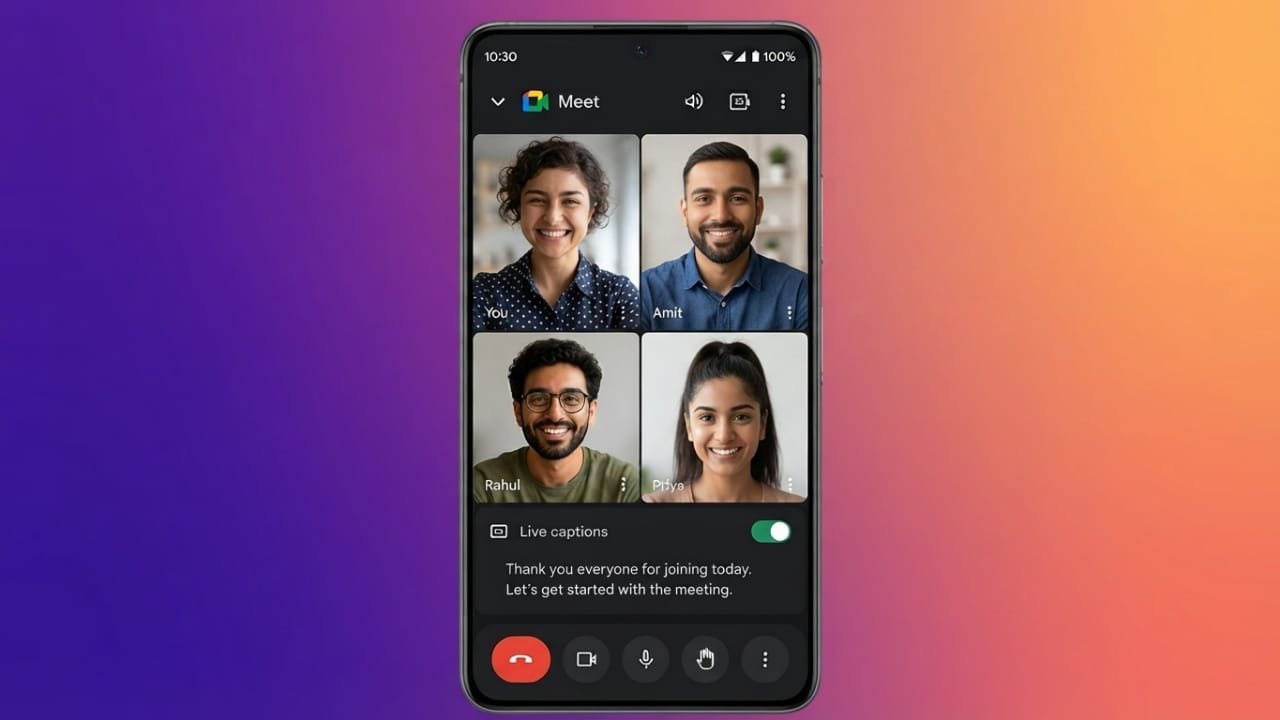
Google Meet includes a built-in Live Captions feature that displays spoken words as text during a meeting. This makes conversations easier to follow, especially when audio is unclear or there is background noise. Whether you’re using a computer or a mobile device, turning on Live Captions only takes a few moments.
Advertisements
Also read: How to Turn Off Video Autoplay in Google Discover
Key Highlights
- Live Captions display spoken words as text during Google Meet calls.
- They help participants understand conversations more clearly in real time.
- You can change the caption language whenever needed.
- The feature is available for both personal and business Google Meet users.
What Are Live Captions?
Live Captions automatically convert speech into text while a meeting is in progress. Powered by Google’s speech recognition technology, the feature provides real-time captions without interrupting the conversation.
It is useful for many situations, including:
- Meetings with background noise.
- Low speaker volume.
- Weak device speakers.
- Unclear pronunciation.
- Poor internet connections that affect audio quality.
- Better accessibility for people with hearing difficulties.
Because the captions appear instantly, participants can keep up with discussions more comfortably.
How to Turn On Live Captions on a Computer
Follow these steps if you’re using Google Meet on a desktop or laptop:
- Open Google Meet in your web browser.
- Join an existing meeting or start a new one.
- Click the CC (Captions) button, or open the More options menu (three dots).
- Select Turn on captions.
- Captions will begin appearing on your screen immediately.
If you want to change the caption language:
- Open Settings.
- Select Captions.
- Choose your preferred language.
To turn captions off, simply follow the same steps and disable the feature.
How to Enable Live Captions on Mobile
Using Live Captions on the Google Meet mobile app is just as simple:
- Open the Google Meet app.
- Join or create a meeting.
- Tap the More button (three dots).
- Select Turn on captions or Show captions, depending on your app version.
- Captions will appear during the meeting.
You can also open Settings, go to Captions, and choose your preferred caption language if the option is available.
Helpful Tips
Before using Live Captions, keep these points in mind:
- Captions only work during an active Google Meet session.
- Accuracy is generally high, but some words may not be recognized correctly.
- There may be a short delay before text appears.
- Performance can vary depending on audio quality, speaker clarity, and internet connection.
- Captions can make recorded meetings easier to review when supported.
Also read: How to Delete Your YouTube Account or Channel: A Simple Step-by-Step Guide
Final Thoughts
Live Captions are a simple but valuable feature that helps make Google Meet conversations easier to understand. Whether you’re attending online classes, business meetings, or personal video calls, real-time captions can improve communication and make meetings more accessible for everyone. Since the feature is available on both desktop and mobile devices, you can enable it whenever you need a clearer meeting experience.

Abhi Rajput, founder of EarnAbhi.in, is a tech lover with 6+ years of experience in SEO, digital tools, and smartphone troubleshooting. He writes simple, clear, and useful guides to help people solve real tech problems.
Advertisements