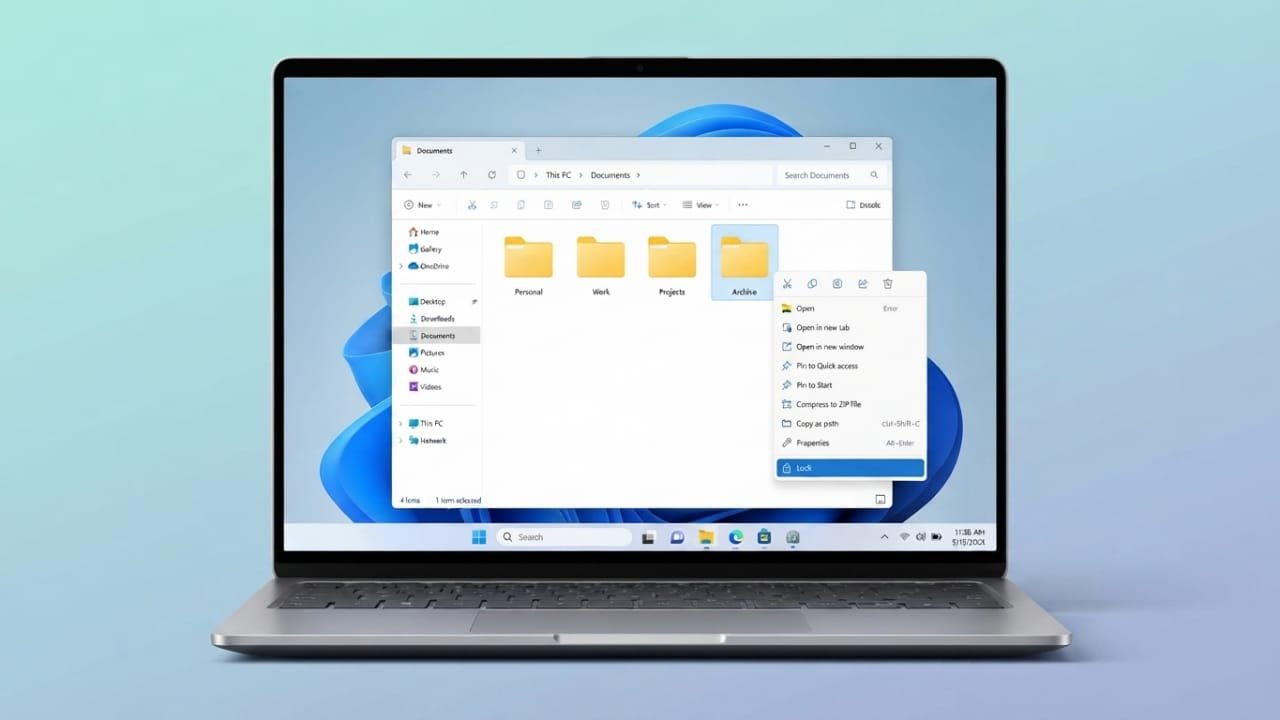
Keeping your personal files private is important, especially if you share your computer with others. Windows 11 provides several ways to protect folders, from built-in security features to trusted third-party tools. Depending on your needs, you can choose simple encryption or advanced password protection to secure your important data.
Advertisements
Also read: How to Enable Spotify Lossless Audio on Android, iPhone, and PC
Key Highlights
- Windows 11 includes built-in tools for protecting files and folders.
- BitLocker and Encrypting File System (EFS) offer strong encryption.
- Third-party applications provide extra password protection and security options.
- Using strong passwords and safely storing recovery keys improves overall protection.
Protect a Folder with Windows Built-in Features
Windows 11 comes with security features that help keep your files private. Some of these options are available only on certain Windows editions or NTFS-formatted drives.
Use Encrypting File System (EFS)
Encrypting File System (EFS) lets you encrypt individual files or folders so that only your Windows account can access them.
Follow these steps:
- Right-click the folder you want to protect and choose Properties.
- Under the General tab, click Advanced.
- Enable Encrypt contents to secure data.
- Click OK, then select Apply.
- Choose to encrypt the entire folder when prompted.
- Back up your encryption certificate and key in a safe place.
After encryption is enabled, any new files added to the folder are automatically protected. Other Windows accounts on the same computer cannot open the encrypted content. However, anyone logged into your account can still access the files, so using a strong Windows password is essential.
Turn On Device Encryption or BitLocker
If you want to secure an entire drive instead of a single folder, Windows offers Device Encryption and BitLocker.
To enable drive encryption:
- Sign in with an administrator account.
- Open Settings.
- Go to Privacy & Security.
- Turn on Device Encryption if your device supports it.
- If available, open BitLocker Drive Encryption.
- Select the drive you want to protect.
- Create a strong password or PIN.
- Save the recovery key in a secure location.
- Choose your preferred encryption settings and begin the process.
Some systems require a Trusted Platform Module (TPM) for BitLocker. You can check whether your PC has TPM support by running tpm.msc.
Password Protect Office and PDF Files
If you only need to secure documents instead of an entire folder, many applications include built-in protection.
For example:
- Microsoft Word lets you encrypt documents with a password.
- Microsoft Excel allows password protection for workbooks.
- Adobe Acrobat supports password protection for PDF files.
Always save the document after enabling password protection.
Use Third-Party Software for Extra Security
If you want more control or password-based folder locking, several trusted programs are available. These tools work independently of your Windows account and often include additional security features.
Some popular options include:
- Folder Lock
- My Lockbox
- 7-Zip
- VeraCrypt
- AxCrypt
- WinRAR
Many of these applications use strong encryption to keep your files secure. Some also allow you to create encrypted containers, password-protected archives, or hidden storage areas for extra privacy.
Lock Folders with Folder Guard
Folder Guard is a dedicated folder protection tool that offers password locking and additional security settings.
To use it:
- Open Folder Guard.
- Select the folder you want to protect.
- Choose the password protection option.
- Create and confirm a strong password.
- Save the settings.
Once protected, the folder requires the correct password before it can be opened.
Folder Guard also offers useful features such as:
- Automatic folder locking after use.
- A master password for easier management.
- Multiple passwords with different access levels.
- Read-only or full-access permissions.
- Password removal when no longer needed.
- Protection for shared folders on local networks.
Any files stored inside a protected folder receive the same level of protection.
Tips for Better Folder Security
To keep your data safe:
- Create strong, unique passwords.
- Store recovery keys in a secure location.
- Keep Windows and your security software updated.
- Avoid sharing passwords with others.
- Back up important files regularly.
Also read: How to Change Icon Size in Windows 11
Final Thoughts
Windows 11 provides reliable tools for protecting your files, whether you need simple encryption or full drive security. For users who need additional password controls and advanced features, trusted third-party software can be a good choice. Whichever method you choose, using strong passwords and keeping recovery information safe will help protect your important data from unauthorized access.

Abhi Rajput, founder of EarnAbhi.in, is a tech lover with 6+ years of experience in SEO, digital tools, and smartphone troubleshooting. He writes simple, clear, and useful guides to help people solve real tech problems.
Advertisements