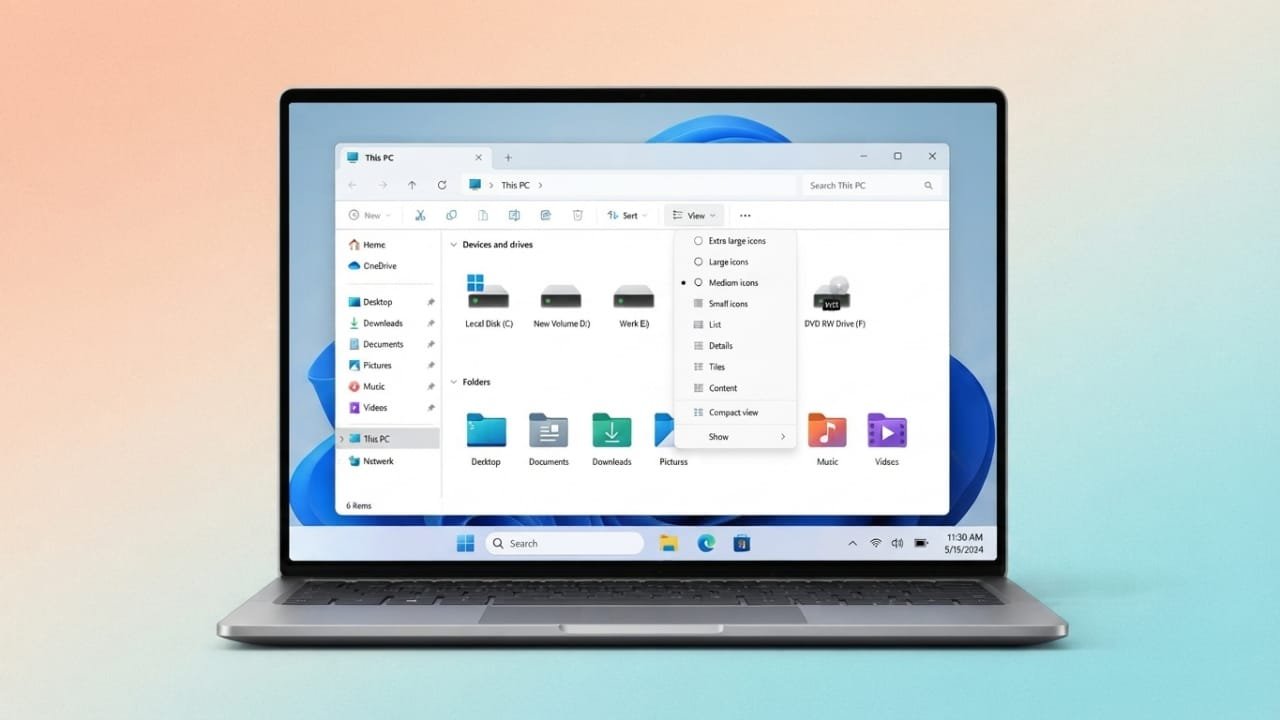
Windows 11 makes it easy to adjust icon sizes based on your preference. Whether you want larger icons for better visibility or smaller ones to create more desktop space, there are several simple ways to customize their appearance.
Advertisements
Also read: Best Google Pixel Settings to Extend Battery Life
Quick Summary
- Change desktop, File Explorer, and taskbar icon sizes with different methods.
- Use the desktop menu, keyboard shortcuts, mouse wheel, or Registry Editor.
- Larger icons are easier to see, while smaller icons help keep your screen less cluttered.
Method 1: Resize Desktop Icons
The fastest way to change desktop icon size is through the desktop context menu.
- Right-click on an empty area of your desktop.
- Move your cursor over View.
- Select Large icons, Medium icons, or Small icons.
The new icon size is applied immediately.
You can also improve desktop organization by enabling:
- Auto arrange icons to keep icons neatly organized.
- Align icons to grid for even spacing.
- Sort by to arrange icons by name, size, type, or date.
These options make your desktop cleaner and easier to use.
Method 2: Use Keyboard Shortcuts
Windows also includes shortcuts for quickly changing desktop icon sizes.
- Ctrl + Shift + 1 – Extra Large icons
- Ctrl + Shift + 2 – Small icons
- Ctrl + Shift + 3 – Medium icons
Use the number keys above the letters on your keyboard. The numeric keypad may not work for these shortcuts.
Method 3: Change Folder Icon Size in File Explorer
You can also adjust icon sizes inside File Explorer.
- Open File Explorer.
- Open any folder.
- Click the three-dot menu on the toolbar.
- Choose the icon size you prefer.
Available options include Extra Large, Large, Medium, Small, List, and Details, depending on the folder view you choose. The change takes effect instantly.
Method 4: Resize Icons with the Mouse Wheel
If you want more control over icon size, use your mouse wheel.
- Click anywhere on the desktop or inside File Explorer.
- Press and hold the Ctrl key.
- Scroll the mouse wheel upward to make icons larger.
- Scroll downward to make them smaller.
This method allows smoother adjustments instead of limiting you to preset sizes.
Method 5: Adjust Display Resolution
Changing your display resolution also affects how large icons appear.
- Open Settings.
- Go to System > Display.
- Select a different resolution from the Display resolution menu.
Lower resolutions generally make icons appear larger, while higher resolutions make them smaller. Keep in mind that changing the resolution can also affect overall display sharpness.
Method 6: Use Registry Editor (Advanced Users)
If you need more control over icon sizes, Registry Editor provides additional customization options. Since incorrect registry changes can affect Windows, it’s a good idea to back up your registry or create a restore point before making any edits.
Change Taskbar Icon Size
- Press Windows + R.
- Type regedit and press Enter.
- Go to:
HKEY_CURRENT_USER\Software\Microsoft\Windows\CurrentVersion\Explorer\Advanced
Create or edit the required DWORD (32-bit) Value used for taskbar icon size and set the appropriate value according to your preferred size. Restart Windows Explorer or your computer after making changes.
Change Desktop Icon Size
Navigate to:
HKEY_CURRENT_USER\Software\Microsoft\Windows\Shell\Bags\1\Desktop
Open the IconSize DWORD value, switch to Decimal, and enter your preferred size. Higher values increase icon size, while lower values reduce it. Restart Windows or Windows Explorer to apply the changes.
Also read: How to Enable Spotify Lossless Audio on Android, iPhone, and PC
Final Thoughts
Windows 11 offers several ways to customize icon sizes, making it easy to create a workspace that suits your needs. For quick adjustments, the desktop menu or mouse wheel works well. If you need more advanced control, Registry Editor provides additional flexibility. Choose the method that fits your comfort level and enjoy a desktop that’s easier to use and better organized.

Abhi Rajput, founder of EarnAbhi.in, is a tech lover with 6+ years of experience in SEO, digital tools, and smartphone troubleshooting. He writes simple, clear, and useful guides to help people solve real tech problems.
Advertisements