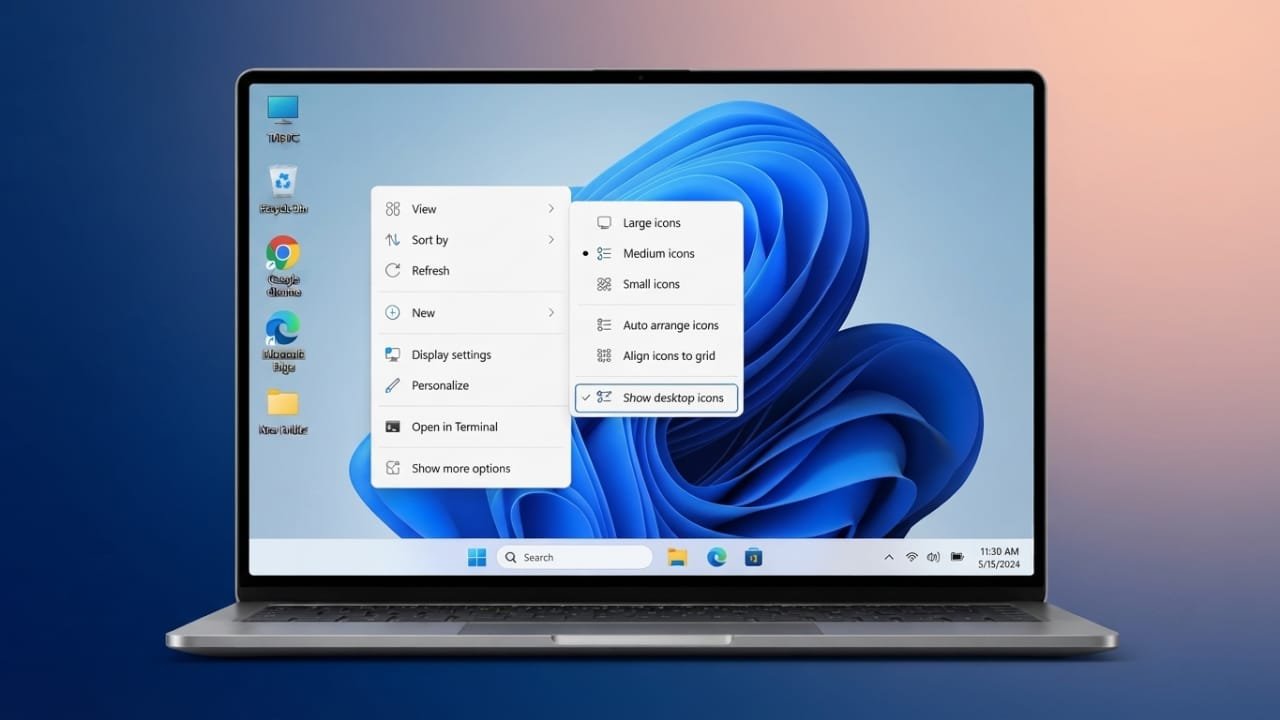
A clutter-free desktop makes it easier to find what you need and creates a cleaner workspace. Whether you want to remove unnecessary shortcuts, hide all icons for a while, or recover something you deleted by mistake, Windows provides simple built-in options. These methods work on both Windows 10 and Windows 11.
Advertisements
Also read: How to Use Focus Mode in Microsoft Word
Key Points
- Remove desktop shortcuts without uninstalling the related programs.
- Hide all desktop icons temporarily for a clean screen.
- Restore deleted shortcuts from the Recycle Bin if they haven’t been permanently removed.
- Keep your desktop organized for a better working experience.
Delete Unwanted Desktop Icons
If your desktop is filled with shortcuts, files, or folders you no longer need, deleting them is a quick way to reduce clutter. Removing a shortcut does not uninstall the application it points to.
Step 1: Open the Desktop
Press Windows + D to display the desktop instantly.
Step 2: Choose the Icons
Click an icon to select it. To select more than one, hold the Ctrl key while clicking each additional icon.
Step 3: Delete the Icons
Right-click one of the selected items and choose Delete. If a confirmation message appears, click Yes.
The selected shortcuts, files, or folders will be removed from the desktop.
Another Quick Option
You can also drag the selected items directly into the Recycle Bin. If Windows asks for confirmation, simply approve the action.
Hide All Desktop Icons
If you only want a clean desktop for a presentation, meeting, or screen sharing session, you don’t need to delete anything. Windows lets you hide all desktop icons with a single setting.
Hide the Icons
- Press Windows + D to go to the desktop.
- Right-click an empty area of the desktop.
- Select View.
- Click Show desktop icons to remove the check mark.
All desktop icons will disappear, but they are still safely stored on your computer.
Show the Icons Again
Whenever you want them back:
- Right-click an empty area of the desktop.
- Select View.
- Click Show desktop icons again to enable the option.
Your desktop icons will immediately reappear.
Why Hide Desktop Icons?
This feature is useful in many situations, including:
- Giving presentations without distractions.
- Keeping personal files hidden during screen sharing.
- Creating a clean-looking desktop temporarily.
Since nothing is deleted, you can restore the icons at any time.
Restore Deleted Desktop Icons
If you accidentally delete a desktop shortcut or file, you can usually recover it from the Recycle Bin, as long as it hasn’t been emptied.
Steps to Restore Items
- Open the Recycle Bin from the desktop or search for it from the Start menu.
- Find the item you want to recover.
- Right-click it and select Restore.
Windows will return the item to its original location on the desktop.
Things to Keep in Mind
- Items can only be restored from the Recycle Bin before it is emptied.
- Once the Recycle Bin is cleared, recovery becomes much more difficult.
- System icons such as This PC may not appear in the Recycle Bin. If they are missing, you can enable them through the Windows desktop icon settings.
Regularly removing unused shortcuts and organizing important files helps keep your desktop neat and easy to use.
Also read: How to Lock an App with Face ID on iPad: Step-by-Step Guide
Final Thoughts
Managing desktop icons in Windows is simple. You can delete unnecessary shortcuts, hide all icons for a cleaner screen, or restore deleted items whenever needed. Keeping your desktop organized not only looks better but also makes everyday computer use more efficient.

Abhi Rajput, founder of EarnAbhi.in, is a tech lover with 6+ years of experience in SEO, digital tools, and smartphone troubleshooting. He writes simple, clear, and useful guides to help people solve real tech problems.
Advertisements