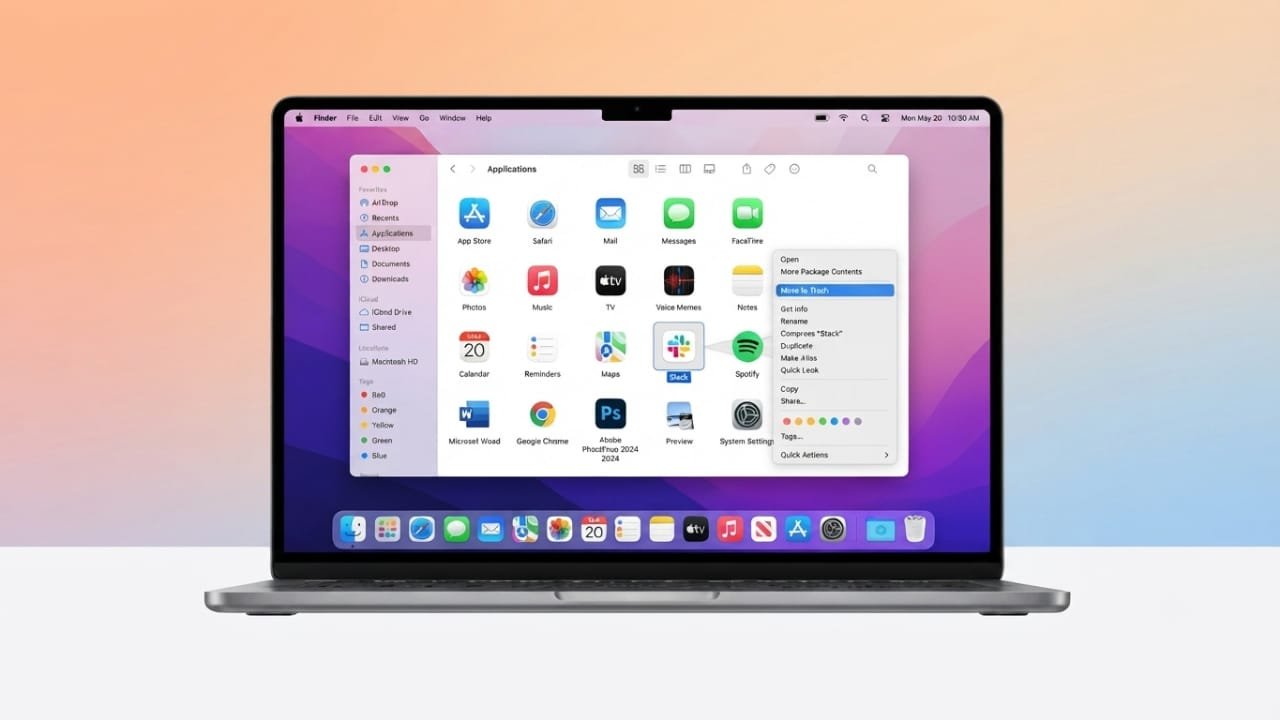
Keeping your Mac free from apps you no longer use is a simple way to save storage space and keep your system organized. While uninstalling most apps takes only a few clicks, some programs leave behind extra files that may need additional cleanup.
Advertisements
This guide explains the safest and easiest ways to remove applications from your Mac.
Also read: How to Change Icon Size in Windows 11
Why You Should Remove Unused Apps
Unused applications take up valuable storage and can make it harder to keep your Mac organized. Deleting software you no longer need helps free up disk space and makes it easier to manage your files.
Quick Tips
- Delete apps you no longer use on a regular basis.
- Choose the uninstall method that matches the type of app.
- Empty the Trash after removing apps to recover storage space.
- Restart your Mac if an app refuses to delete.
Method 1: Uninstall Apps Using Finder
Finder is the most common way to remove applications on macOS.
Follow these steps:
- Close the application if it is currently open.
- Open Finder from the Dock.
- Select the Applications folder.
- Find the app you want to remove.
- Drag it to the Trash, or right-click and choose Move to Trash.
- Enter your administrator password if requested.
- Empty the Trash to permanently delete the app.
If you cannot find the app, use Spotlight Search to locate it and then open its folder before moving it to the Trash.
Method 2: Remove Apps from Launchpad
Apps installed from the App Store can often be removed through Launchpad.
Here’s how:
- Open Launchpad.
- Find the app you want to delete.
- Press and hold its icon until the icons start moving.
- If an X appears, click it.
- Confirm the deletion.
If there is no X button, remove the app using Finder instead.
Method 3: Use the App’s Built-In Uninstaller
Some applications include their own uninstall tool. This is common with larger programs such as creative software, antivirus tools, and utility apps.
Before deleting the app manually:
- Check the application’s folder for an uninstall program.
- Look in the app’s menu or settings for an uninstall option.
Using the official uninstaller often removes extra components that would otherwise remain on your Mac.
Method 4: Use a Cleanup Utility
If you want to remove leftover files such as caches, preferences, and support folders, you can use a trusted Mac cleanup utility.
These tools scan for files related to the application and allow you to delete everything together. Before removing files, review the list to make sure only the intended items are selected.
Method 5: Uninstall Through Terminal (Advanced Users)
Experienced users can also remove applications with Terminal commands. This method is commonly used for software installed through package managers or for manually deleting application files.
Because Terminal commands can permanently remove files, double-check every command before running it. Avoid deleting system files unless you know exactly what they do.
Things to Know Before Deleting Apps
Keep these points in mind before uninstalling software:
- Removing an app usually does not delete your personal documents.
- Some files created by the app may still require that application to open them.
- Deleting an app does not automatically cancel any paid subscription. Manage subscriptions separately if needed.
- Built-in macOS applications are protected and generally cannot be removed.
- If an app won’t delete, make sure it is completely closed, then try again. Restarting your Mac may also solve the problem.
Simple Mac Maintenance Tips
Good maintenance habits help your Mac stay organized over time.
- Remove apps you no longer need every month.
- Empty the Trash regularly.
- Clean up your Downloads folder from time to time.
- Check your storage usage through your Mac’s storage settings.
- Enable automatic Trash emptying if you prefer hands-free cleanup.
- Back up important files before making major changes.
- Occasionally remove unnecessary temporary files using reliable cleanup tools.
Also read: How to Remove Desktop Icons in Windows: Delete, Hide, and Restore Them Easily
Final Thoughts
Uninstalling applications on a Mac is straightforward once you know the right method. Finder works well for most apps, while Launchpad is useful for many App Store downloads. Some applications provide their own uninstallers, and cleanup utilities can help remove leftover files.
By removing unused software and performing regular maintenance, you can keep your Mac organized, free up storage space, and maintain smooth everyday performance.

Abhi Rajput, founder of EarnAbhi.in, is a tech lover with 6+ years of experience in SEO, digital tools, and smartphone troubleshooting. He writes simple, clear, and useful guides to help people solve real tech problems.
Advertisements