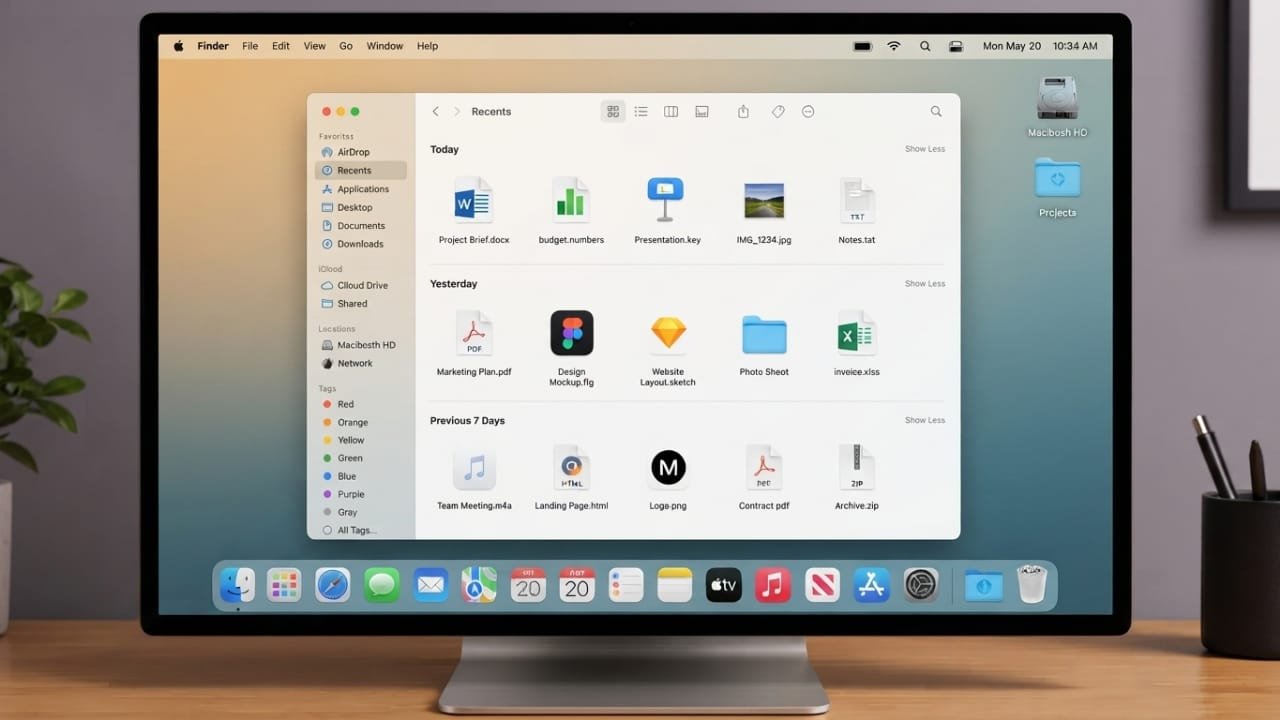
Finder is the built-in file manager on every Mac. It helps you browse folders, open files, organize documents, and access connected devices from one place. Whether you’re new to macOS or have been using it for years, learning how Finder works can make everyday tasks much easier.
Advertisements
Also read: How to Use an External Webcam with an iPad: Step-by-Step Guide
Key Highlights
- Easily organize files and folders in one place.
- Find documents quickly with search, tags, and Smart Folders.
- Use keyboard shortcuts to work faster.
- Manage external drives, iCloud Drive, and Apple devices with ease.
Getting Started with Finder
Finder opens by default when you click its icon in the Dock. It is always available, making it the main place to manage everything stored on your Mac.
You can also click anywhere on the desktop to activate Finder. Once it’s active, the Finder menu appears at the top of the screen with useful options for managing files.
Understanding the Finder Window
A Finder window is divided into several sections that make navigation simple.
The Sidebar provides quick access to your favorite folders, iCloud Drive, external storage devices, and network locations. You can add or remove items to match your workflow.
The Toolbar contains common actions such as creating folders, changing views, and sharing files.
The Search box lets you find files in seconds, while the Preview pane displays useful information about the selected item without opening it.
Organize Files More Efficiently
Finder offers multiple viewing modes so you can choose the one that suits your work best.
- Icon View displays large file icons.
- List View shows detailed information such as file size and modification date.
- Column View makes it easier to move through nested folders.
- Gallery View provides large previews, which is especially useful for photos and documents.
You can also sort files by name, date, size, or type. Grouping similar files together helps keep your folders neat and makes important documents easier to find.
Search Files Quickly
Finder includes a powerful search feature that helps you locate files by name, tag, keyword, date, or location.
For broader searches across your Mac, you can also use Spotlight, which finds files, opens applications, and searches system settings.
If you know the exact folder location, choose Go to Folder and enter a path such as ~/Downloads to open it directly.
Use Tags and Smart Folders
Tags are an easy way to organize files without moving them into different folders. Assign a color or label to important documents, then search for those tags whenever you need them.
Smart Folders automatically collect files that match specific rules. For example, you can create a Smart Folder that always displays spreadsheets or recently modified documents. The contents update automatically as new matching files are added.
Personalize Finder
You can customize Finder to make navigation more convenient.
Change folder icons, add colors or emoji, and create aliases for frequently used files or folders. An alias acts like a shortcut, giving you quick access without moving the original item.
Helpful Finder Keyboard Shortcuts
Learning a few shortcuts can save time while working.
- Command + N — Open a new Finder window
- Command + T — Open a new tab
- Command + F — Search in Finder
- Command + I — View file information
- Command + 1 — Icon View
- Command + 2 — List View
- Command + 3 — Column View
- Command + 4 — Gallery View
- Command + Shift + D — Open the Desktop folder
- Command + Shift + O — Open the Documents folder
- Command + Shift + L — Open the Downloads folder
- Command + Shift + F — Open the Recents folder
Manage Apple Devices
When you connect an iPhone, iPad, or iPod touch to your Mac, it appears in the Finder sidebar. From there, you can back up your device, sync music, movies, podcasts, books, and other supported content. If Wi-Fi syncing is enabled, you can manage your device wirelessly after the initial setup.
Working with the Trash
To remove files, drag them to the Trash. If you delete something by mistake, you can restore it using the Put Back option before emptying the Trash. Once the Trash is emptied, deleted files are generally no longer available, so it’s a good idea to review its contents first.
Also read: How to Create a Drop-Down List in Microsoft Word
Final Thoughts
Finder is one of the most useful tools on a Mac. It helps you organize files, search for documents, manage connected devices, and customize your workspace to suit your needs. By using its built-in features and a few handy shortcuts, you can keep your files organized and complete everyday tasks more efficiently.

Abhi Rajput, founder of EarnAbhi.in, is a tech lover with 6+ years of experience in SEO, digital tools, and smartphone troubleshooting. He writes simple, clear, and useful guides to help people solve real tech problems.
Advertisements