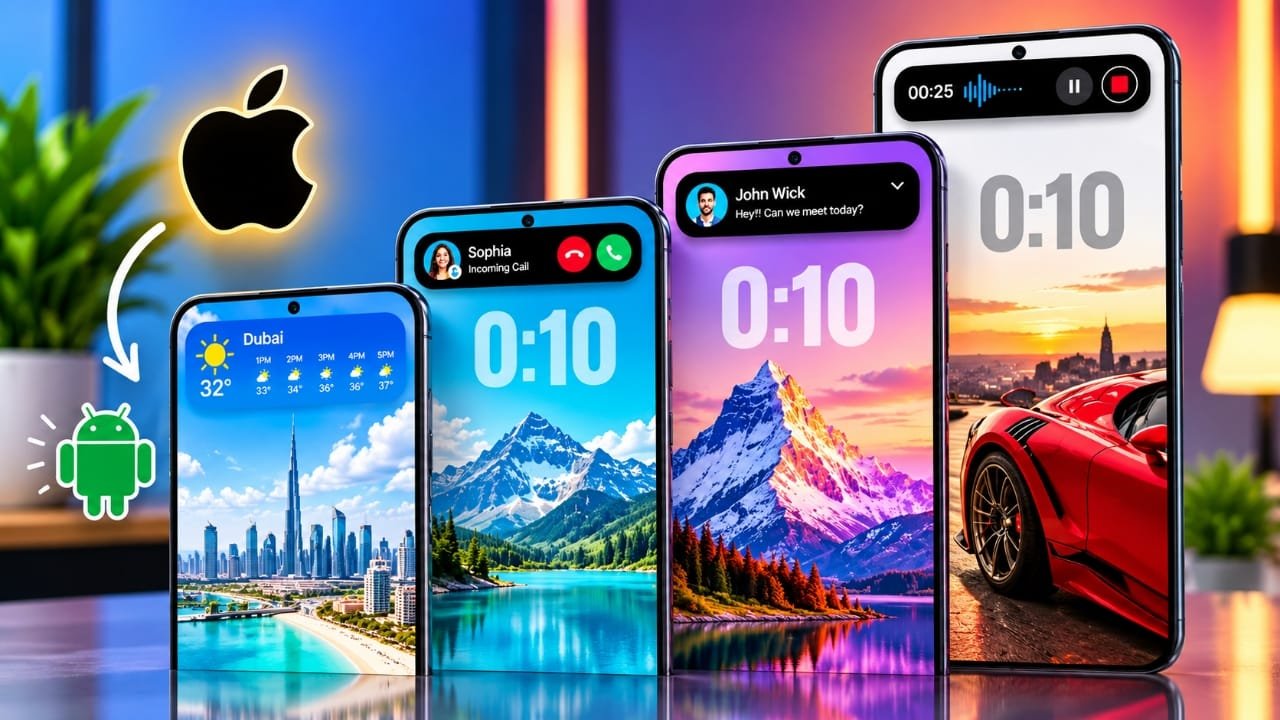
Android already has a built-in notification system, but some users may want a more stylish and interactive way to see alerts. The Dynamic Notch Notification Bar app brings an iPhone-inspired notification experience to Android by adding a virtual floating area near the phone’s front camera.
Advertisements
The app does not change Android into iOS, nor does it modify the phone’s physical camera cutout. Instead, it uses a software overlay to create a notch-style area that can show supported notifications, music controls, incoming calls, charging information and connected Bluetooth devices.
Since Android phones have different screen sizes and camera positions, the app also includes settings for adjusting the virtual notch to fit your device.
Also read: Make Your Android Navigation Bar Look Better With This Customization App
What Is Dynamic Notch Notification Bar?
Apple’s Dynamic Island uses the space around the front camera on newer iPhones to display notifications and ongoing activities. Depending on the situation, it can expand to show things such as music playback, calls and other information.
Dynamic Notch Notification Bar brings a similar concept to Android through software.
The app creates a customizable floating area on top of the Android interface. You can position it around your phone’s camera cutout and change its appearance using the available customization settings.
The exact experience can vary from one Android phone to another. Different manufacturers use different screen designs, Android versions and system restrictions, which can affect how overlays and notifications work.
For users who want an iPhone-style notification effect without replacing their Android launcher, the app provides a relatively simple way to try the look.
Why Use a Dynamic Notch on Android?
The main reason to use the app is customization. The animated notification area gives the top portion of an Android display a different appearance.
It can also provide quick access to certain information. For example, while listening to music, supported playback information may appear in the floating area instead of requiring you to open the notification panel.
Similar information can be shown for supported incoming calls, charging events and Bluetooth connections.
Another useful feature is the ability to adjust the virtual notch. Because Android phones don’t all have their cameras in the same position, you can move and resize the overlay to make it fit your particular display.
Depending on the version of the app, you may also be able to change fonts, colors, backgrounds and themes.
How to Set Up Dynamic Notch Notification Bar
Setting up the app is fairly simple, but you should pay attention to the permissions it requests.
1. Install the App
Start by installing Dynamic Notch Notification Bar from Google Play.
Open the app after installation and follow the instructions displayed during the initial setup.
2. Check the Requested Permissions
The app may ask for access to Android notification and accessibility features.
Notification Access allows the app to detect supported notifications and display relevant information through its floating interface.
The app may also use Accessibility Service for certain overlay or interaction features. This is an important Android permission, so read the explanation provided by Android before allowing it.
You should only provide permissions that you understand and are comfortable granting.
3. Enable the Dynamic Notch
After completing the initial setup, turn on the Dynamic Notch feature inside the app.
A virtual notch should then appear near the top of your screen.
If it does not match your phone’s camera position, you can adjust it using the app’s positioning controls.
4. Adjust Its Position and Appearance
Move the virtual notch until it lines up properly with your phone’s front camera.
Depending on the available settings, you may be able to change:
- Notch size
- Position
- Direction
- Font style
- Font size
- Text color
- Background
- Overall theme
Take some time to find a position that looks natural on your display. Settings that work well on one phone may not look the same on another.
5. Test the Available Features
Once everything is configured, test a few supported functions.
You can try playing music, connecting Bluetooth earbuds, plugging in a charger or receiving a notification.
If the feature is supported and the required permissions are enabled, related information may appear in the Dynamic Notch.
If something doesn’t work, check the app’s permissions and your phone’s battery or background activity settings. Some Android manufacturers restrict background apps more aggressively than others.
Main Features of Dynamic Notch Notification Bar
The app is designed to do more than display a decorative animation. Depending on your phone and the app version, it can provide several types of information through the floating area.
Dynamic Notifications
Notifications are one of the main functions of the app.
Supported notifications can appear through the Dynamic Notch instead of relying only on the standard Android notification display.
Tapping the notification area may provide additional information or interaction options, depending on the notification and the app that generated it.
Not every notification will necessarily work in the same way. Support can depend on the application, Android version and device.
Music Information and Controls
The Dynamic Notch can also be useful while listening to music.
When a compatible music application is playing audio in the background, the floating area can display information about the current track.
The available features may include album artwork, a music view and playback controls. Some versions may also provide an expanded music interface.
This allows you to keep using another application while still having quick access to supported music information.
Incoming Call Information
Incoming calls can also be displayed through the Dynamic Notch interface.
Instead of relying only on a large incoming-call display, the app can provide a more compact notification-style experience when supported.
The exact appearance depends on your phone and Android software.
Charging Animation
The app can display an animation when you connect your phone to a charger.
This is primarily a visual customization feature. It does not increase charging speed or improve the phone’s actual battery performance.
Bluetooth Device Information
Information about connected Bluetooth accessories can also appear through the floating area.
For example, compatible wireless earbuds may trigger related information when connected.
Some versions of the app can display battery information for supported Bluetooth devices, although the available details can depend on the accessory and Android system.
Weather Information
Weather-related information is another feature offered by the app.
Depending on the app’s settings, weather details can be displayed through the Dynamic Notch without opening a separate weather application.
Some themes may also change their appearance according to weather conditions.
The information available can depend on the app configuration and the permissions or location settings used by the device.
Navigation Updates
The app can also provide a compact way to display certain navigation-related information.
When supported navigation features are active, relevant updates may appear through the floating notification area.
The exact functionality depends on the navigation app, Android version and Dynamic Notch’s current feature support.
Customize the Dynamic Notch
Customization is one of the main reasons to try this type of application.
Because Android phones use different screen layouts and camera positions, you can adjust the virtual notch to better match your device.
Available options may include:
- Notch position
- Notch size
- Direction
- Font style
- Font size
- Text color
- Background appearance
- Notch themes
You can experiment with these settings until the overlay fits naturally around your phone’s camera.
Choose Different Notch Themes
The app may provide multiple visual styles for the floating notification area.
This is useful if you regularly customize your Android phone with different wallpapers, icons or home-screen layouts.
Changing the theme can give the Dynamic Notch a different overall appearance without changing the rest of your Android interface.
Change Fonts and Colors
Small visual changes can make the overlay easier to read and better suited to your phone.
Depending on the available options, you can change the font style, text size and text color. Background settings can also be modified.
Some versions may provide additional customization for individual applications.
Adjust the Notch Position
Not every Android phone places its front camera in exactly the same location.
Many devices have a centered punch-hole camera, while others use different layouts. Because of this, the position controls are particularly important.
If the virtual notch appears too high, too low or slightly to one side, adjust its position until it lines up with your phone’s camera.
Live Activity-Style Features
Dynamic Notch Notification Bar also attempts to provide an experience similar to Apple’s Live Activities.
Supported activities can appear inside the floating area, and some versions may allow interaction with supported applications from the popup.
However, it is important to understand the difference between the two systems. The Android app is a third-party software solution. It does not provide Apple’s actual Dynamic Island hardware or identical iOS functionality.
The available features can also change as the app receives updates.
What Permissions Does Dynamic Notch Notification Bar Need?
Before enabling the app, check the permissions carefully.
The Dynamic Notch experience may depend on Android’s notification and accessibility systems.
Notification Access: This allows the application to receive information about supported notifications and display it through the Dynamic Notch.
Accessibility Service: This can provide additional interaction or overlay functionality. Because accessibility access can be powerful, you should read Android’s permission explanation before enabling it.
If you are uncomfortable with a permission, you do not have to grant it. Some features may simply remain unavailable without that permission.
Does Dynamic Notch Turn Android Into an iPhone?
No.
The app only adds an iPhone-inspired visual experience to Android. It does not install iOS, replace Android or turn the phone’s physical camera area into Apple’s Dynamic Island.
Your device continues to run Android, with the Dynamic Notch working as an additional software layer.
Because it is not Apple’s built-in system, some features will naturally behave differently from those on an actual iPhone.
Things to Keep in Mind
The app’s performance can vary between Android devices.
Several factors can affect the experience, including:
- Android version
- Phone manufacturer
- Screen and camera design
- Notification settings
- Battery optimization
- Background activity restrictions
- Granted permissions
- Compatibility with individual apps
Some notifications or activities may work correctly while others may not.
If the overlay stops working, check the permissions first. You can also review your phone’s battery optimization and background activity settings if the manufacturer limits the app.
Most importantly, only enable permissions that you understand and are comfortable using.
Official Play Store App Link
Also read: Nocebo Launcher: A Fresh Way to Customize Your Android Home Screen
Final Thoughts
Dynamic Notch Notification Bar gives Android users a way to experiment with an iPhone-inspired floating notification experience without replacing the rest of their Android interface.
Depending on the device and supported features, the virtual notch can display notifications, music information, incoming calls, charging animations, Bluetooth details, weather information and other activities.
The customization options are another useful part of the app. You can adjust the position, size, direction, fonts, colors and themes to make the floating area better suited to your phone.
However, it is worth keeping expectations realistic. This is a third-party Android application, not Apple’s Dynamic Island. The available features and overall performance can also differ depending on the phone, Android version, permissions and system restrictions.
Before giving the app notification or accessibility access, review the permissions carefully and only enable the ones you are comfortable using.
For Android users who enjoy customizing their phones and want to try a Dynamic Island-style interface, Dynamic Notch Notification Bar offers a simple way to experiment with the concept while keeping the standard Android interface intact.

Abhi Rajput, founder of EarnAbhi.in, is a tech lover with 6+ years of experience in SEO, digital tools, and smartphone troubleshooting. He writes simple, clear, and useful guides to help people solve real tech problems.
Advertisements