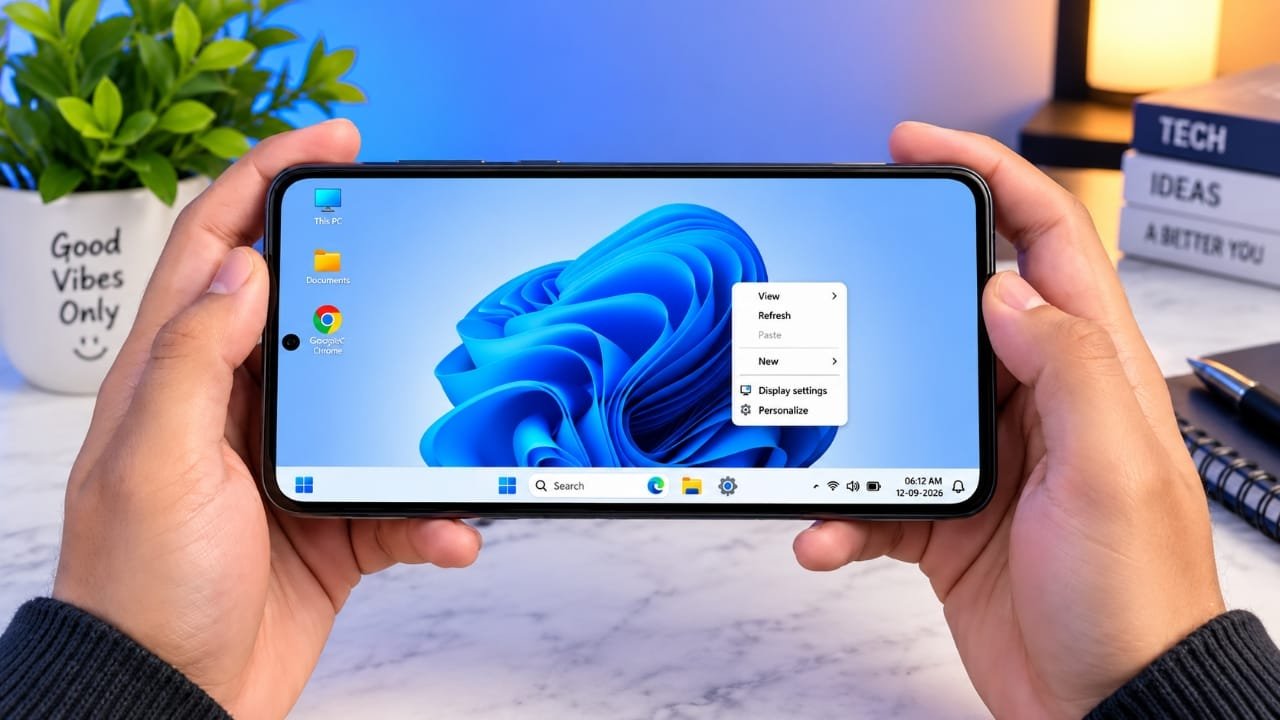
If you enjoy the look of a Windows desktop but use an Android phone or tablet, you can change the way your device looks and feels with a desktop-style launcher.
Advertisements
HyperDroid PC Launcher is designed to give Android a PC-like interface. It can add features such as a taskbar, Start menu, desktop shortcuts, file browsing and window-style app management.
The important thing to understand is that this does not install Windows 11 on your Android device. Android continues to run in the background. The launcher simply changes the interface and provides a desktop-inspired experience.
You also don’t need to root your phone just to try a launcher like this.
Also read: Droid Lab App for Android: Gestures, Shortcuts and Useful Controls
What Is HyperDroid PC Launcher?
HyperDroid PC Launcher is an Android launcher that replaces the standard Android home screen with a desktop-style interface.
Instead of seeing the usual collection of Android home-screen icons and widgets, you can get an interface that feels more familiar if you regularly use a computer.
Depending on the version and features available on your device, the launcher may provide options such as:
- A desktop-style taskbar
- A Start menu
- Shortcuts on the desktop
- File explorer
- Window-style multitasking
- Desktop-oriented browsing
- Shortcuts for frequently used websites
- Various customization settings
This type of interface can be particularly useful on Android tablets and larger phones because their screens provide more space for desktop elements.
How to Set Up HyperDroid on Android
1. Install the Launcher
First, open the Google Play Store on your Android phone or tablet.
Search for HyperDroid PC Launcher and make sure you select the correct application. Tap Install and wait for Android to finish installing it.
Once the installation is complete, open the launcher.
You should then see its desktop-style interface instead of the usual Android home screen.
2. Set HyperDroid as Your Default Launcher
If you want the desktop interface to appear every time you press the Home button, you can make HyperDroid your default launcher.
Open the launcher’s settings and look for an option related to System, Default Launcher, Home App, or a similar setting.
Select HyperDroid when Android asks which launcher you want to use.
The exact menu names can be different depending on your phone manufacturer and Android version.
After setting it as the default, pressing the Home button should take you to the HyperDroid desktop.
Explore the Desktop Interface
Once everything is configured, the Android home screen should have a more computer-like appearance.
You may see a taskbar along the bottom of the screen along with a Start-style menu for accessing applications.
Open the Start menu to see your installed apps. Depending on the launcher version, there may also be an All Apps or similar option that displays the complete application list.
You can launch Android apps from this menu in much the same way you would open programs from a computer.
Add Your Favorite Apps to the Desktop
You don’t need to open the Start menu every time you want to launch an app.
If the launcher supports desktop shortcuts, find the application you want, then press and hold its icon. Look for an option such as Add to Desktop.
If the option is available, select it.
The app shortcut should then appear on your desktop. You can arrange your commonly used applications so that the desktop contains the shortcuts you actually need.
Pin Apps to the Taskbar
Apps that you open frequently can also be easier to access from the taskbar.
Press and hold an application in the Start menu and check whether the launcher provides a Pin to Taskbar option.
If available, selecting it will place the application on the taskbar.
This gives you another quick way to open frequently used apps without searching through the full app list.
Browse Files Using a Desktop-Style Explorer
A file manager can make a desktop-style Android setup feel more familiar.
HyperDroid may provide a file-explorer-style interface for browsing folders and files stored on your device.
Depending on your Android version and the permissions granted to the application, you may be able to browse locations containing downloads, images, documents and other files.
However, Android’s storage permissions still apply. A launcher does not automatically receive unlimited access to every file or folder on your phone.
Use Multiple Apps
Multitasking is another part of the desktop experience.
For supported applications, HyperDroid can provide a window-like interface instead of showing every app as a simple full-screen screen.
You may be able to move between open applications through the desktop or taskbar.
This can be more useful on tablets because the larger display gives you enough room to work with multiple applications.
For example, you could keep a browser open while accessing files or another Android application.
The exact multitasking features will depend on your Android version, device and the version of HyperDroid you are using.
Get a More Desktop-Like Browsing Experience
Web browsing can also feel different when you’re using a large Android screen with a desktop-style interface.
Websites such as Gmail, YouTube, Canva and other online services can be opened through an Android browser. If the browser supports desktop mode, some websites may display a layout that is closer to their computer versions.
This can be useful when using an Android tablet for browsing, online work or other web-based tasks.
Keep in mind that desktop mode only changes how the website is presented. It does not turn the website into a native Windows application.
Add Websites to the Desktop
If you regularly visit the same website, you can often create a shortcut for it.
For example, you might want quick access to Canva, YouTube Studio or another web service.
Open the website in a compatible browser and check the browser menu for options such as Add to Home Screen, Install App, or similar wording.
The available option depends on the browser and website.
Once the shortcut has been created, you can open the website more quickly without manually entering its address each time.
Adjust the Desktop Scaling
The default desktop layout may not look ideal on every Android device.
If the icons or text appear too large, check the launcher’s display or scaling settings. Reducing the scale may allow more items to fit on the screen.
On the other hand, increasing the size can make buttons and text easier to read.
Some versions may also provide settings for hiding or changing certain Android interface elements.
These options vary by device and Android version, so you may need to try different settings to find a layout that feels comfortable.
Change the Wallpaper and Appearance
You can make the desktop look more personal by changing its wallpaper and other visual settings.
Check the launcher’s Personalization, Appearance, or similar section for available options.
Depending on the version, you may be able to change things such as:
- Wallpaper
- Theme
- Colors
- Icon arrangement
- Start menu appearance
You don’t have to recreate the Windows 11 design exactly. A simple wallpaper and a clean arrangement of shortcuts can make the interface easier to navigate.
Tips for a Better Android Desktop Setup
A few accessories and settings can make the experience more comfortable.
Use Landscape Mode
A horizontal display provides more space for windows, shortcuts and the taskbar.
This is especially useful on tablets.
Connect a Mouse
A Bluetooth mouse can make it easier to select icons, drag windows and navigate menus.
Add a Keyboard
A Bluetooth keyboard can be useful for emails, documents, web searches and other tasks that require a lot of typing.
Use a Larger Screen
A tablet or large-screen Android phone generally provides more room for a desktop-style interface than a small phone.
With a compatible keyboard and mouse, an Android tablet can become a practical laptop-like setup for basic everyday tasks.
What Can You Do With This Setup?
A Windows-inspired Android interface can be useful for a variety of everyday activities, including:
- Browsing websites
- Using online productivity services
- Managing files
- Opening Android applications
- Switching between supported apps
- Using a keyboard and mouse
- Working on a larger Android display
- Customizing the Android home screen
It can also be an interesting way to give an older Android tablet or spare device a different look and purpose.
Does HyperDroid Install Windows 11?
No.
This is the most important point to remember.
HyperDroid does not replace Android with Windows 11. Your phone or tablet continues to run Android, while the launcher changes the appearance of the interface.
It also does not provide native Windows software support.
For example, you cannot simply download a Windows .exe file and expect HyperDroid to run it.
Instead, you continue using Android applications and websites through Android-compatible browsers.
Does HyperDroid Require Root Access?
A normal Android launcher does not require root access.
You can install it like other Android applications and select it as your default home app without modifying the Android operating system.
You generally don’t need to unlock the bootloader or make system-level changes simply to use a desktop-style launcher.
However, specific features can still depend on your Android version, device hardware, permissions and the launcher version.
Can You Switch Back to Your Normal Launcher?
Yes.
If you decide that the desktop-style interface isn’t right for you, you can change your default launcher from Android’s settings.
Look for a section such as Default Apps, Home App, or Default Launcher and select your preferred launcher.
The exact location and wording can differ between manufacturers such as Samsung, OnePlus, Xiaomi, Motorola and others.
Frequently Asked Questions
Can I make my Android phone look like Windows 11?
Yes. A launcher such as HyperDroid can provide a Windows-inspired interface with features like a taskbar, Start menu and desktop shortcuts. However, it does not actually install Windows 11.
Can HyperDroid run Windows programs?
No. HyperDroid is an Android launcher and does not provide native support for Windows .exe applications.
Do I need root access?
No root access is normally required to install and use an Android launcher.
Is this better on a tablet?
A larger screen can make a desktop-style interface more practical because there is more space for shortcuts, menus and multitasking.
Can I connect a keyboard and mouse?
If your Android device supports compatible Bluetooth or USB accessories, you can connect a keyboard and mouse. This can make desktop-style navigation more comfortable.
Can I switch back to my old launcher?
Yes. You can change the default home application through Android’s settings whenever you want.
Official Play Store App Link
Also read: How to Use Dynamic Notch Notification Bar on Android
Final Thoughts
HyperDroid PC Launcher can be an interesting option if you want to give your Android phone or tablet a Windows-inspired desktop appearance.
It does not turn Android into a real Windows PC, and it cannot natively run Windows programs. Instead, it changes the Android interface and adds desktop-style features such as a taskbar, shortcuts, file browsing and supported multitasking options.
The experience can be particularly useful on larger Android tablets. Adding a Bluetooth keyboard and mouse can also make the device feel more like a small computer.
If you decide to try it, spend some time adjusting the desktop layout, scaling and wallpaper so the interface matches the way you use your device.

Abhi Rajput, founder of EarnAbhi.in, is a tech lover with 6+ years of experience in SEO, digital tools, and smartphone troubleshooting. He writes simple, clear, and useful guides to help people solve real tech problems.
Advertisements