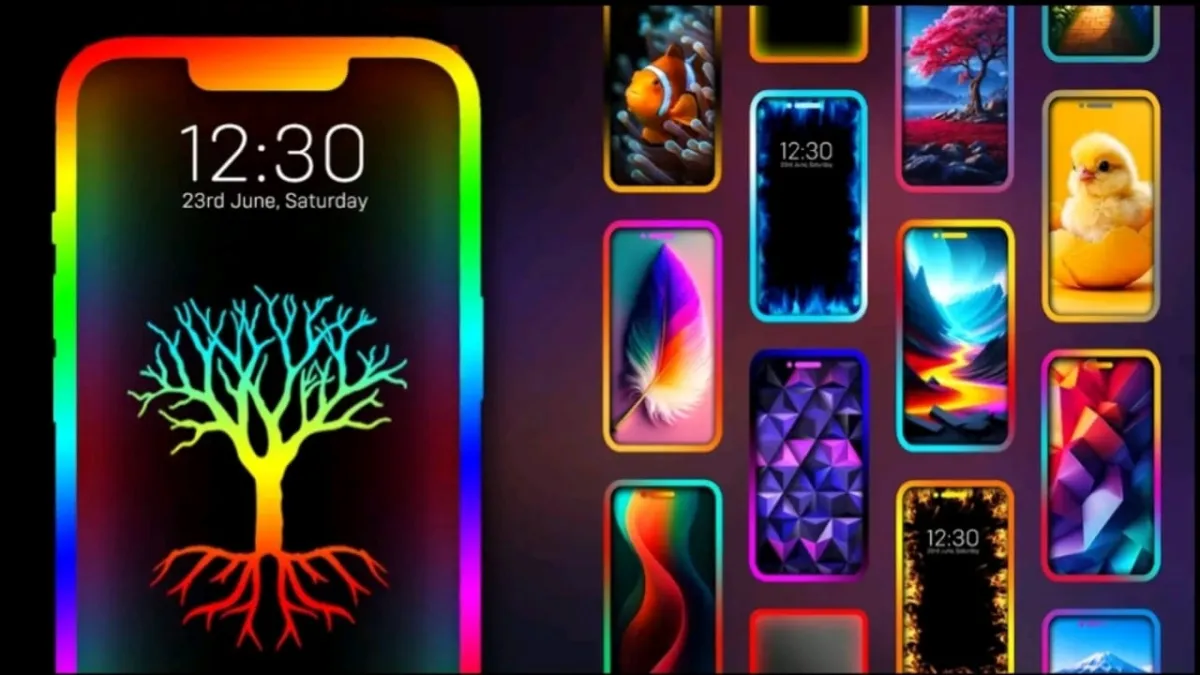
If you want to give your phone a fresh and eye-catching look, an edge glow border light can make a big difference. With the Edge Glow Screen Lighting app, you can add glowing borders around your screen and customize them exactly the way you like. It’s an easy way to make your phone feel more personal and visually appealing.
This app lets you control brightness, choose different colors, and apply smooth gradient effects. You can also adjust how the glow moves around the screen. These simple changes can completely transform the way your phone looks, especially in low-light or dark environments where the glow stands out more.
Most default wallpapers look plain and don’t add much style to the phone. By using a glowing edge border, you can instantly upgrade the appearance of your device without changing the wallpaper every time. It adds a modern and attractive touch that makes your phone feel unique.
In this guide, you’ll learn how to set up and customize an edge glow border light on your phone using the Edge Glow Screen Lighting app. Read till the end to understand all the options clearly.
Also read: Raise High Volume App: A Simple Way to Increase Phone Sound Safely
What Is the Edge Glow Screen Lighting App?
The Edge Glow Screen Lighting app is a simple customization tool that allows you to add glowing borders around your phone’s display. The glow runs along the edges of the screen and gives your device a stylish look.
You can change the border design, select colors, control animation speed, and even set the glow as your wallpaper. With just a few taps, you can design a border that matches your style and mood.
Main Features of the App
- Edge border lighting effects
- Full border light customization
- Option to set the glow as wallpaper
- Control over animation speed
- Notch support for modern phones
- Notch customization options
- Multiple color choices for borders
How to Use the Edge Glow Screen Lighting App
First, make sure the app is installed on your phone. If you don’t have it yet, you can download it from the Play Store after checking whether it suits your needs.
Once installed, open the app and choose any default edge border style. Tap on the Use Now button to apply it. You will then see two options: Wallpaper and Overlay on Other Apps.
If you choose the overlay option, the app will ask for permission to display the glow over other apps. Allow the permission to continue.
If you select the wallpaper option, tap on Set Wallpaper and choose whether you want it on the home screen, lock screen, or both.
To customize the border, tap on the brush icon. Here, you can change the border type, adjust animation speed, enable notch support, and fine-tune the overall look.
After finishing your customization, tap the Update button to apply the new settings. You can also tap the Plus (+) icon to create a brand-new edge glow design from scratch and set it on your phone.
Official Play Store Link
Also read: Voice Recognition Lock Screen App: A Smarter Way to Protect Your Phone
Final Note
Always install and use apps only if they feel useful and safe for you. Customization apps are meant to improve your experience, so choose settings that match your preferences and keep your phone comfortable to use.

Abhi Rajput, founder of EarnAbhi.in, is a tech lover with 6+ years of experience in SEO, digital tools, and smartphone troubleshooting. He writes simple, clear, and useful guides to help people solve real tech problems.