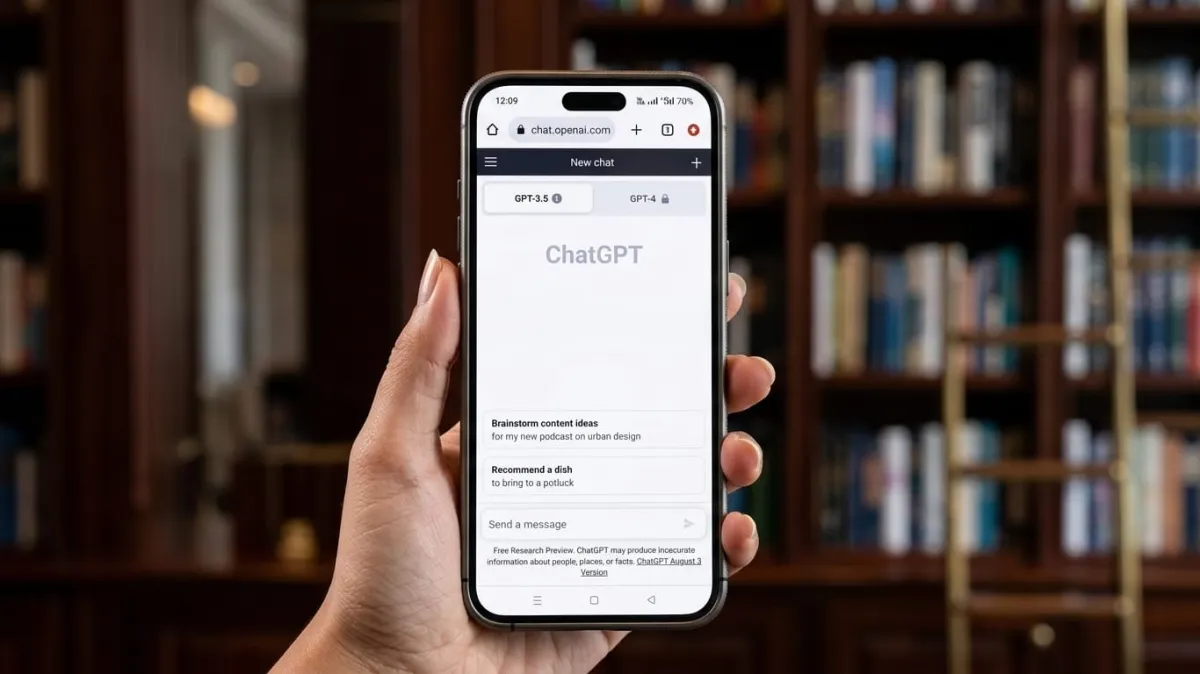
If you care about your privacy, it’s important to know how to manage your conversations in ChatGPT. Whether you’re chatting casually or discussing something personal, you might not want certain chats to stay saved. The good news is that you can easily delete or archive them whenever needed. Let’s break it down in a simple way.
Advertisements
Also read: Gemma 4: A Smarter and More Efficient Open AI Model
What Is Chat History in ChatGPT?
Chat history is the list of your past conversations shown on the side of the screen. Every time you start a new chat, it gets saved there automatically. This helps you go back and continue previous discussions without starting from scratch.
These chats are stored to improve your experience and keep conversations connected. However, you are always in control. You can remove or hide any chat whenever you want.
Ways to Manage Your Chats
ChatGPT gives you three main options:
- Delete chats permanently
- Archive chats to hide them
- Use temporary chats that don’t get saved
Understanding these options helps you keep your account clean and private.
How to Delete Chats in ChatGPT
Deleting a chat removes it completely. Once deleted, you cannot recover it.
On Desktop (Website)
- Open ChatGPT and log in
- Find the chat in the sidebar
- Move your cursor over the chat title
- Click the three-dot menu
- Select Delete
- Confirm your choice
The chat will be removed instantly.
Also read: Anthropic Updates Claude Usage Policy: High-Volume AI Use Will Cost More
On Mobile App
- Open the ChatGPT app
- Locate the conversation
- Tap and hold the chat (or open its menu)
- Tap Delete
- Confirm
That’s it—the chat is gone for good.
How to Archive Chats in ChatGPT
Archiving is useful when you don’t want to delete a chat but also don’t want it visible all the time. It simply hides the conversation from your main list.
On Desktop (Website)
- Open ChatGPT
- Find the chat you want to hide
- Hover over it and click the three dots
- Select Archive
The chat will move out of your main view.
On Mobile App
- Open the ChatGPT app
- Find the chat
- Open the options menu
- Tap Archive
You can restore archived chats later if needed.
What Are Temporary Chats?
If you don’t want any chat to be saved at all, you can use temporary chats.
- These chats are not stored in your history
- They disappear automatically when you switch chats
- No personal data or preferences are saved
This option is ideal for private or one-time conversations.
Also read: Picsart Introduces New Way for Creators to Earn from AI Content
Final Thoughts
Managing your chats in ChatGPT is simple and gives you full control over your data.
- Delete chats if you want them gone forever
- Archive chats to keep things organized
- Use temporary chats for maximum privacy
By using these features wisely, you can keep your conversations safe, clean, and easy to manage.

Abhi Rajput, founder of EarnAbhi.in, is a tech lover with 6+ years of experience in SEO, digital tools, and smartphone troubleshooting. He writes simple, clear, and useful guides to help people solve real tech problems.
Advertisements