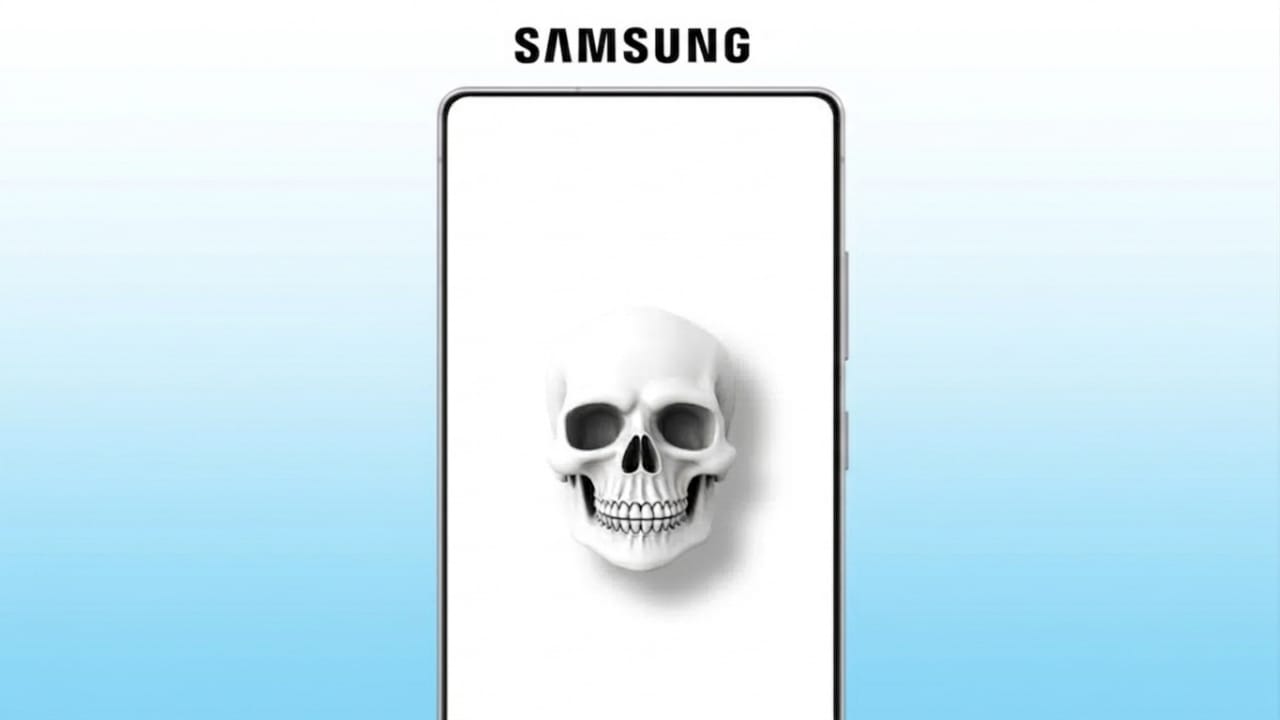
A white screen issue on Android phones can appear because of software glitches or hardware faults. Sometimes the screen becomes fully white, while in other cases you may still see icons or apps faintly in the background. This problem can make the phone difficult or impossible to use.
Advertisements
The good news is that many white screen issues can be fixed with simple troubleshooting methods. Below is a complete guide to help you solve the problem safely.
Also read: How to Fix Contact Names Not Showing During Incoming Calls on Android
Common Reasons Behind the White Screen Issue
Several things can trigger this error on Android devices, such as:
- Corrupted system files after updates
- Faulty or incompatible apps
- Damaged cache data
- Problems caused by custom ROM installation
- Loose LCD connectors
- Battery or display hardware issues
Understanding the cause helps you apply the correct solution faster.
Fix White Screen Using Software Solutions
In many cases, the issue is related to the Android system software. Trying software fixes first is usually the safest option.
Restart Your Android Phone
A simple restart can fix temporary system glitches.
For Phones With Removable Batteries
- Turn off the phone.
- Remove the battery carefully.
- Wait for a few seconds.
- Insert the battery again.
- Power on the device.
For Phones With Non-Removable Batteries
- Press and hold the power button for several seconds.
- Wait until the phone shuts down.
- Turn the device back on after a short pause.
This method often clears temporary software problems.
Use Android Repair Software
If the white screen started after a failed update or system crash, Android repair tools may help restore damaged system files.
Some repair applications can fix boot errors, update failures, and other software-related issues without requiring advanced technical knowledge.
Steps to Repair Android System
- Install a trusted Android repair tool on your computer.
- Open the software after installation.
- Select the Android system repair option.
- Connect your smartphone to the computer.
- Enter the correct device details if required.
- Download the recommended firmware package.
- Start the repair process and wait for completion.
- Restart the phone after the repair finishes.
Always use reliable software from official sources to avoid additional problems.
Clear App Cache and Data
Corrupted app data can sometimes trigger display problems, including white screen errors.
How to Clear Cache
- Open Settings on your phone.
- Go to Apps or Apps & Notifications.
- Select the app causing problems.
- Tap Storage.
- Choose Clear Cache.
- If needed, tap Clear Storage or Clear Data.
After clearing the files, restart the app and check whether the issue is fixed.
Remove Problematic Applications
Some apps may not work properly with your Android version or device model.
Uninstall Suspicious Apps
- Open Settings.
- Go to Apps.
- Select the recently installed or problematic app.
- Tap Uninstall.
Removing incompatible apps can improve phone stability and prevent future display issues.
Advertisements
Move Apps to Internal Storage
Apps running from SD cards may sometimes cause performance or loading problems.
What You Can Do
- Move important apps to internal storage.
- Keep enough free storage space available.
- Avoid using damaged or slow memory cards.
This can help reduce crashes and display-related issues.
Also read: Instagram Removes End-to-End Encryption From DMs: What It Means for Users
Check for Hardware Problems
If software methods do not solve the issue, the problem may be related to the phone hardware.
Clean the LCD Connector
Loose or dirty display connectors can cause white screen problems.
Basic Cleaning Steps
- Turn off the phone completely.
- Remove the back cover carefully if possible.
- Disconnect the battery safely.
- Locate the LCD ribbon connector.
- Gently clean dust around the connector using a soft cloth or brush.
- Reconnect the ribbon properly.
- Reassemble the phone and restart it.
Be careful while handling internal components to avoid accidental damage.
Check the Battery Condition
A damaged or swollen battery may affect the display performance.
Battery Tips
- Test the phone with another compatible battery if possible.
- Replace damaged batteries with original replacements.
- Avoid using low-quality charging accessories.
Replace Damaged Display Parts
If the LCD connector or screen itself is physically damaged, replacement may be necessary. Hardware repairs should ideally be handled by trained technicians.
When to Visit a Service Center
Professional repair is recommended if:
- The phone has water damage
- The screen stays completely white all the time
- The device was dropped recently
- Internal parts appear damaged
- None of the software fixes work
Authorized service centers can properly diagnose and repair the issue safely.
Also read: Apple May Let Users Choose Different AI Models in iOS 27
Final Words
Android white screen problems can happen because of both software and hardware issues. In many situations, restarting the phone, clearing cache files, or repairing the Android system can solve the problem quickly.
If the issue is caused by damaged hardware, professional repair is usually the safest solution. Always handle smartphone components carefully and use trusted repair methods to avoid further damage.

Abhi Rajput, founder of EarnAbhi.in, is a tech lover with 6+ years of experience in SEO, digital tools, and smartphone troubleshooting. He writes simple, clear, and useful guides to help people solve real tech problems.