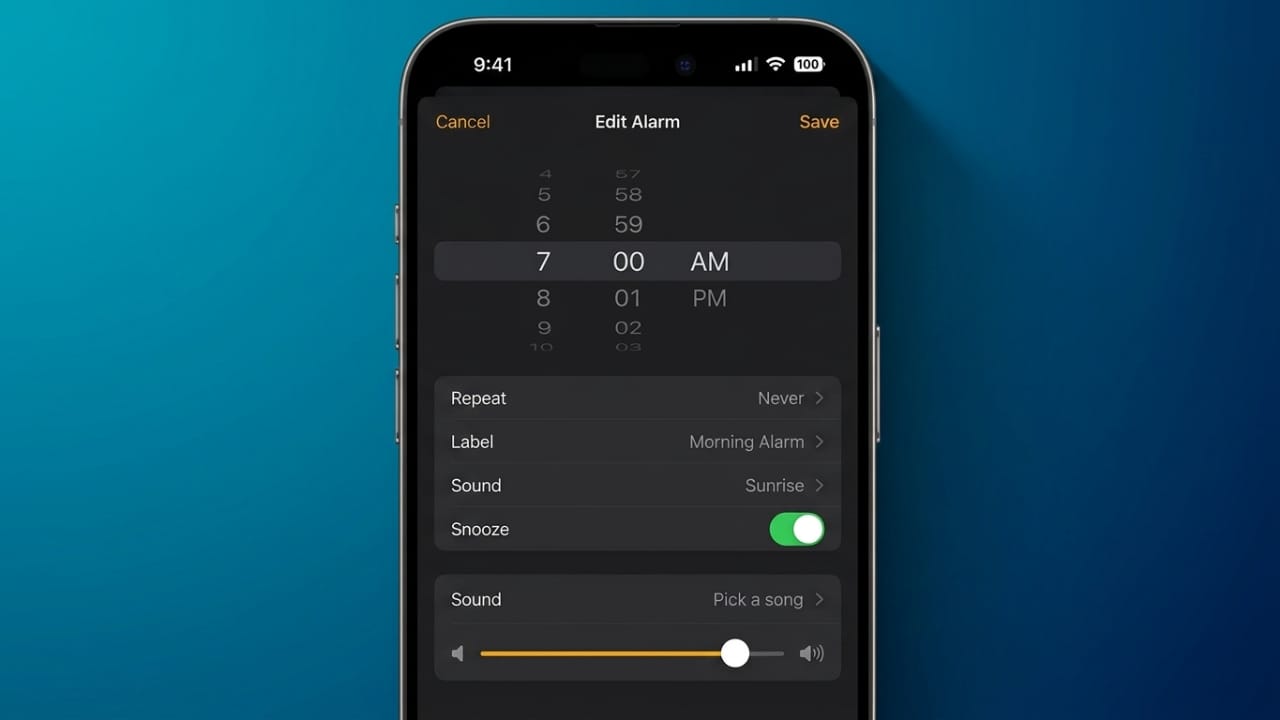
Waking up to the same alarm tone every day can become frustrating. If you want a more enjoyable way to start your morning, your iPhone lets you use a song or even a custom audio file as your alarm sound.
Whether you prefer your favorite music, a personal voice recording, or another audio clip, setting a custom alarm is simple. This guide explains the available methods step by step.
Advertisements
Also read: How to Enable Cookies on iPhone in Safari and Chrome
Quick Overview
- Use a song from your Apple Music library.
- Set a custom audio file saved in the Files app.
- Use a personal voice recording as your alarm sound.
Method 1: Use an Apple Music Song
If you’re an Apple Music subscriber, you can choose songs from your music library for your alarm.
Steps:
- Open the Apple Music app on your iPhone.
- Find the song you want to use.
- Tap the + button to add it to your library if it isn’t already there.
- Open the Clock app.
- Go to the Alarm tab.
- Create a new alarm or edit an existing one.
- Tap Sound.
- Under the Songs section, select Pick a Song.
- Browse your music library and choose the song you want.
- Return to the alarm screen and tap Save.
Your selected song will now play whenever the alarm goes off.
If the Song Doesn’t Appear
If your chosen song isn’t listed:
- Make sure it has been added to your Apple Music library.
- Open the Music app once before setting the alarm.
- If possible, download the song for offline listening.
- Try selecting it again from the alarm settings.
Method 2: Use a Custom Audio File
You can also use supported audio files stored in the Files app.
Here’s how:
- Save the audio file in the Files app.
- Open Files and locate the audio.
- Press and hold the file.
- Tap Share.
- Select Use as Ringtone if the option is available.
- If the audio is longer than the supported ringtone length, trim it when prompted.
- Open the Clock app.
- Edit an existing alarm or create a new one.
- Tap Sound and select your new ringtone.
- Save the alarm.
The custom audio will now be used as your alarm sound.
Method 3: Use a Voice Recording
A personal voice recording can make your alarm feel more unique.
Steps:
- Record audio using the Voice Memos app.
- Save or export the recording to the Files app if needed.
- Press and hold the recording.
- Tap Share and choose Use as Ringtone if available.
- Trim the recording if required.
- Open the Clock app.
- Choose the recording from the ringtone list while editing your alarm.
- Save your changes.
You can also use audio recordings received from friends or family, provided they are saved on your iPhone and supported for use as a ringtone.
What If You Don’t Use Apple Music?
You don’t need an Apple Music subscription to customize your alarm.
You can transfer compatible audio files from your Mac or Windows PC to your iPhone and use them as ringtones if supported. Once added successfully, these tones will appear in the list of available alarm sounds.
Things to Keep in Mind
- Ensure the audio file is supported by your iPhone.
- Download Apple Music songs before using them if they’re available for offline playback.
- Custom alarm sounds are used on the iPhone and may not automatically sync as alarm sounds to other Apple devices.
Also read: How to Change the Default Notification Sound on iPhone and Bring Back the Tri-Tone Alert
Final Thoughts
Changing your iPhone’s alarm sound is an easy way to make your mornings more pleasant. Whether you choose your favorite song, a custom audio clip, or a personal voice recording, you can personalize your alarm in just a few steps. Pick a sound you enjoy, save your settings, and wake up to something that feels a little more personal every day.

Abhi Rajput, founder of EarnAbhi.in, is a tech lover with 6+ years of experience in SEO, digital tools, and smartphone troubleshooting. He writes simple, clear, and useful guides to help people solve real tech problems.