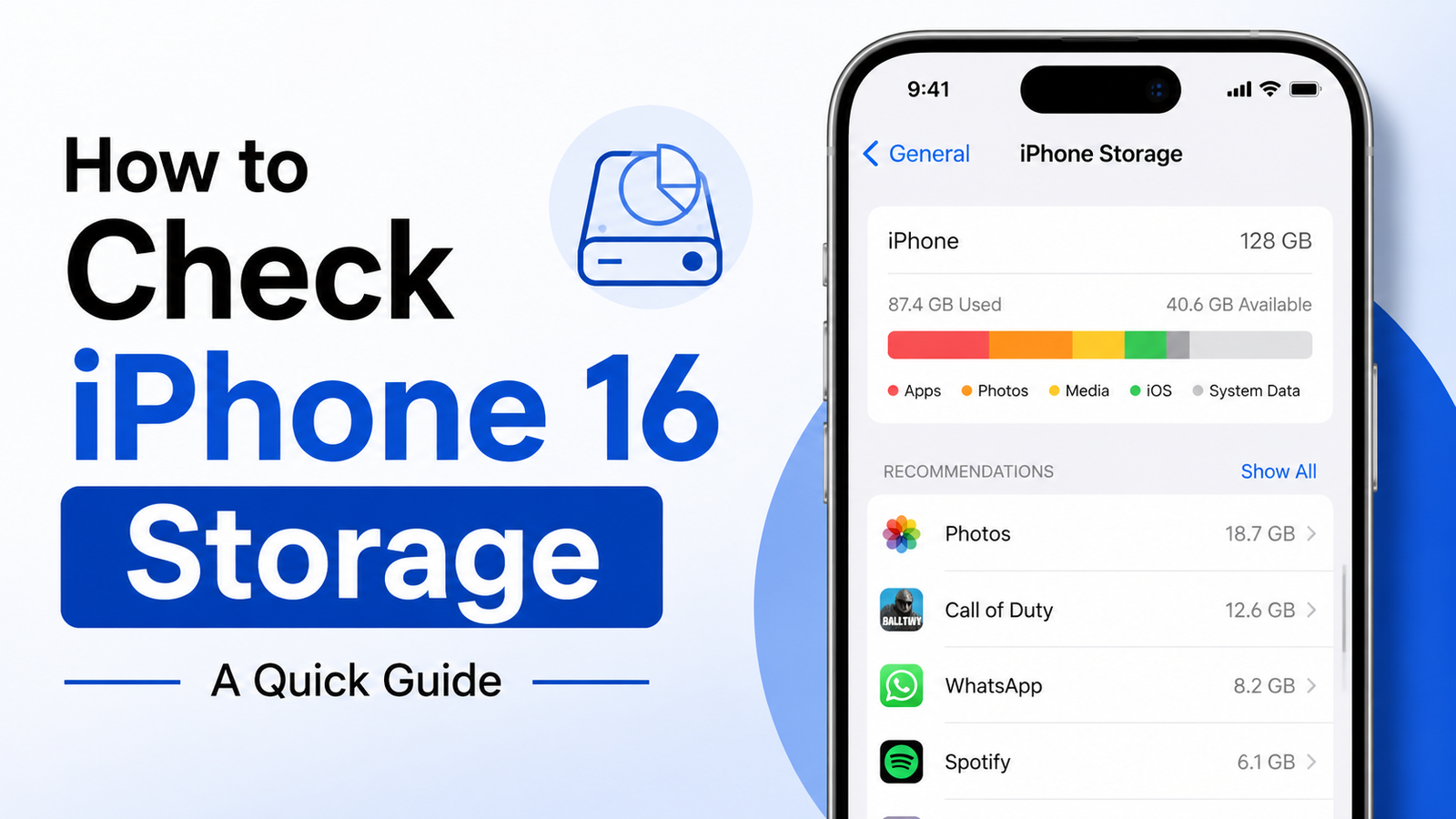
If your iPhone 16 is running out of storage, you may notice problems like failed app downloads, update errors, or warnings that your storage is almost full. Fortunately, Apple includes a built-in tool that lets you check your storage in just a few taps.
This guide explains how to view your iPhone 16 storage, understand what is using your space, and manage it more effectively.
Advertisements
Also read: How to Lock an App with Face ID on iPad: Step-by-Step Guide
Quick Overview
Follow these steps to check your iPhone storage:
- Open Settings.
- Tap General.
- Select iPhone Storage.
- Wait a few seconds while your device calculates storage usage.
- Review the storage chart and app list to see what is taking up space.
How to Check Storage on iPhone 16
Step 1: Open the Settings App
Unlock your iPhone and open the Settings app from the Home Screen or App Library.
If you cannot find it, swipe down on the Home Screen and search for Settings.
Step 2: Go to General
Scroll down and tap General.
This section contains important device settings, including software updates, device information, and storage management.
Step 3: Tap iPhone Storage
Select iPhone Storage from the list.
Your iPhone may need a few moments to scan your data and prepare the storage report.
Step 4: Review Storage Details
Once the scan is complete, you will see a storage summary at the top of the screen.
The page displays:
- Total storage capacity
- Used storage
- Available storage
- A color-coded storage graph
- A list of apps sorted by the amount of space they use
This information helps you quickly identify which apps or files occupy the most storage.
Step 5: Check Individual Apps
Tap any app in the list to view more details.
Depending on the app, you may find options such as:
- Offload App – Removes the app but keeps its data.
- Delete App – Removes both the app and its stored data.
This makes it easier to decide how to free up space without losing important information.
Other Ways to Check Storage
View Basic Device Information
You can also open:
Settings → General → About
This page shows your device’s storage capacity along with other hardware information. While it does not provide a complete storage breakdown, it is useful for checking your iPhone’s total capacity.
Check Storage Using a Computer
If your iPhone is slow or the storage page does not load correctly, you can connect it to a computer.
- On a Mac, open Finder and select your iPhone.
- On Windows, use the Apple Devices app or iTunes, depending on your setup.
This provides another way to review your device information.
If the Storage Report Takes Time to Load
The storage calculation may be slower if your iPhone contains:
- Thousands of photos or videos
- Many installed apps
- Large amounts of downloaded content
Wait a few minutes for the scan to finish before trying again.
Check iCloud Storage Separately
iPhone storage and iCloud storage are different.
To see your iCloud usage:
- Open Settings.
- Tap your Apple ID at the top.
- Select iCloud.
This screen shows how much cloud storage is being used for backups, photos, and other synced data.
Frequently Asked Questions
How can I quickly check storage on my iPhone 16?
Open Settings, tap General, then select iPhone Storage. You will immediately see your available storage and a detailed breakdown.
Why does my iPhone say storage is full even though space is available?
Temporary files, cached data, or growing system files can sometimes reduce usable storage. Reviewing the storage page can help identify what is using the extra space.
What is the difference between iPhone storage and iCloud storage?
iPhone storage is the physical space available on your device.
iCloud storage is online storage used for backups, photos, documents, and syncing across Apple devices.
Why is the storage page loading slowly?
A large amount of data can increase the time needed to calculate storage usage. Waiting a little longer usually resolves the issue.
Helpful Tips
- Check your storage regularly if you take many photos or videos.
- Remove apps you no longer use.
- Delete unnecessary downloads and large media files.
- Review message attachments that are no longer needed.
- Keep several gigabytes of free space for smoother performance and future iOS updates.
- Use the Offload App feature if you want to save space while keeping app data.
Troubleshooting
The iPhone Storage page is blank or keeps loading
- Restart your iPhone.
- Update to the latest version of iOS.
- Try opening the storage page again after the restart.
Storage numbers seem incorrect
Wait until the storage scan finishes completely. If the numbers still appear inaccurate, restart your device and check again.
I cannot find iPhone Storage
Go to Settings → General and look for iPhone Storage.
You can also use the search bar inside Settings to locate it.
An app is using too much storage
Open the app and remove downloaded content, offline files, or cached media if the option is available.
Social media, messaging, and streaming apps often accumulate large amounts of temporary data over time.
My storage is almost full
Start by deleting:
- Large videos
- Unused apps
- Old downloads
- Photos you no longer need
- Message attachments
If you are unsure about deleting an app, try Offload App first to free up storage while preserving its data.
Also read: Micro Gesture – Shake Your Phone: Instantly Open Apps and Quick Actions
Conclusion
Checking storage on your iPhone 16 is quick and easy. Simply go to Settings → General → iPhone Storage to see how your device’s space is being used.
Reviewing this page regularly helps you stay on top of storage usage, remove unnecessary files, and keep your iPhone running smoothly. Whether you need room for new apps, photos, or software updates, the storage section is the best place to start.

Abhi Rajput, founder of EarnAbhi.in, is a tech lover with 6+ years of experience in SEO, digital tools, and smartphone troubleshooting. He writes simple, clear, and useful guides to help people solve real tech problems.