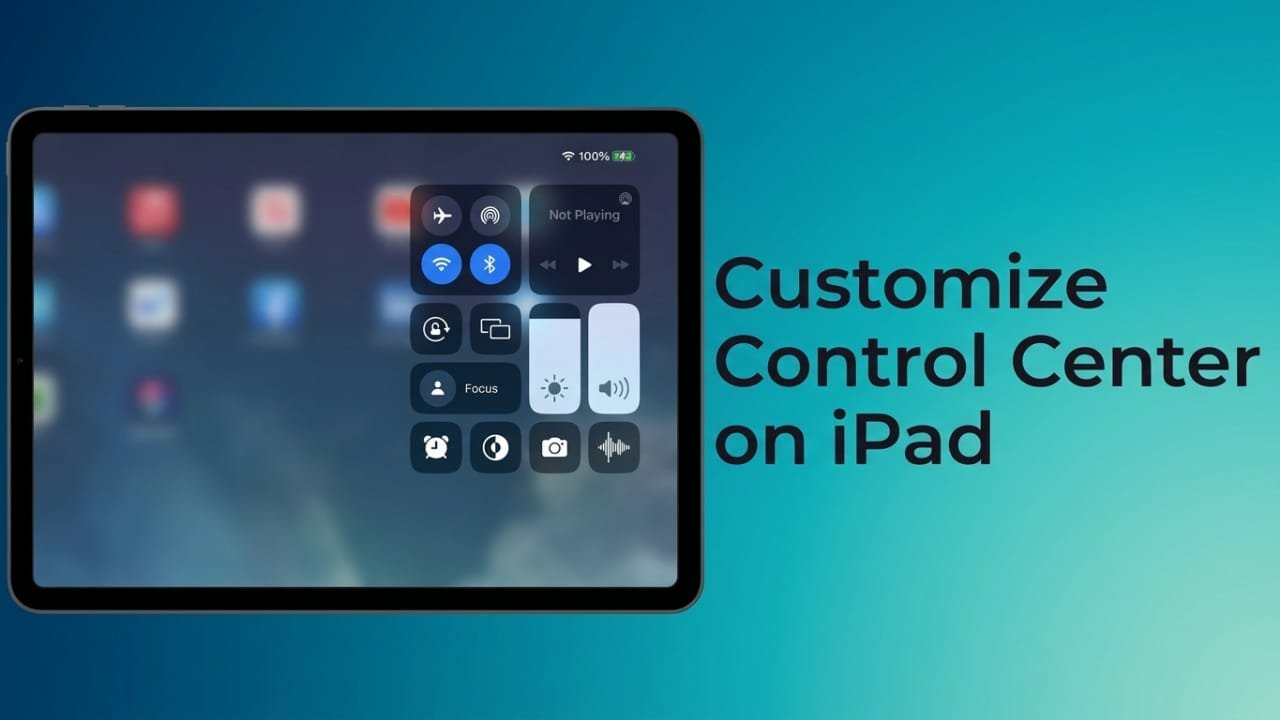
Control Center is one of the quickest ways to access important features on your iPad. With a simple swipe, you can adjust brightness, control volume, enable Wi-Fi, start a screen recording, and more. If the default layout does not match the way you use your device, you can easily customize it to make everyday tasks faster.
This guide explains how to add, remove, and organize Control Center shortcuts in a few simple steps.
Advertisements
Also read: How to Check iPhone 16 Storage: Simple Step-by-Step Guide
Quick Overview
- Open Settings on your iPad.
- Tap Control Center.
- Add new controls using the plus (+) button.
- Remove unwanted controls using the minus (-) button.
- Drag controls into your preferred order.
- Open Control Center to view the updated layout.
How to Customize Control Center on iPad
Follow these steps to personalize the shortcuts that appear in your Control Center.
Step 1: Open Settings
Start by opening the Settings app from your Home Screen or App Library.
Step 2: Go to Control Center
Scroll through the menu on the left and tap Control Center. This page displays the controls currently included and any additional controls you can add.
Step 3: Add New Controls
Browse the available options and tap the plus (+) icon beside any feature you want to include.
Some popular choices include:
- Screen Recording
- Notes
- Low Power Mode
- Dark Mode
- Home controls
The selected control will immediately appear in your Control Center.
Step 4: Remove Unused Controls
If there are shortcuts you rarely use, tap the minus (-) icon next to them.
Removing a control only hides it from Control Center. It does not delete any apps or data from your iPad.
Step 5: Rearrange the Controls
To change the order, press and hold the drag handle beside a control, then move it to a new position.
Place your most frequently used shortcuts near the top for quicker access.
Step 6: Check the Changes
Swipe down from the top-right corner of your iPad screen to open Control Center.
Your updated layout should appear instantly. If you want to make more adjustments, return to Settings > Control Center.
Step 7: Test the Shortcuts
Open one or two of the controls you added to make sure they work as expected.
Some controls activate immediately, while others display additional options when you press and hold them.
Helpful Tips
- Keep only the controls you use regularly.
- Place important shortcuts near the top for easier access.
- Add Low Power Mode if you often need to save battery.
- Include Screen Recording if you create tutorials or presentations.
- Keep Brightness and Dark Mode close together if you frequently switch between lighting conditions.
- Review your Control Center occasionally and update it as your needs change.
Common Problems and Solutions
I can’t find the Control Center option in Settings.
Your iPad may be running an older version of iPadOS or have restrictions set by a school or workplace. Updating your device may help if an update is available.
The control I want isn’t listed.
Not every iPad feature can be added to Control Center. Some options are only available within specific apps or system settings.
My changes didn’t appear.
Close the Settings app and open Control Center again. If the layout still hasn’t updated, restart your iPad and check once more.
A control disappeared after an update.
New versions of iPadOS sometimes change the available controls. Visit Settings > Control Center to review the latest options.
My work or school iPad won’t let me customize Control Center.
Organization-managed devices may have restrictions that prevent certain changes. If needed, contact your administrator for assistance.
Frequently Asked Questions
Can every iPad customize Control Center?
Most iPads running recent versions of iPadOS support Control Center customization. Older models may offer fewer options.
Will customizing Control Center delete my files?
No. Changing the Control Center layout does not affect your apps, documents, photos, or personal data.
Why do some controls show extra options?
Certain controls include additional features. Pressing and holding them opens a menu with more settings instead of performing a single action.
Also read: How to Factory Reset iPhone 16: A Complete Step-by-Step Guide
Final Thoughts
Customizing Control Center is an easy way to make your iPad more convenient to use. By removing shortcuts you don’t need, adding the ones you use most, and arranging them in a way that suits your routine, you can save time every day.
A few small changes can make a big difference, giving you faster access to the features that matter most while keeping your Control Center clean and organized.

Abhi Rajput, founder of EarnAbhi.in, is a tech lover with 6+ years of experience in SEO, digital tools, and smartphone troubleshooting. He writes simple, clear, and useful guides to help people solve real tech problems.