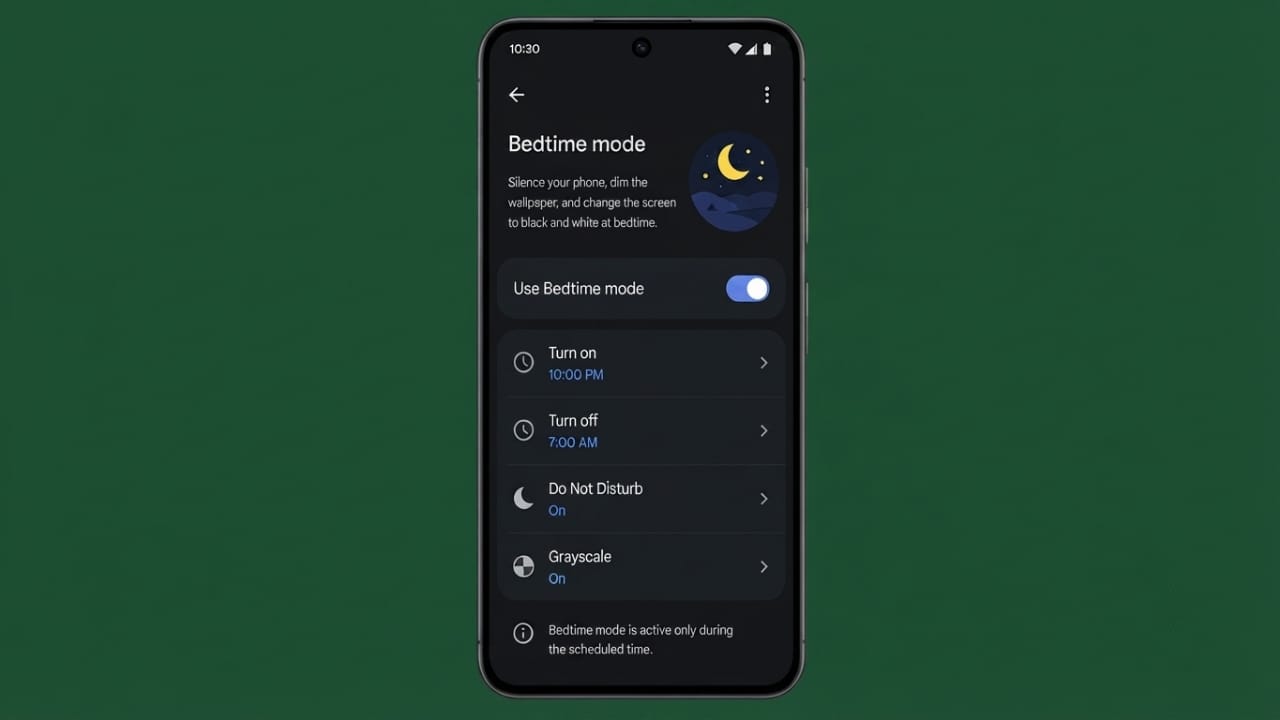
Using your phone late at night can make it harder to relax before sleeping. Android’s Bedtime Mode is designed to reduce distractions by limiting notifications and making the screen less distracting. Once it’s set up, the feature can turn on automatically every night based on your schedule.
Advertisements
Also read: How to Start or Schedule a Meeting in Google Meet
Why Use Bedtime Mode?
Bedtime Mode helps create a calmer phone experience before you go to sleep. It can:
- Reduce notifications during bedtime.
- Minimize interruptions from calls and messages.
- Apply Dark Mode and Greyscale to make the screen less eye-catching.
- Encourage healthier screen habits before sleeping.
- Help save battery by reducing background activity.
Most Android devices include this feature through Digital Wellbeing, while Samsung phones provide a similar option called Sleep Mode.
How to Enable Bedtime Mode on Android
If your phone supports Digital Wellbeing, follow these steps:
- Open Settings.
- Tap Digital Wellbeing & Parental Controls.
- Select Bedtime Mode.
- Choose Use a Schedule.
- Set your usual bedtime and wake-up time.
- Pick the days when you want the schedule to run.
- Open Customize if you want to adjust additional options.
- Tap Turn On Now to activate it immediately.
Some Android phones also include an option to turn on Bedtime Mode automatically while the device is charging.
How to Enable Sleep Mode on Samsung Phones
Samsung devices offer similar features under Modes and Routines, where Bedtime Mode is called Sleep.
To set it up:
- Open Settings.
- Tap Modes and Routines.
- Select Sleep.
- Tap Start if prompted.
- Enter your bedtime and wake-up time.
- Choose the days for your schedule.
- Save your settings.
- Turn on Sleep Mode.
You can also customize the experience by:
- Allowing calls or messages from selected contacts.
- Receiving important notifications only.
- Enabling Eye Comfort Shield.
- Adjusting sound and volume settings.
- Turning on Power Saving mode.
- Blocking specific apps during bedtime.
- Allowing only essential apps.
If you use a Galaxy Watch, Sleep Mode can sync between your phone and watch for a more consistent bedtime routine.
Using Google Clock Instead
If your Android phone doesn’t include Bedtime Mode, you can use the Google Clock app, which offers similar scheduling features.
To get started:
- Install or open the Google Clock app.
- Tap the Bedtime tab.
- Select Get Started.
- Set your wake-up time.
- Choose the days you want the schedule to repeat.
- Pick your preferred alarm sound.
- Set your bedtime.
- Enable bedtime reminders if you’d like.
- Tap Done to save everything.
Google Clock also includes a Sunrise Alarm feature that gradually brightens your screen before the alarm goes off, helping create a gentler wake-up experience.
Turn On Bedtime Mode from Quick Settings
For quicker access, you can use the Quick Settings panel.
- Swipe down from the top of the screen.
- Open Quick Settings.
- Tap Modes.
- Select Sleep or Bedtime Mode.
If you don’t see the Modes tile, edit your Quick Settings and add it for easier access in the future. You can also press and hold the tile to open its settings directly.
Advertisements
Also read: How to Use the Force LTE Only (4G/5G) App on Android
Final Thoughts
Bedtime Mode is a simple feature that can help reduce distractions and make your phone less disruptive before sleep. After setting a schedule, it works automatically each day, making it easier to maintain a consistent nighttime routine without having to adjust the settings manually.

Abhi Rajput, founder of EarnAbhi.in, is a tech lover with 6+ years of experience in SEO, digital tools, and smartphone troubleshooting. He writes simple, clear, and useful guides to help people solve real tech problems.