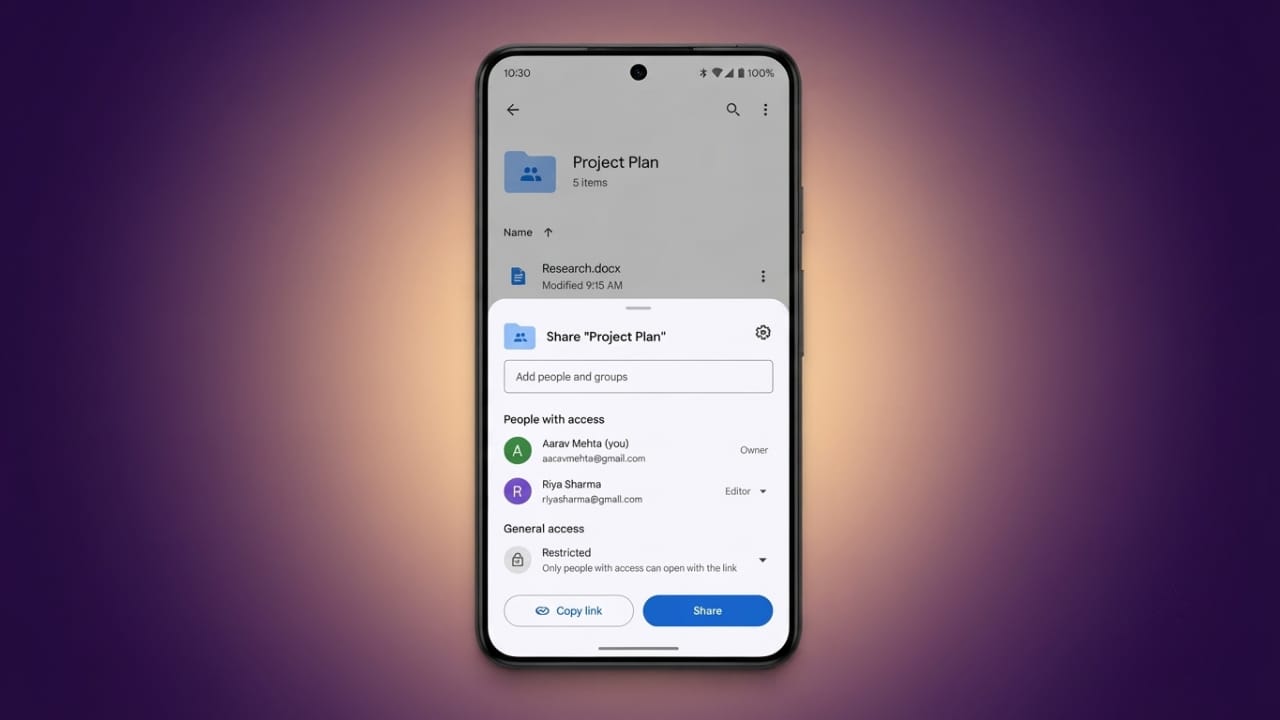
Google Drive makes it easy to save your files online and share them with other people. Whether you want to send a single document or an entire folder, Google Drive gives you different sharing options to fit your needs.
Advertisements
You can decide who is allowed to view, comment on, or edit your files. This makes it a useful tool for personal use, school projects, and team collaboration.
Also read: Best Android Volume Customization App with Neon RGB Effects
Main Points
- Share files with specific people using their email addresses.
- Create a sharing link for quick access.
- Choose whether others can view, comment, or edit.
- Update or remove sharing permissions whenever needed.
Ways to Share Files and Folders in Google Drive
Google Drive supports file sharing on both computers and mobile devices. You can either invite people directly by email or generate a shareable link.
Email sharing is a good choice when you want to control exactly who can access your files. A sharing link is useful when you need to send the same file to multiple people quickly.
Create a Shared Drive on a Computer
If you work with a team, a Shared Drive can help keep files organized.
Follow these steps:
- Sign in to your Google Drive account.
- Click Shared drives from the left-side menu.
- Select New.
- Enter a name for your shared drive.
- Click Create.
- Add existing files or upload new ones as needed.
Create a Shared Folder on Mobile
You can also organize files from your phone.
Steps:
- Open Google Drive on your mobile device.
- Tap the + button.
- Choose Folder.
- Enter a folder name.
- Create the folder and upload or move files into it.
Share Files Using Email
Sharing through email lets you choose exactly who can open your files.
On a Computer
- Right-click the file or folder.
- Select Share.
- Enter one or more email addresses.
- Choose the permission level:
- Viewer
- Commenter
- Editor
- Add a message if you want.
- Click Send.
On Mobile
- Tap the three-dot menu next to the file or folder.
- Select Share.
- Enter the recipient’s email address.
- Choose the permission level.
- Tap Send to complete the process.
Share Files with a Link
A shareable link allows you to send access without entering email addresses individually.
On a Computer
- Right-click the file or folder.
- Click Share.
- Change the access setting if needed.
- Select the permission level.
- Copy the generated link.
- Share the link with others.
On Mobile
- Open the file options using the three-dot menu.
- Tap Share.
- Open the link settings.
- Adjust the access option.
- Copy the link and send it where needed.
Share Multiple Files at Once
If you want to share several files together on a computer, hold the Ctrl key while selecting them. Right-click the selected items, choose Share, and follow the same sharing process.
Manage Sharing Permissions
You can change access at any time.
Open the sharing settings for a file or folder to:
- Change someone from Viewer to Editor or Commenter.
- Remove a person’s access.
- Disable public link sharing by changing the setting to Restricted.
These options help keep your files secure while allowing collaboration when needed.
Advertisements
Find Files Shared With You
To view files that others have shared:
- On a computer, open Shared with me in Google Drive.
- On mobile, tap the Shared section.
This makes it easy to access shared documents without searching through your own folders.
Things to Keep in Mind
Google Drive has storage and upload limits that may affect large files. A reliable internet connection can improve upload and download performance. If you use offline sync, allow enough time for changes to update when you reconnect to the internet.
Also read: How to Start or Schedule a Meeting in Google Meet
Final Thoughts
Google Drive offers a simple and flexible way to share files and folders. Whether you use email invitations or shareable links, you remain in control of who can access your content. By choosing the right permissions and reviewing them regularly, you can collaborate safely while keeping your files organized.

Abhi Rajput, founder of EarnAbhi.in, is a tech lover with 6+ years of experience in SEO, digital tools, and smartphone troubleshooting. He writes simple, clear, and useful guides to help people solve real tech problems.