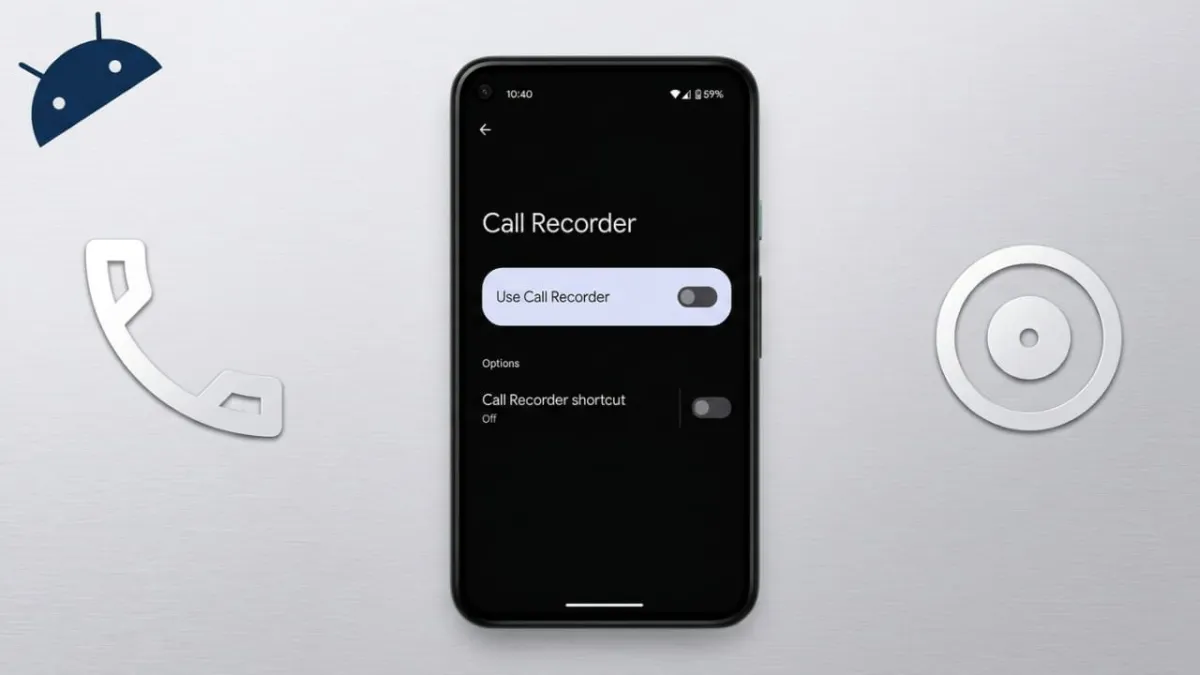
Converting voice recordings into written text on an Android phone is a simple way to save time and stay organized. Whether you are taking notes, recording a lecture, or capturing meeting discussions, turning audio into text makes everything easier to read, search, and share.
Advertisements
Android devices already come with basic voice typing features, and you can also use third-party apps for more advanced results. Let’s understand how it works in a clear and practical way.
Also read: OpenAI–Microsoft Partnership Update: A Simpler, More Flexible Approach
Getting Started with Voice Typing on Android
Before using voice-to-text, make sure the feature is enabled on your device.
Open your phone settings and look for Language & Input (or similar options like General Management). Inside, find the Virtual Keyboard section and enable Google Voice Typing.
Once it is turned on, you’re ready to use it.
To start:
- Open any app where you can type (like messages or notes)
- Tap the microphone icon on your keyboard
- Speak clearly and naturally
Your words will appear as text on the screen almost instantly. For better results, speak at a steady pace and include punctuation like “comma” or “full stop” if needed.
Where You Can Use Voice-to-Text
Voice typing works in many everyday situations:
- Messaging: Dictate texts instead of typing manually
- Notes: Quickly capture ideas or reminders
- Search: Speak your query in a browser or search bar
- Emails: Draft emails without using the keyboard
If you ever want to turn it off, just go back to the same settings and disable voice typing.
Why Convert Audio to Text?
Turning audio into text has several useful benefits:
- Saves time compared to listening to long recordings
- Makes it easier to find specific information using keywords
- Helps improve clarity and understanding
- Useful for people who prefer reading over listening
- Allows quick editing and sharing of content
- Keeps a written backup for future reference
Manual typing from recordings can take a lot of time. Automated tools make the process faster and more convenient.
Also read: How to Stop Automatic Browser Updates (Simple Guide)
Using Apps for Better Accuracy
If you need more advanced features, transcription apps can help. One example is TransVoice, which is designed to handle different types of media files.
With such apps, you can:
- Upload recorded audio files
- Record voice directly inside the app
- Convert speech into text with good accuracy
Common Features:
- Supports formats like MP3, WAV, and AAC
- Offers multiple language options
- Includes editing and translation tools
- Lets you export text as Word, TXT, or PDF files
Basic Steps:
- Open the app
- Upload or record audio
- Select your preferred language
- Tap convert and wait for the result
Most apps process files quickly, even longer recordings. Some features may require a paid plan, especially for higher accuracy or larger files.
Extra Tools You Might Find Useful
Many transcription apps also include helpful extras:
- Audio trimming tools
- Text editing options
- Easy copy and sharing features
- Multi-language translation
These tools make it easier to refine and use your content after conversion.
Also read: Windows 11 Update Changes: More Control, Fewer Interruptions
Final Thoughts
Converting voice recordings to text on Android is a practical feature for everyday use. The built-in voice typing option works well for quick tasks, while dedicated apps offer more control and better accuracy.
Whether you’re studying, working, or just organizing your thoughts, this method helps you move faster and stay more productive.

Abhi Rajput, founder of EarnAbhi.in, is a tech lover with 6+ years of experience in SEO, digital tools, and smartphone troubleshooting. He writes simple, clear, and useful guides to help people solve real tech problems.
Advertisements