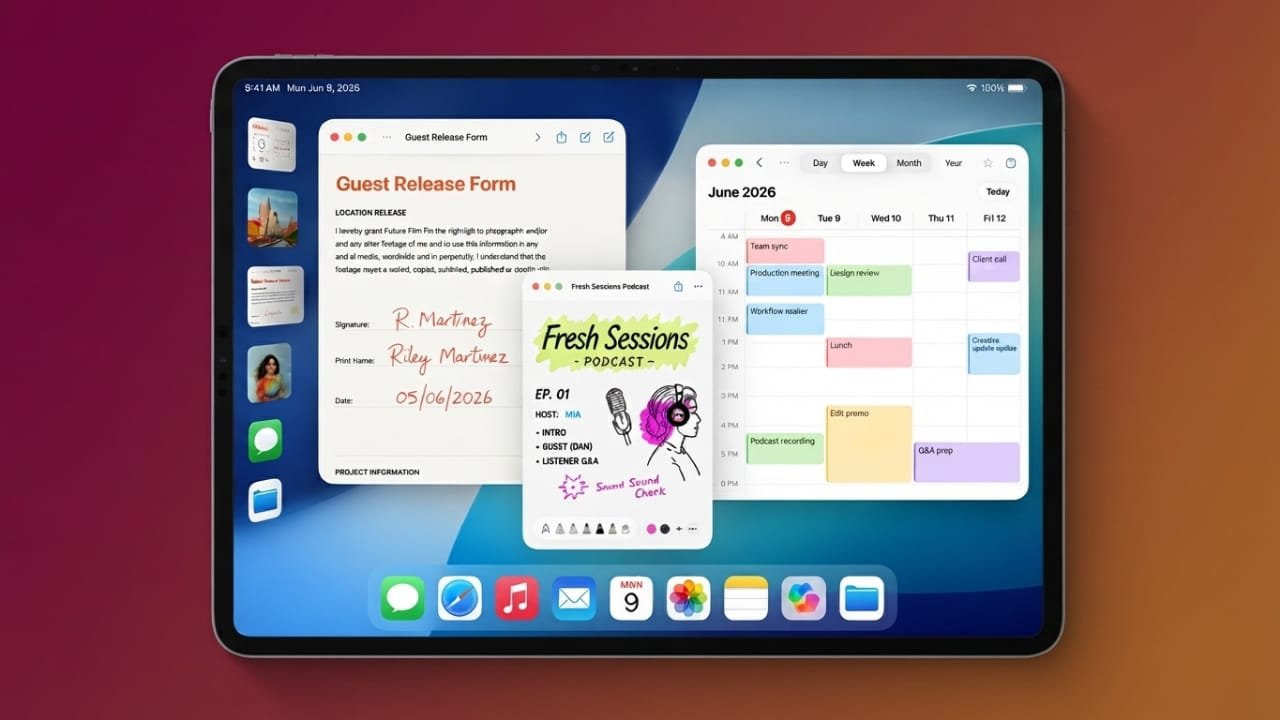
Apple has introduced iPadOS 26 with a strong focus on productivity. The update brings a more desktop-like experience, making it easier to work with multiple apps, manage files, and complete everyday tasks. Along with improved multitasking, Apple has refreshed the interface, upgraded built-in apps, and added new AI-powered features.
Also read: Apple Increases Apple Music and Apple One Subscription Prices in India
Key Highlights
- Mac-inspired multitasking makes working with multiple apps easier.
- New AI features help with writing, translation, and daily tasks.
- The refreshed Liquid Glass design gives iPad a modern look.
- Built-in apps receive useful productivity improvements.
A Better Multitasking Experience
One of the biggest changes in iPadOS 26 is the redesigned multitasking system. Apple has made it feel much closer to using a desktop computer while still keeping the traditional full-screen mode available for users who prefer it.
You can switch between different multitasking styles whenever you want. This gives you more flexibility based on the way you use your iPad.
Changing between apps is now quicker. You can launch apps from the Home Screen, use the Dock for instant access, or swipe along the bottom edge to move between recently used apps. Four-finger gestures also make app switching smooth and fast.
Exposé is now available, allowing you to view all open windows and applications in one place. Users with an external keyboard can also access it through keyboard shortcuts.
Easier Window Management
Managing windows has become much more flexible in iPadOS 26.
You can:
- Resize windows by dragging the corners.
- Move windows freely around the screen.
- Position windows partially outside the display.
- Minimize or close windows.
- Restore hidden windows.
- Instantly maximize windows.
- Open multiple windows for supported apps.
The familiar window control buttons work similarly to those found on macOS. When an app is in full-screen mode, these controls stay hidden until you swipe down from the top.
Simple Window Layout Options
Apple also makes arranging multiple apps much easier. You can quickly:
- Snap a window to the left or right.
- Place windows at the top or bottom.
- Open an app in full screen.
- Split two apps evenly.
- Arrange three apps together.
- Position windows in different screen corners.
These options help create a cleaner workspace without spending time adjusting windows manually.
New Menu Bar for Faster Access
iPadOS 26 introduces a Menu Bar that gives users quick access to common app controls. Swipe down from the top of the screen or move the trackpad pointer upward to reveal it.
Modern apps can display custom menu options, while older apps show standard desktop-style menus.
Typical menu categories include:
- File
- Edit
- Format
- View
- Window
- Help
The Window menu makes it easier to resize, move, and organize open windows.
Slide Over Returns
Apple brings back Slide Over in iPadOS 26.1, giving users another convenient way to access a floating app without interrupting their current work.
You can swipe from either side of the screen to open the floating app. Only one Slide Over window remains active at a time, helping keep the interface organized.
Background Tasks Continue Smoothly
Long-running tasks no longer interrupt your workflow. Live Activities now display the progress of background operations while you continue using other apps.
Examples include:
- Downloading files in Safari
- Exporting large files
- Moving files between folders
- Other file management tasks
Using a keyboard and trackpad also provides a more desktop-like navigation experience.
Liquid Glass Gives iPad a Fresh Look
Apple has refreshed the interface with the new Liquid Glass design. Many interface elements now feature transparent, glass-like effects that create a cleaner appearance.
The updated design is visible across:
- Lock Screen
- Home Screen
- Control Center
- Notification Center
Users can also choose between clear or transparent app icons for additional customization.
Files App Gets More Powerful
The Files app receives several practical improvements that make file management easier.
New features include:
- A built-in Menu Bar.
- Expandable folders with dropdown arrows.
- More detailed List View.
- Extra columns for file size, dates, tags, and status.
- Folder colors that match assigned tags.
- Custom folder icons.
- Ability to pin folders to the Dock.
- Support for choosing default apps for specific file types.
Notes App Adds More Features
The Notes app also becomes more capable.
New additions include:
- Menu Bar support.
- Markdown export.
- Interactive 3D graphing.
- A virtual reed pen for markup.
- Improved Apple Pencil support.
These updates make Notes more useful for both everyday writing and creative work.
Improved Audio Recording
Local Capture offers more control over recordings.
Users can:
- Select different microphones for different apps.
- Save recordings directly to the Files app.
- Record multiple audio sessions without confusion.
New Built-in Apps
Apple introduces several new apps in iPadOS 26.
Journal
Journal lets users record daily moments using photos, videos, handwritten notes, and audio recordings. Multiple journals can be created, and smart suggestions help surface memorable moments.
Games
The new Games app combines Apple Arcade and Game Center into a single location, making it easier to discover games, view achievements, and stay updated with gaming activity.
Preview
Preview arrives on iPad, allowing users to open, edit, annotate, and export PDF documents. It also works well with Apple Pencil for marking up files.
Apple Intelligence Gets Smarter
Apple continues expanding Apple Intelligence with several helpful features designed to improve productivity.
New capabilities include:
- Live Translation.
- Translation during FaceTime calls.
- Message translation.
- New ChatGPT-powered image styles.
- Smart reminder suggestions.
- Improved Shortcuts automation.
- Text rewriting.
- Proofreading assistance.
- Automatic summaries.
- Foundation Models support.
- Better Visual Intelligence.
Messages Receives Useful Updates
The Messages app also gains several new features.
Users can now:
- See typing indicators in group chats.
- Create polls within conversations.
- Apply custom chat backgrounds.
Device Compatibility
iPadOS 26 is available for many recent iPad models. However, the seventh-generation iPad is no longer supported and will not receive this update.
Also read: How to Use Live Captions in Google Meet: A Simple Step-by-Step Guide
Final Thoughts
iPadOS 26 is one of Apple’s biggest productivity updates for iPad in recent years. With desktop-style multitasking, smarter built-in apps, a refreshed design, and expanded AI features, the overall experience feels more capable than before.
For users who rely on their iPad for work, study, or everyday tasks, this update brings useful improvements that make managing apps and completing projects faster and more convenient.

Abhi Rajput, founder of EarnAbhi.in, is a tech lover with 6+ years of experience in SEO, digital tools, and smartphone troubleshooting. He writes simple, clear, and useful guides to help people solve real tech problems.