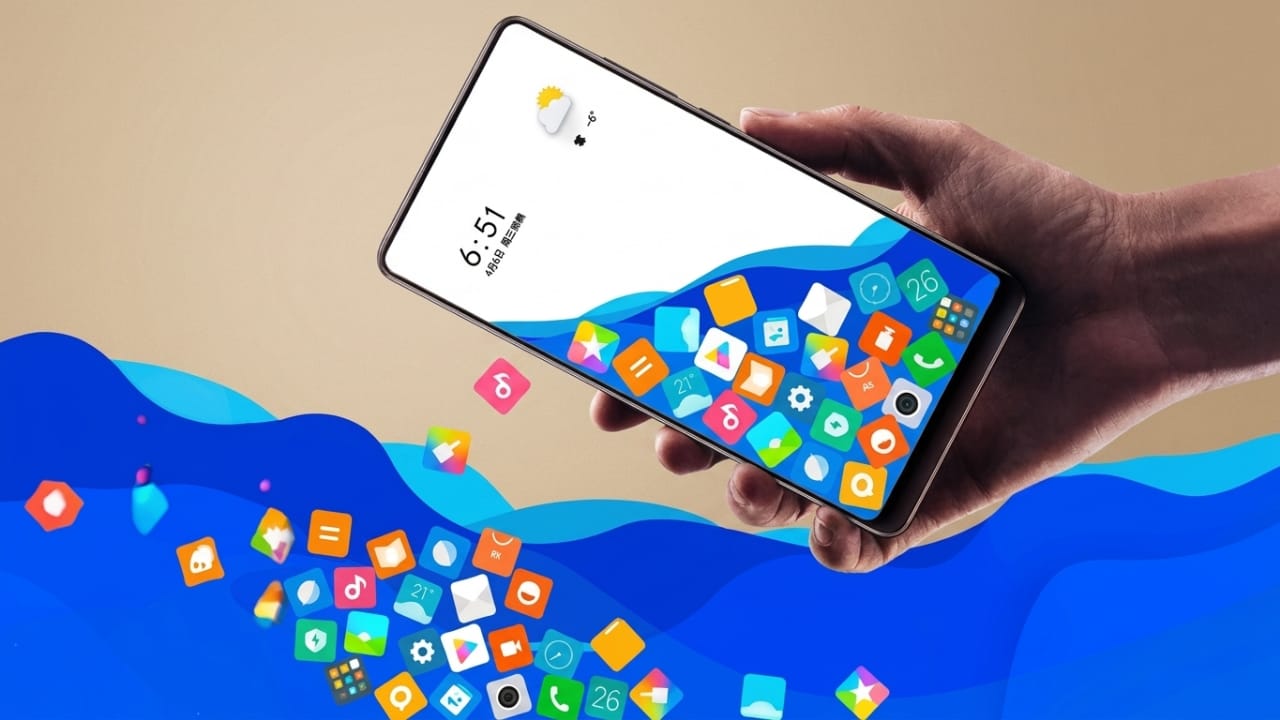
Many Android users enjoy customizing their phones to give them a unique and attractive look. From colorful wallpapers to custom launchers and animated backgrounds, there are plenty of ways to personalize a device and make it stand out.
Advertisements
If you’re looking for something different, a rolling icons app can add a fun visual effect to your home screen. Instead of displaying static app icons, this type of app makes icons move and react as you tilt or rotate your phone. The result is a dynamic and eye-catching home screen experience.
Also read: Licowa AI Photo Editor – A Simple All-in-One App for Editing, Collages, and Live Wallpapers
What Is a Rolling Icons App?
A rolling icons app is a customization tool that adds motion effects to your home screen. When you move your phone, selected app icons can shift and roll in the same direction. This creates an interactive effect that makes the screen feel more lively.
Some versions of these apps also allow you to add your own photos or emoji icons alongside app shortcuts. As you move the device, these elements move across the screen as well, creating a playful animation effect.
Main Features
- Animated app icons that react to phone movement
- Option to add personal photos to the rolling display
- Support for emoji animations
- Easy setup process
- Customizable icon selection
- Interactive and unique home screen appearance
How to Set Up Rolling Icons on Android
Follow these simple steps to get started:
1. Install and Open the App
Download the rolling icons app from a trusted source and launch it. When the welcome screen appears, accept the terms and continue.
2. Choose App Icons
Look for the App Icons section. Here, you’ll see a list of installed apps on your device.
Select the apps you want to appear in the rolling animation and confirm your selection.
3. Add Photos (Optional)
If the app supports photo animations, open the Photo section and tap the Plus (+) button.
Choose an image from your gallery and follow the on-screen instructions to add it.
4. Add Emojis (Optional)
To include emojis in the animation, open the Emoji section.
Browse the available emoji collection and select your favorites.
5. Start the Animation
After customizing your icons, photos, or emojis, tap the Start button to activate the effect.
Once enabled, moving your phone will cause the selected items to shift and roll across the screen, creating a fun animated experience.
Official Play Store Link
Also read: Zipper Lock Screen App: Give Your Android Phone a Fresh and Stylish Look
Final Thoughts
A rolling icons app is a simple way to give your Android device a fresh and entertaining look. By adding motion effects to app icons, photos, and emojis, it can make your home screen feel more interactive and visually appealing.
If you enjoy customizing your phone and trying new launcher-style effects, this type of app may be worth exploring. Just be sure to download apps from trusted sources and review permissions before installing them.

Abhi Rajput, founder of EarnAbhi.in, is a tech lover with 6+ years of experience in SEO, digital tools, and smartphone troubleshooting. He writes simple, clear, and useful guides to help people solve real tech problems.
Advertisements