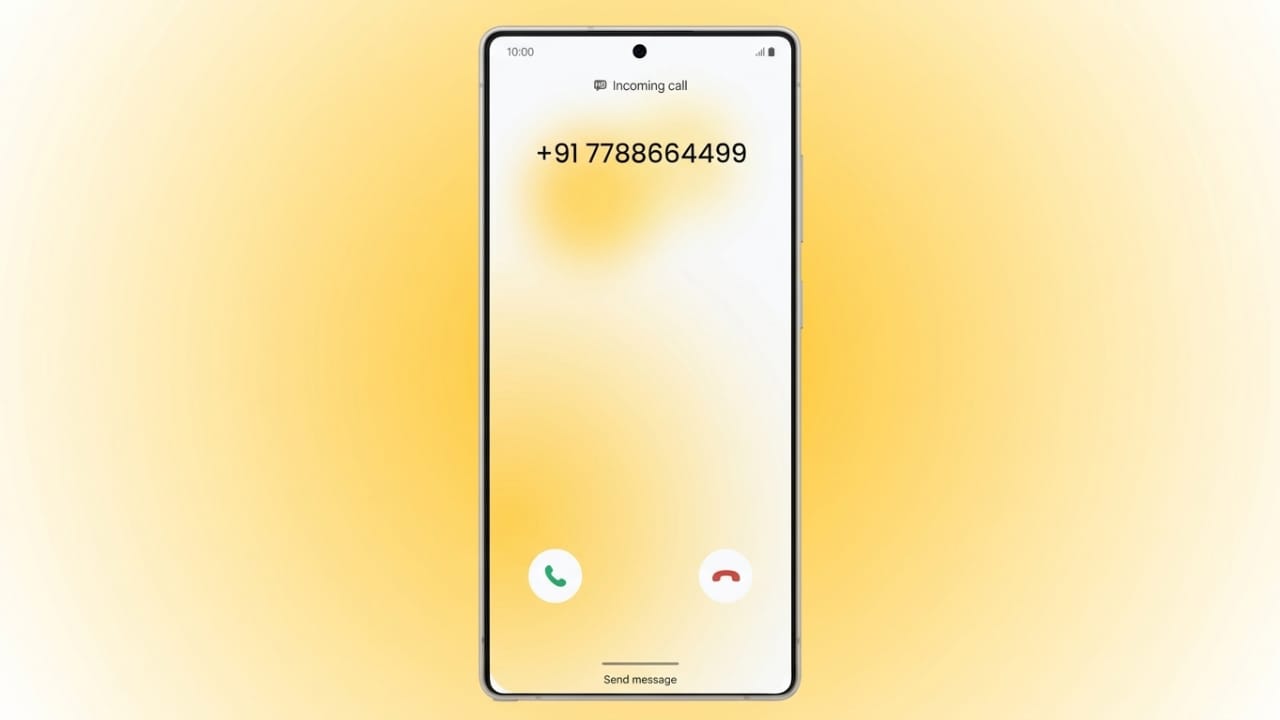
Many Android users face a common problem where saved contact names do not appear during incoming calls. Instead of showing the saved name, the phone only displays the number. This issue can happen because of app permissions, sync errors, outdated software, or temporary cache files.
Advertisements
The good news is that you can usually fix the problem with a few simple steps. Below are the most effective methods to restore contact names on Android phones.
Also read: Apple May Let Users Choose Different AI Models in iOS 27
Clear the Phone App Cache
Temporary files stored by the Phone app can sometimes create calling issues. Clearing the cache refreshes the app and may solve the problem quickly.
Follow these steps:
- Open Settings on your phone.
- Go to Apps or Apps & Notifications.
- Tap See All Apps.
- Find and open the Phone app.
- Select Storage & Cache.
- Tap Clear Cache.
- Restart your phone.
After rebooting, check whether saved caller names are showing correctly.
Clear the Messages App Cache
In some cases, the Messages app can also affect contact information. Clearing its cache may help refresh contact data.
Steps to follow:
- Open Settings.
- Tap Apps.
- Select See All Apps.
- Open the Messages app.
- Tap Force Stop and confirm.
- Go to Storage & Cache.
- Select Clear Cache and then Clear Storage.
Now test incoming calls again.
Give Contact Permission to the Phone App
The Phone app needs access to your contacts to display saved names. If permission is disabled, the app may only show phone numbers.
Enable permissions like this:
- Press and hold the Phone app icon.
- Tap App Info.
- Open Permissions.
- Select Contacts.
- Choose Allow.
Once permission is enabled, your saved contact names should appear properly.
Turn On Caller Identification
Caller identification settings help Android devices recognize and display saved caller details.
To enable it:
- Open the Phone app.
- Tap the three-dot menu in the corner.
- Go to Settings.
- Find Caller Identification or similar settings.
- Turn the feature on.
Some phones also provide additional network-based caller ID options.
Advertisements
Disable Hidden Contacts Settings
Certain Android updates may automatically hide contacts that do not meet specific conditions. This can affect how contacts appear during calls.
To check this setting:
- Open Phone App Settings.
- Find the option called Hide Contacts Without Numbers.
- Turn the toggle off if it is enabled.
This may restore missing contact names instantly.
Disable Call Protection Apps
Some call protection or spam filtering apps can interfere with caller information. If you use services like AT&T Call Protect or similar apps, try disabling them temporarily.
General steps:
- Locate the call protection app.
- Press and hold the app icon.
- Tap Disable or Turn Off.
After disabling the app, check whether contact names appear during incoming calls.
Also read: Google Releases Snapseed 4.0 Update for Android Users
Update the Phone App
Older app versions may contain bugs that affect caller information.
To update the Phone app:
- Open the Google Play Store.
- Tap your profile picture.
- Select Manage Apps & Device.
- Open available updates.
- Find the Phone app.
- Tap Update.
Restart your device after updating.
Enable Contact Sync
If contact syncing is disabled, your saved contacts may not update correctly across devices.
To enable syncing:
- Open Settings.
- Go to Accounts or Passwords & Accounts.
- Select your Google account.
- Tap Account Sync.
- Turn on Contacts Sync.
Wait a few minutes for syncing to complete.
Install Android System Updates
System updates often fix software bugs and improve phone performance.
Check for updates using these steps:
- Open Settings.
- Scroll to System.
- Tap System Update.
- Check for available updates.
- Download and install updates if available.
Restart the device once the update finishes.
Delete and Save the Contact Again
Sometimes a single contact may be saved incorrectly. Recreating the contact can solve the issue.
Steps:
- Open the Contacts app.
- Find the contact causing the issue.
- Tap the three-dot menu.
- Select Delete.
- Add the contact again using the correct number and country code.
- Save the contact.
Now check incoming calls again.
Also read: Instagram Removes End-to-End Encryption From DMs: What It Means for Users
Final Words
Missing contact names during incoming calls can be annoying, but in most cases the issue is easy to fix. Clearing cache files, enabling permissions, syncing contacts, and updating apps usually solve the problem quickly.
By following the methods above, you can restore saved caller names and improve your Android calling experience without needing advanced technical knowledge.

Abhi Rajput, founder of EarnAbhi.in, is a tech lover with 6+ years of experience in SEO, digital tools, and smartphone troubleshooting. He writes simple, clear, and useful guides to help people solve real tech problems.