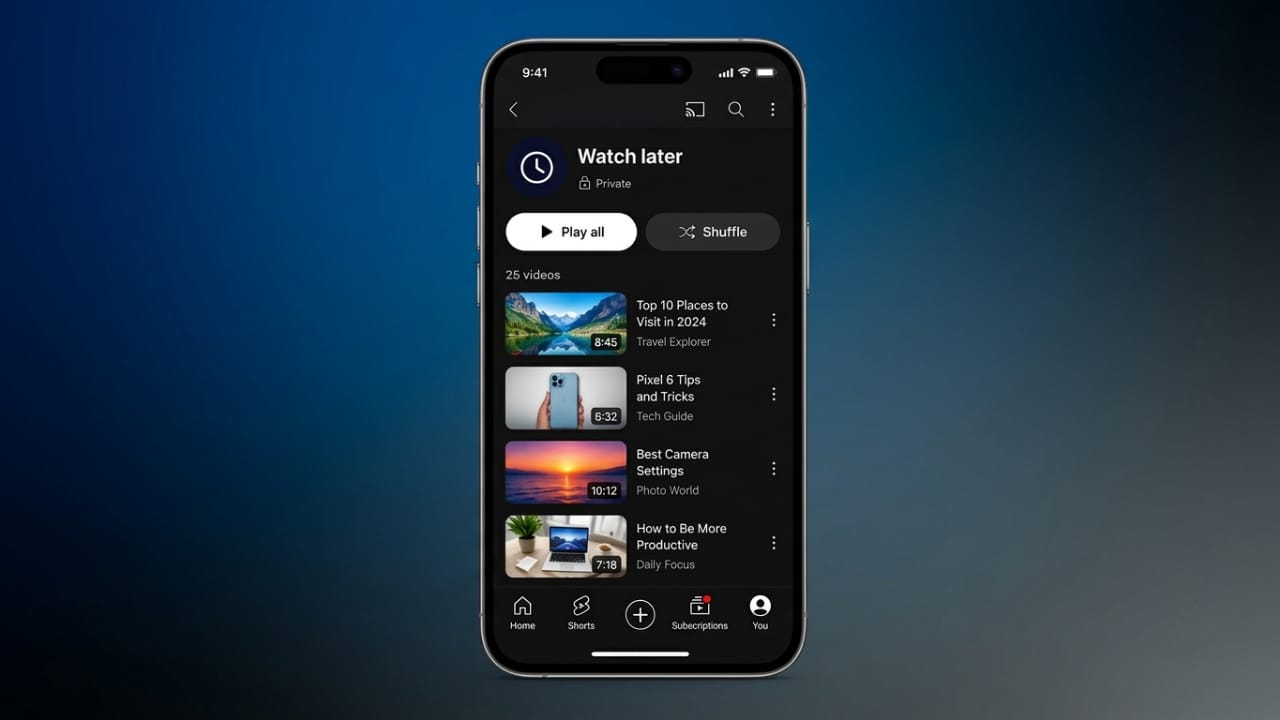
The Watch Later playlist is a handy feature for saving videos you want to watch in the future. Over time, though, it can become crowded with videos you’ve already seen or no longer want to keep. Cleaning up the list makes it easier to find the content that still matters to you.
Advertisements
Also read: How to Enable Now Playing on Google Pixel 6
Quick Summary
- Remove watched videos using YouTube’s built-in option.
- Delete individual videos you no longer want to keep.
- For very large playlists, experienced users can use trusted browser scripts with caution.
How to Clear the Watch Later List on a Computer
Managing your Watch Later playlist is simple on the YouTube website. Before you begin, sign in to your YouTube account and make sure your internet connection is stable.
Remove All Watched Videos
If you only want to get rid of videos you’ve already watched, follow these steps:
- Open YouTube in your web browser.
- Sign in to your account.
- Click Library from the left sidebar.
- If needed, open the side menu first.
- Scroll to the Watch Later section and select See All.
- Click the three-dot menu for the playlist.
- Choose Remove Watched Videos.
Only watched videos will be removed. Any videos you haven’t watched yet will remain in your playlist.
Remove Videos One by One
If you want to keep some videos but delete others, you can remove them individually.
- Open your Watch Later playlist.
- Move your cursor over the video you want to remove.
- Click the three-dot menu next to the video.
- Select Remove from Watch Later.
- Repeat these steps for any other videos you want to delete.
This method is useful when you want full control over your playlist.
Removing Many Videos with a Browser Script
Deleting hundreds of videos manually can take time. Some users choose to use browser scripts to automate the process.
If you decide to use this method, only use scripts from reliable and trusted sources. Running unknown scripts can create security risks or cause unexpected browser behavior.
General steps include:
- Open YouTube in Google Chrome.
- Go to your Watch Later playlist.
- Open your browser’s Developer Console.
- Windows: Press Ctrl + Shift + J
- Mac: Press Command + Option + J
- Paste a trusted script into the console.
- Run the script and wait for it to finish.
The time required depends on the size of your playlist. Larger playlists may take longer to process.
How to Clear the Watch Later List on Mobile
The YouTube app for Android and iPhone also allows you to organize your Watch Later playlist.
Remove Watched Videos
- Open the YouTube app.
- Tap Library.
- Open Watch Later.
- Tap the three-dot menu.
- Select Remove Watched Videos.
Your watched videos will be removed, while unwatched videos stay saved.
Delete Individual Videos
To remove specific videos:
- Open the Watch Later playlist.
- Find the video you want to remove.
- Tap the three-dot menu next to it.
- Select Remove from Watch Later.
- Repeat for any other videos you no longer need.
Tips for Keeping Your Playlist Organized
- Remove watched videos regularly.
- Delete videos you no longer plan to watch.
- Review your playlist every few weeks to keep it manageable.
- Be cautious when using third-party scripts, and only use sources you trust.
Also read: True Phone Dialer and Contacts: Customize Your Call Screen with Your Favorite Photos
Advertisements
Final Thoughts
A clean Watch Later playlist helps you find saved videos more quickly and keeps your YouTube library organized. Whether you remove watched videos, delete items one at a time, or use a trusted automation method for large playlists, regular maintenance makes your viewing experience much smoother.

Abhi Rajput, founder of EarnAbhi.in, is a tech lover with 6+ years of experience in SEO, digital tools, and smartphone troubleshooting. He writes simple, clear, and useful guides to help people solve real tech problems.