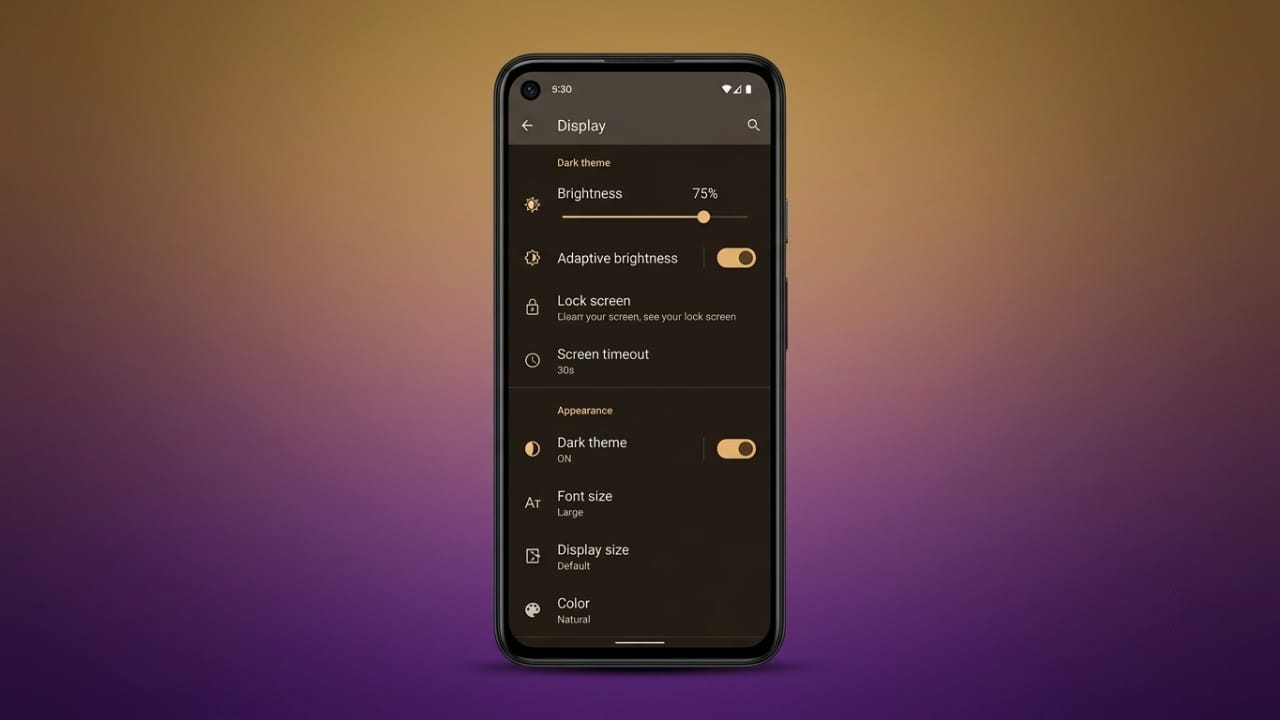
Reading text on your phone should feel comfortable. If the default text looks too small or too large, Android lets you adjust it in just a few steps. Most Android phones include built-in settings that allow you to change the font size without installing any extra apps.
Advertisements
Although the menu may look a little different depending on your phone brand, the overall process is very similar.
Also read: How to Clear Your YouTube Watch Later List
Quick Summary
- Change the font size from your phone’s display settings.
- Different Android brands may place the option in different menus.
- Extra accessibility features can make text even easier to read.
Change Font Size Using Android Settings
Most Android devices include a font size option in the Settings app.
Follow these steps:
- Open the Settings app.
- Tap Display.
- Look for Font Size, Text Size, or Display Size and Text.
- Move the slider until the text looks comfortable.
- The changes appear instantly, so you can see the results before leaving the page.
Some Android versions also include a separate Display Size option. This changes the overall size of items on the screen, including icons, buttons, menus, and notifications.
How to Change Font Size on Popular Android Phones
Samsung Galaxy (One UI)
Samsung phones make it easy to adjust text size.
Steps:
- Open Settings.
- Tap Display.
- Select Font Size and Style.
- Move the slider to increase or decrease the text size.
The new setting is applied immediately throughout the phone.
OnePlus (OxygenOS)
OnePlus devices offer additional customization options.
Steps:
- Open Settings.
- Go to Personalizations.
- Open Fonts and Display Size.
- Adjust the font size using the slider.
Some OnePlus phones also let you choose between different system fonts, depending on your software version.
Motorola Phones
Motorola devices also include built-in text size controls.
General steps:
- Open Settings.
- Go to Display or Accessibility, depending on your device.
- Select Font Size.
- Choose the text size that feels most comfortable.
The updated size is applied across the system right away.
Advertisements
Improve Readability with Accessibility Features
If changing the font size is not enough, Android provides additional accessibility features that can improve screen readability.
Bold Text
The Bold Text option makes letters appear thicker. This can make menus, messages, and other content easier to read, especially during long periods of phone use.
High-Contrast Text
Some Android devices include a high-contrast text option. It increases the difference between text and the background, making words easier to see in different lighting conditions.
Benefits of Adjusting Font Size
Changing the font settings can improve your overall experience by:
- Making text easier to read.
- Reducing eye strain during extended use.
- Improving visibility in apps and system menus.
- Helping users who prefer larger or clearer text.
- Creating a more comfortable reading experience.
Also read: How to Enable Now Playing on Google Pixel 6
Final Thoughts
Android offers simple tools to customize how text appears on your screen. While the exact menu may vary by manufacturer, most phones allow you to adjust the font size in just a few taps. You can also use accessibility features like bold or high-contrast text for better visibility.
Choosing settings that match your comfort level can make everyday tasks such as reading messages, browsing the web, and using apps much more enjoyable.

Abhi Rajput, founder of EarnAbhi.in, is a tech lover with 6+ years of experience in SEO, digital tools, and smartphone troubleshooting. He writes simple, clear, and useful guides to help people solve real tech problems.