Sharing photos on WhatsApp is something most people do every day. Whether it is a family picture, a travel memory, or an important document, everyone wants the image to look clear after it is sent. By default, WhatsApp compresses photos and videos to reduce file size, which can make them appear less sharp.
Advertisements
The good news is that WhatsApp offers an HD upload option. With this feature, you can send photos and videos with better quality while still keeping file sizes manageable.
Also read: How to Change the Font Size on Android
Why Upload Quality Matters
When WhatsApp compresses media, it removes some image details to make files smaller. This helps uploads finish faster and uses less data, but the picture may not look as clear as the original.
Choosing the HD option reduces the amount of compression. As a result, photos keep more detail, colors look more natural, and the overall image appears sharper. Videos also benefit from improved quality compared to the standard upload setting.
Benefits of Using HD Uploads
Using HD quality offers several advantages:
- Sharper and clearer photos
- Better color accuracy
- More visible details in images
- Improved video quality
- A better viewing experience for the people receiving your media
- More control over how your photos and videos are shared
While HD uploads provide better quality, they are still compressed slightly to balance quality and file size.
How to Send a Photo in HD
If you only want to send certain photos in HD, you can choose the option before sending them.
Follow these steps:
- Update WhatsApp to the latest version.
- Open the chat where you want to send the photo.
- Tap the attachment or + button and choose your image.
- When the preview opens, tap the HD button at the top.
- Select HD Quality.
- Tap Send.
After the photo is sent, an HD label appears in the chat, showing that it was shared using the higher-quality setting.
How to Make HD the Default Upload Quality
If you usually prefer better-quality media, you can set HD as the default upload option.
On Android
- Open WhatsApp.
- Tap the three-dot menu.
- Select Settings.
On iPhone
- Open WhatsApp.
- Tap Settings at the bottom of the screen.
Then continue with these steps on either device:
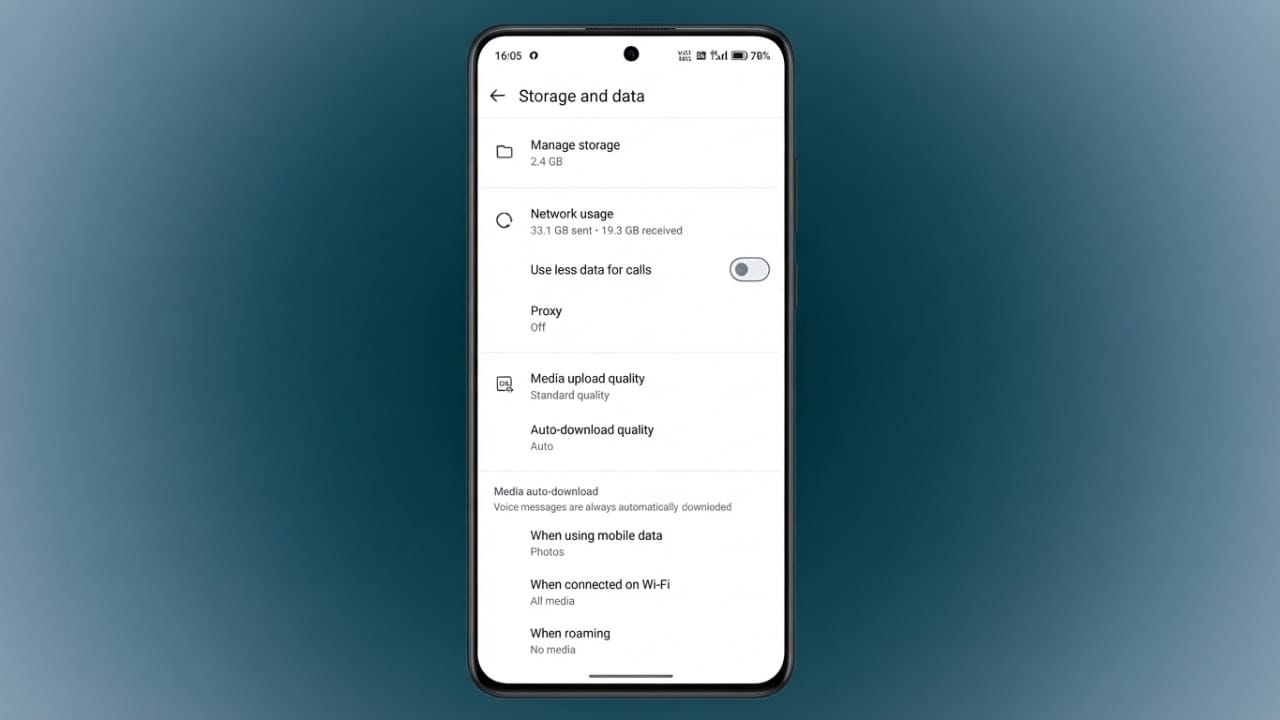
- Open Storage and Data.
- Find Media Upload Quality.
- Select HD Quality.
- Save your changes.
Depending on your WhatsApp version, you may also see options such as Auto or Data Saver, which are useful if you want to reduce mobile data usage.
How to Send Photos Without Any Compression
Although HD mode improves image quality, WhatsApp still applies a small amount of compression.
If you need to preserve the original file exactly as it is, send the image as a Document instead of a photo. This method keeps the file unchanged, making it a good choice for high-resolution images, work files, or photography.
Advertisements
Also read: How to Clear Your YouTube Watch Later List
Final Thoughts
WhatsApp’s HD upload feature makes it easy to share clearer photos and better-looking videos. You can enable HD for individual uploads or set it as the default option to save time.
If keeping the original file quality is important, sending the image as a document is the best choice. By using the right sharing method, you can ensure your photos and videos look as good as possible when they reach the recipient.

Abhi Rajput, founder of EarnAbhi.in, is a tech lover with 6+ years of experience in SEO, digital tools, and smartphone troubleshooting. He writes simple, clear, and useful guides to help people solve real tech problems.