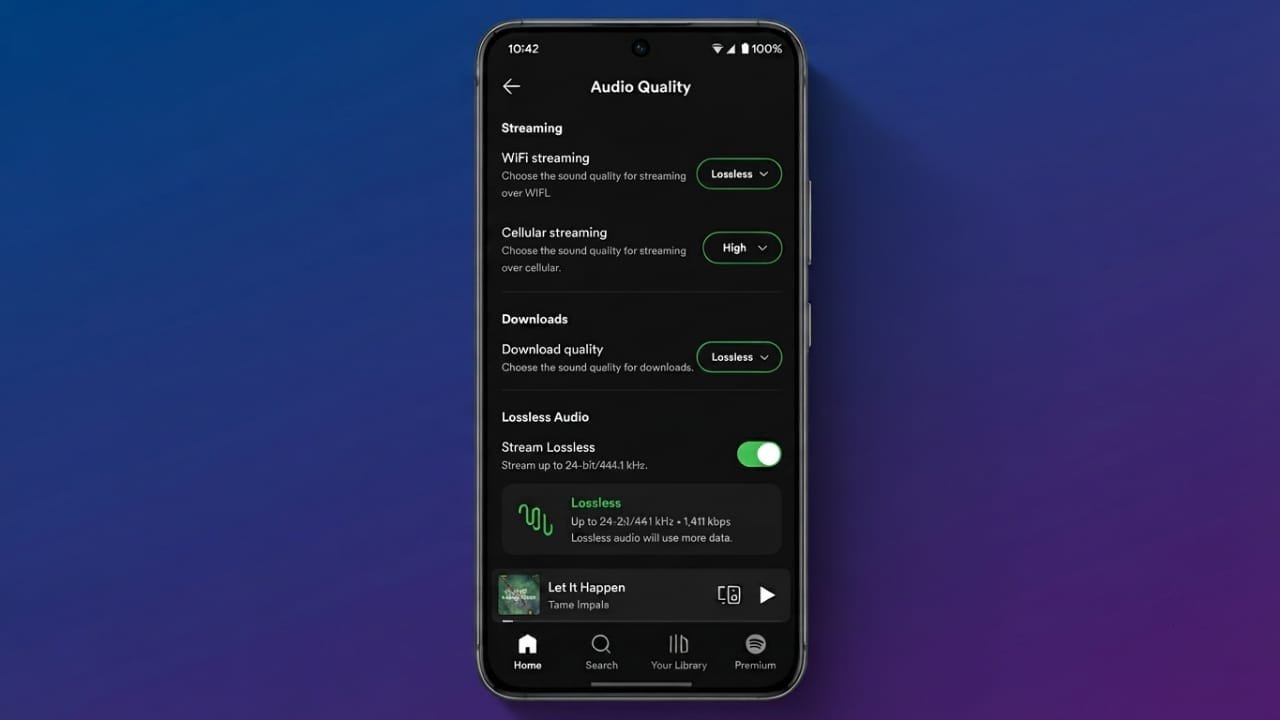
If you want better sound quality while listening to music, Spotify’s Lossless Audio feature is worth trying. It lets you hear songs with more detail, making vocals, instruments, and background sounds feel cleaner and closer to the original recording.
Advertisements
This feature is available for eligible Spotify Premium users and can be turned on through the app settings. Here’s everything you need to know.
Also read: How to Use Roku Without an Internet Connection
Key Highlights
- Spotify Lossless provides higher-quality audio with more detail.
- The feature is available for supported Spotify Premium accounts.
- You can enable it from the Media Quality settings.
- A stable internet connection and wired headphones usually deliver the best listening experience.
What Is Spotify Lossless Audio?
Most music streaming services compress audio files to reduce file size. Spotify Lossless keeps much more of the original recording, allowing you to enjoy music with greater clarity and accuracy.
You may notice clearer vocals, sharper instrument separation, and a richer overall sound. The improvement is more noticeable when using good-quality headphones or speakers.
Keep in mind that the difference depends on your audio equipment. Basic earbuds or phone speakers may not reveal the full benefits of lossless audio.
Check Whether the Feature Is Available
Spotify is gradually rolling out Lossless Audio to Premium users, so it may not appear on every account immediately.
Before looking for the option:
- Update Spotify to the latest version from the Google Play Store, App Store, or the official desktop app.
- Open Spotify and go to Settings.
- Select Media Quality.
- If you see a Lossless option, your account supports the feature.
If it isn’t available yet, check again after future app updates.
How to Enable Spotify Lossless on Android and iPhone
Follow these steps to turn on Lossless Audio:
- Open the Spotify app.
- Tap your profile picture.
- Open Settings.
- Select Media Quality.
- Under Wi-Fi Streaming Quality, choose Lossless.
- Do the same for Cellular Streaming if you want to use it on mobile data.
- Confirm the change if Spotify asks for permission.
After enabling the setting, supported songs will play in higher audio quality whenever your connection is suitable.
How to Enable Spotify Lossless on PC
Desktop users can also activate the feature in just a few steps:
- Open the Spotify desktop application.
- Click your profile icon.
- Open Settings.
- Find the Audio Quality section.
- Set both Streaming Quality and Download Quality to Lossless.
- Save the changes and start playing your music.
For the most reliable playback, use a stable Wi-Fi or wired internet connection.
Things to Know Before Using Lossless Audio
Lossless audio files are much larger than standard streams, so they require more data and a stronger internet connection.
Here are a few things to keep in mind:
- Higher-quality streaming can use significantly more mobile data.
- A stable Wi-Fi connection helps prevent buffering.
- Download playlists over Wi-Fi if you plan to listen offline.
- Wired headphones usually provide better results than Bluetooth devices because Bluetooth may compress audio during playback.
- External DACs or quality audio equipment can further improve the listening experience.
Tips for the Best Listening Experience
To get the most from Spotify Lossless Audio:
- Use wired headphones or speakers whenever possible.
- Connect to a reliable, high-speed Wi-Fi network.
- Download playlists before traveling.
- Close unnecessary background apps to improve performance.
- Use high-quality audio equipment if available.
- Check that your device supports appropriate audio settings.
- Compare well-produced songs to hear the difference more clearly.
Also read: How to Do a Reverse Image Search on Mobile and PC
Final Thoughts
Spotify Lossless Audio is a great option for Premium users who want better sound quality. It is easy to enable through the app settings and can make music feel more detailed and natural.
For the best experience, pair the feature with a stable internet connection and quality wired audio equipment. Even if the improvement varies by device, many listeners will notice a cleaner and more immersive listening experience.

Abhi Rajput, founder of EarnAbhi.in, is a tech lover with 6+ years of experience in SEO, digital tools, and smartphone troubleshooting. He writes simple, clear, and useful guides to help people solve real tech problems.
Advertisements