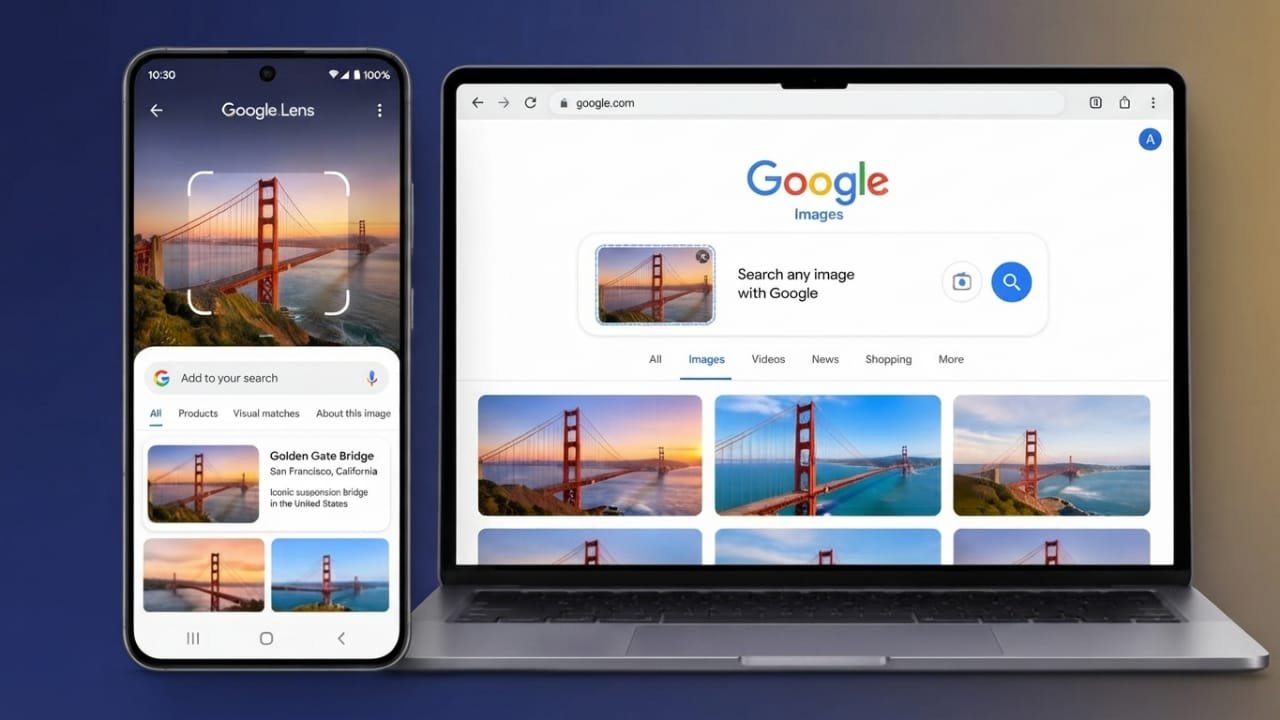
Reverse image search is a simple way to learn more about a photo. Instead of typing keywords, you upload an image, and the search tool looks for matching or similar pictures across the web. It can help you identify objects, find the original source of an image, or discover where a photo has been used online.
Advertisements
Also read: How to Downgrade Your Google One Plan Without Cancelling Your Subscription
What Is Reverse Image Search?
Reverse image search lets you search the internet using a picture instead of text. After you upload an image, the search engine compares it with millions of other images and displays related results within seconds.
This feature is useful for students, content creators, online shoppers, researchers, and anyone who wants to verify or identify an image quickly.
Benefits of Reverse Image Search
Reverse image search can be helpful in many situations, including:
- Find the original source of a photo.
- Discover visually similar images.
- Locate higher-quality versions of an image.
- Identify products from a photo.
- Learn the name or model of an item.
- Check whether an image has been edited or reused.
- Verify photos shared on social media.
- Track where your own images appear online.
- Give proper credit to the original creator when needed.
For the best results, use a clear and high-quality image. Blurry or heavily edited pictures may produce less accurate matches.
How to Reverse Image Search on Android
Android users have several easy ways to search with images.
Use Google Lens
Google Lens is available on many Android phones and is also built into Google Photos.
Steps:
- Open the Camera app or Google Lens.
- Tap the Lens icon if needed.
- Point your camera at the object or choose an image from your gallery.
- Wait a few seconds to view the search results.
If your device doesn’t include Google Lens, you can install it from the Google Play Store.
Use Circle to Search
Some Android devices support Circle to Search.
To use it:
- Enable the feature in your phone’s settings if available.
- Press and hold the navigation bar or home button.
- Circle the image or object you want to search.
- Google will show matching results automatically.
Support for this feature depends on your phone model and software version.
How to Reverse Image Search on iPhone
iPhone users also have multiple options.
Google App
- Install the Google app from the App Store.
- Tap the Google Lens icon.
- Capture a new photo or select one from your gallery.
- Review the matching search results.
Google Photos
If your photos are stored in Google Photos:
- Open the image.
- Tap the Lens icon.
- Adjust the selection if needed.
- View related information and similar images.
Google Chrome
Google Chrome also includes Google Lens support.
- Open Chrome.
- Tap the Lens icon.
- Upload or capture an image.
- Browse the results.
Some newer iPhone models also include Apple features that can recognize objects and provide related information directly from photos.
How to Reverse Image Search on a Computer
Searching by image on a desktop or laptop is just as simple.
Upload an Image
Open Google’s image search page, select the Lens option, and upload your image. You can also drag and drop the file into the search box. The results will include similar images and related information.
Search Using an Image URL
If the image is already online:
- Open the webpage containing the image.
- Copy the image address.
- Open Google Lens.
- Paste the image link.
- Start the search to see related results.
Try TinEye
TinEye is another popular reverse image search tool. You can upload a picture or paste its image URL to search for matching versions. It is especially useful for finding where an image first appeared or tracking its use across different websites.
Use Browser Extensions
If you frequently search with images, browser extensions can save time.
Some extensions add a right-click option that lets you search an image instantly across multiple search engines without manually uploading it each time.
Reverse Image Search with AI Tools
Modern AI tools can also help analyze images and provide useful information.
For example, you can upload an image to an AI assistant and ask questions about what it contains, where it may have appeared, or what the object in the picture is. While AI can often provide helpful insights, it’s still a good idea to compare the information with trusted search results for better accuracy.
Tips for Better Search Results
To improve the quality of your reverse image search:
- Use a sharp and clear image.
- Crop out unnecessary background elements.
- Focus on the main object in the picture.
- Try searching with different versions of the same image.
- Compare results from more than one search service.
- Be aware that some services may process uploaded images according to their privacy policies.
Also read: iPadOS 26 Brings Mac-Like Multitasking to iPad: Everything You Need to Know
Final Thoughts
Reverse image search is a practical tool for finding image sources, identifying products, checking photo authenticity, and discovering similar pictures online. Whether you’re using a smartphone or a computer, tools like Google Lens, TinEye, browser extensions, and AI-powered assistants make the process quick and easy.
Using clear images and comparing results from multiple sources can help you get the most accurate information.

Abhi Rajput, founder of EarnAbhi.in, is a tech lover with 6+ years of experience in SEO, digital tools, and smartphone troubleshooting. He writes simple, clear, and useful guides to help people solve real tech problems.
Advertisements