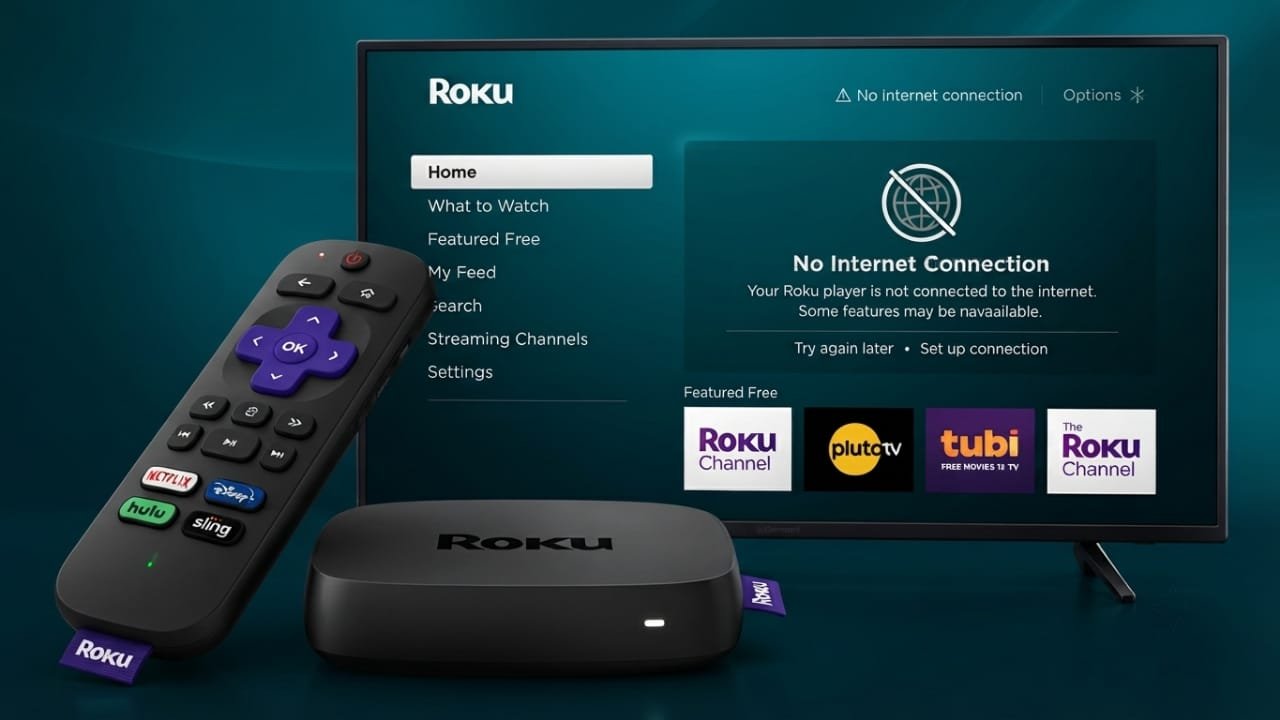
When your internet stops working, streaming services on Roku become unavailable. However, that doesn’t mean your Roku device becomes useless. There are several ways to enjoy movies, videos, music, and even live TV without an internet connection if you prepare in advance.
Advertisements
Also read: iPadOS 26 Brings Mac-Like Multitasking to iPad: Everything You Need to Know
Quick Highlights
- Play videos directly from a USB drive.
- Stream files from a computer or NAS over your local network.
- Use media server software to organize and access your offline library.
- Watch free local TV channels with a digital antenna on compatible Roku TVs.
Play Media from a USB Drive
One of the easiest ways to use Roku offline is with a USB flash drive.
Before you lose internet access, install the Roku Media Player app on your device. The app requires an internet connection only during installation. Once it’s installed, you can use it without being online.
Copy your favorite movies, TV shows, or videos to a compatible USB drive. Plug the drive into your Roku device, open Roku Media Player, select the USB drive, and choose the file you want to watch.
Most Roku TVs include one or more USB ports. Some Roku streaming boxes also support USB storage, while many Roku Streaming Sticks do not have USB ports.
Commonly Supported Video Formats
- MP4
- MOV
- M4V
- MKV
- WebM
If a video does not play, it may need to be converted into a supported format. File compatibility can vary depending on your Roku model.
It’s also a good idea to check USB compatibility. Some high-speed USB drives may not work properly with older USB ports, and certain external drives may require more power than the device can provide.
Stream Media Over Your Local Network
If your home Wi-Fi network is working, you can still stream media between devices even without internet access.
Connect your Roku and your computer or a network-attached storage (NAS) device to the same local network. Open Roku Media Player, and your shared device should appear as a media source. From there, you can browse and play your saved videos, music, and photos.
Supported storage formats generally include:
- FAT16
- FAT32
- NTFS
- EXT2
- EXT3
- exFAT
- HFS+
This method is especially useful if you have a large collection of media files, as everything stays in one place without constantly moving files to a USB drive.
Use a Media Server
A media server offers a more organized way to access your offline content.
Applications such as Plex, Emby, and Jellyfin can manage your movie and TV show library, making it easier to browse your collection. Some media servers can also convert unsupported video formats automatically, improving compatibility with different Roku devices.
For the best experience, set up your media server and upload your content before an internet outage. As long as your Roku and server remain connected to the same local network, you can continue accessing your library without an internet connection.
Many users prefer Jellyfin for fully offline use, while others may choose Plex or Emby depending on their needs and setup.
Watch Free Local TV with a Digital Antenna
If you own a Roku TV, you can connect a digital TV antenna to receive over-the-air broadcast channels.
This allows you to watch local news, sports, and other free television channels without relying on the internet. Modern digital antennas often provide better reception than older models, and the number of channels available depends on your location and signal strength.
If reception is weak, an antenna with a built-in signal amplifier may improve performance.
Also read: How to Do a Reverse Image Search on Mobile and PC
Final Thoughts
Although Roku is designed mainly for online streaming, it still offers several useful features when the internet is unavailable. By installing Roku Media Player in advance, keeping your media library ready, or connecting a digital antenna, you can continue enjoying entertainment even during unexpected internet outages.

Abhi Rajput, founder of EarnAbhi.in, is a tech lover with 6+ years of experience in SEO, digital tools, and smartphone troubleshooting. He writes simple, clear, and useful guides to help people solve real tech problems.
Advertisements