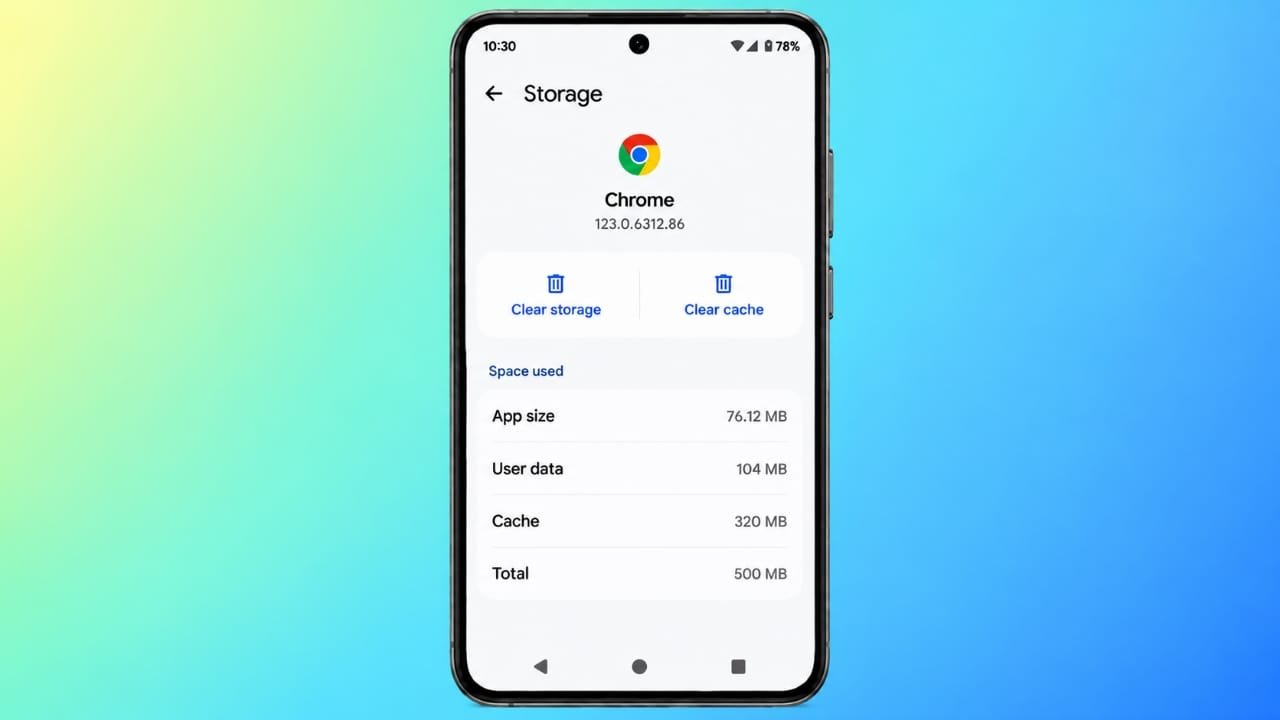
Over time, Android apps save temporary files to help them open faster and work more smoothly. While these files are useful, they continue to build up as you use your phone. If too much cache collects, it can take up valuable storage space and sometimes affect your device’s performance.
Cleaning the cache from time to time is a simple way to keep your phone running smoothly without deleting your personal files.
Advertisements
Also read: How to Enable and Use Live Captions in Windows 11
Key Points
- Clearing cache can improve your phone’s performance.
- It does not remove your photos, videos, contacts, or personal documents.
- App cache, browser cache, and system cache may all need occasional cleanup.
- Regular maintenance can help reduce storage issues and improve app stability.
What Is Cache?
Cache is a collection of temporary files created by Android and the apps you use. These files store frequently used information so apps and websites can load faster the next time you open them.
As time passes, these temporary files become larger and may no longer be useful. Removing old cache files can free up storage and solve certain performance problems.
Types of Cache on Android
App Cache
Apps save temporary data such as images, files, and other frequently used content. This helps apps load more quickly during everyday use.
Browser Cache
Your web browser stores website resources to speed up page loading. After browsing many websites, this cache can grow significantly.
System Cache
Android also creates temporary system files to support normal device operations. On some devices, parts of this cache can be cleared through built-in system tools.
Why Clear Cache?
Deleting cache removes only temporary files. Your personal data remains safe.
Clearing cache may help:
- Free up storage space.
- Improve app performance.
- Reduce app crashes or freezing.
- Remove outdated temporary files.
- Improve privacy by deleting stored browsing information.
Keep in mind that Clear Cache is different from Clear Data. Clearing data resets an app and may remove saved preferences or require you to sign in again.
How to Clear App Cache
Follow these steps to remove cache from a specific app:
- Open Settings.
- Tap Apps or Apps & Notifications.
- Select the app you want to clean.
- Open Storage or Storage & Cache.
- Tap Clear Cache.
Avoid tapping Clear Data unless you specifically want to reset the app.
How to Clear Browser Cache
If you use Google Chrome, you can remove stored website files by following these steps:
- Open Google Chrome.
- Tap the three-dot menu.
- Go to History or Privacy Settings.
- Select Clear Browsing Data.
- Choose Cached Images and Files.
- Pick the time range you prefer.
- Tap Clear Data.
Choosing All Time removes all cached website files. If you also clear cookies, some websites may ask you to sign in again.
Clearing System Cache
Some Android devices include an option to clear certain system cache files. The exact method depends on your phone’s manufacturer and Android version.
If your device offers this feature, carefully follow the instructions provided by your device manufacturer. This process usually removes temporary system files without affecting your personal data.
Useful Maintenance Tips
To keep your Android device running efficiently:
- Clear cache every few months.
- Clean cache sooner if storage space becomes low.
- Remove old cache after major Android updates if needed.
- Check which apps use the most storage.
- Include cache cleanup when troubleshooting app problems.
- Use only trusted device maintenance or cleanup tools.
Many phone manufacturers also provide built-in storage management features that can help remove unnecessary temporary files safely.
Also read: How to Hide Apps on Your iPad: Simple Ways to Keep Your Home Screen Organized
Final Thoughts
Cache plays an important role in making apps and websites load faster, but it does not need to be kept forever. Removing outdated temporary files every so often can free up storage, improve performance, and help resolve minor app issues.
Regular cache cleanup is a simple maintenance habit that helps keep your Android device running smoothly while keeping your personal files safe.

Abhi Rajput, founder of EarnAbhi.in, is a tech lover with 6+ years of experience in SEO, digital tools, and smartphone troubleshooting. He writes simple, clear, and useful guides to help people solve real tech problems.