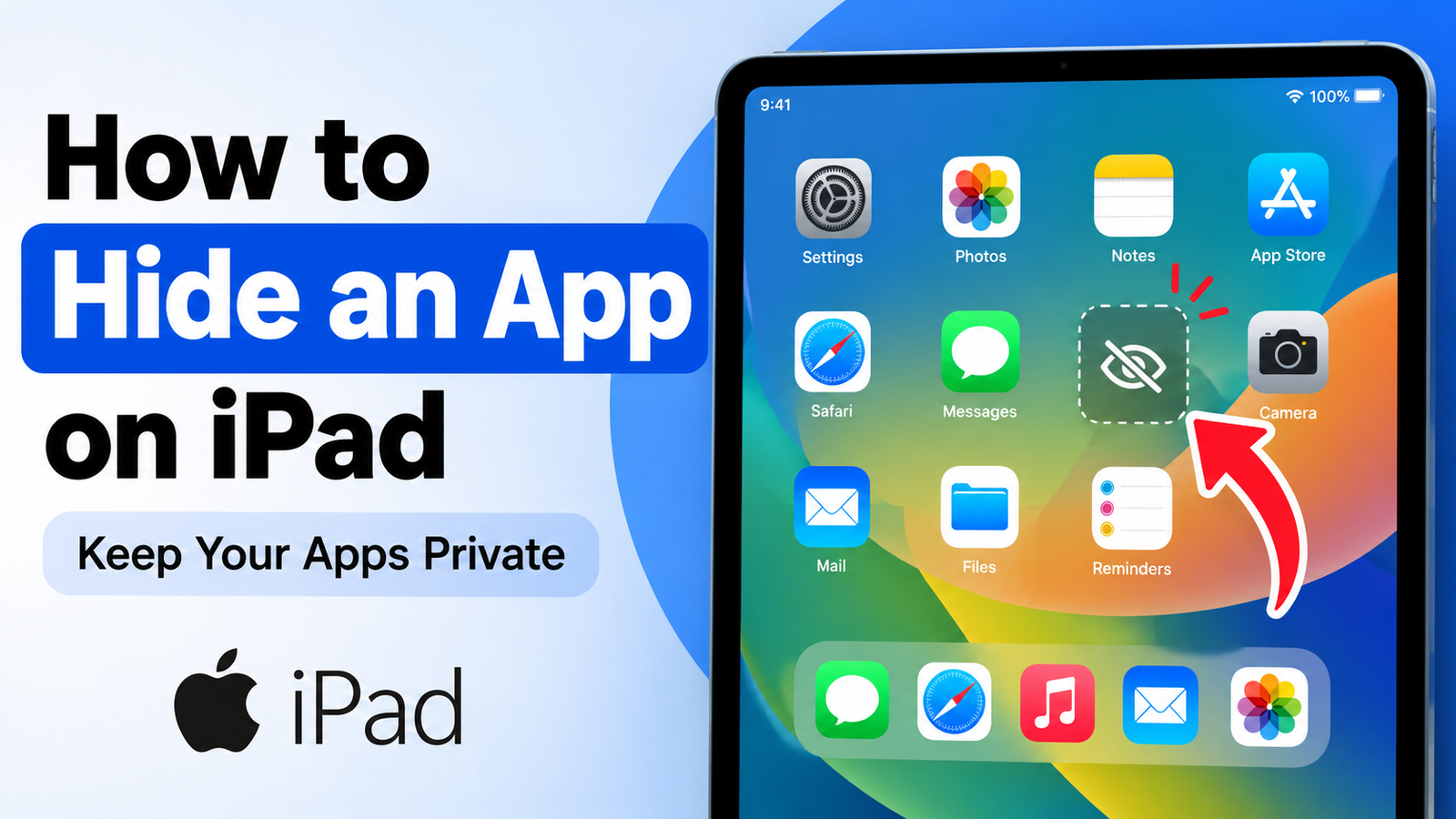
Keeping your iPad neat and organized is easy, especially if you have apps that you rarely use. Whether it’s a work app, a shopping app, a game, or any app you don’t want visible all the time, iPad offers several built-in ways to keep it out of sight without deleting it.
You don’t need to install extra software or change complicated settings. You can remove an app from the Home Screen, use the App Library, hide entire Home Screen pages, or use Screen Time for additional privacy.
Advertisements
This guide explains the easiest methods step by step.
Also read: How to Connect and Use an External Webcam with Your iPad
Quick Overview
- Touch and hold the app you want to hide.
- Tap Remove App.
- Select Remove from Home Screen.
- Open the app later from the App Library.
- For extra privacy, use Screen Time to limit access or manage app visibility.
Method 1: Remove an App from the Home Screen
This is the fastest and most common way to hide an app without uninstalling it.
Step 1: Press and Hold the App
Find the app you want to hide, then press and hold its icon until a menu appears.
If the apps begin to wiggle, that’s perfectly normal—you can continue from there.
Step 2: Select “Remove App”
Tap Remove App from the menu.
You’ll see options to either delete the app or remove it from the Home Screen.
Step 3: Choose “Remove from Home Screen”
Tap Remove from Home Screen.
The app icon disappears from your Home Screen, but the app remains installed on your iPad. You can still use it whenever you need it.
Step 4: Open the App from the App Library
Swipe left across your Home Screen until you reach the App Library.
Locate the app and tap it to open it. If you want it back on the Home Screen later, press and hold the app in the App Library, then choose Add to Home Screen.
Step 5: Find the App Using Search
You can also swipe down on the Home Screen and type the app’s name into Search.
If it appears in the results, it simply means the app is hidden from the Home Screen—not removed from your iPad.
Other Ways to Hide or Organize Apps
Depending on your needs, one of these options may work even better.
Hide an Entire Home Screen Page
If several apps are grouped together, you can hide the whole page.
- Touch and hold an empty space on the Home Screen.
- Tap the page indicator dots near the bottom.
- Uncheck the page you want to hide.
- Tap Done.
This is a quick way to reduce clutter without moving apps one by one.
Place Apps Inside a Folder
Folders don’t completely hide apps, but they make them less noticeable.
- Press and hold an app.
- Drag it onto another app to create a folder.
- Move the app to another page inside the folder if you want it even less visible.
Delete an App
If you no longer need an app, removing it completely may be the better option.
- Press and hold the app.
- Tap Remove App.
- Choose Delete App.
Deleting an app removes it from your device. Depending on the app, some information may still be available through your account or cloud backup.
Use Screen Time for More Privacy
If you want to limit access to certain apps, Screen Time can help.
- Open Settings.
- Tap Screen Time.
- Set app limits or use content restrictions based on your needs.
This method is useful for parental controls or reducing distractions.
Built-in Apple Apps
Many Apple apps can be removed from the Home Screen, although not all of them can be completely deleted.
Apps such as Mail, Maps, or Notes can often stay in the App Library while remaining hidden from your main Home Screen.
Frequently Asked Questions
Does hiding an app remove it from my iPad?
No. Choosing Remove from Home Screen only hides the icon. The app remains installed and can still be opened from the App Library or Search.
Can I make an app completely invisible?
Not entirely. Hidden apps may still appear in the App Library or Search unless additional restrictions are applied.
How can I restore a hidden app?
Open the App Library, press and hold the app, and select Add to Home Screen.
Helpful Tips
- Remove apps from the Home Screen instead of deleting them if you still use them occasionally.
- Turn off notifications for apps you want to keep more private.
- Use the App Library to access apps that aren’t on your Home Screen.
- Keep frequently used apps on your first Home Screen page for quicker access.
- Combine app hiding with Screen Time if multiple people use your iPad.
- Remember that hiding an app icon does not prevent it from appearing in Search unless you adjust additional settings.
Also read: How to Get Back Deleted Photos on iPhone or iPad (6 Simple Fixes)
Final Thoughts
Hiding apps on an iPad is a quick and convenient way to keep your Home Screen clean and organized. For most users, removing an app from the Home Screen provides the perfect balance between easy access and a clutter-free layout.
If you need more privacy, you can combine this method with folders, notification settings, or Screen Time controls. Since these changes are easy to reverse, you can organize your iPad however you like without permanently removing your apps.

Abhi Rajput, founder of EarnAbhi.in, is a tech lover with 6+ years of experience in SEO, digital tools, and smartphone troubleshooting. He writes simple, clear, and useful guides to help people solve real tech problems.